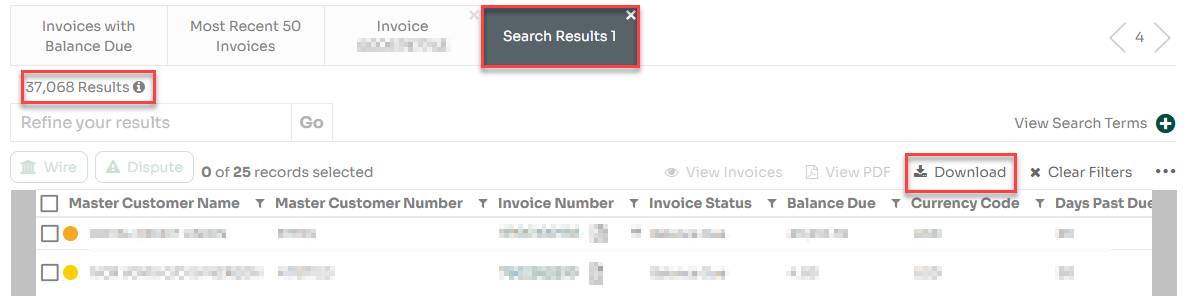
In the portal, the invoice feature is available to all Customer Admins. Admins can enable invoice access for users during new user creation or from a user’s profile page.
The Invoices page provides multiple tools for searching, filtering, and managing invoices. The image below shows the interface with numbered features.
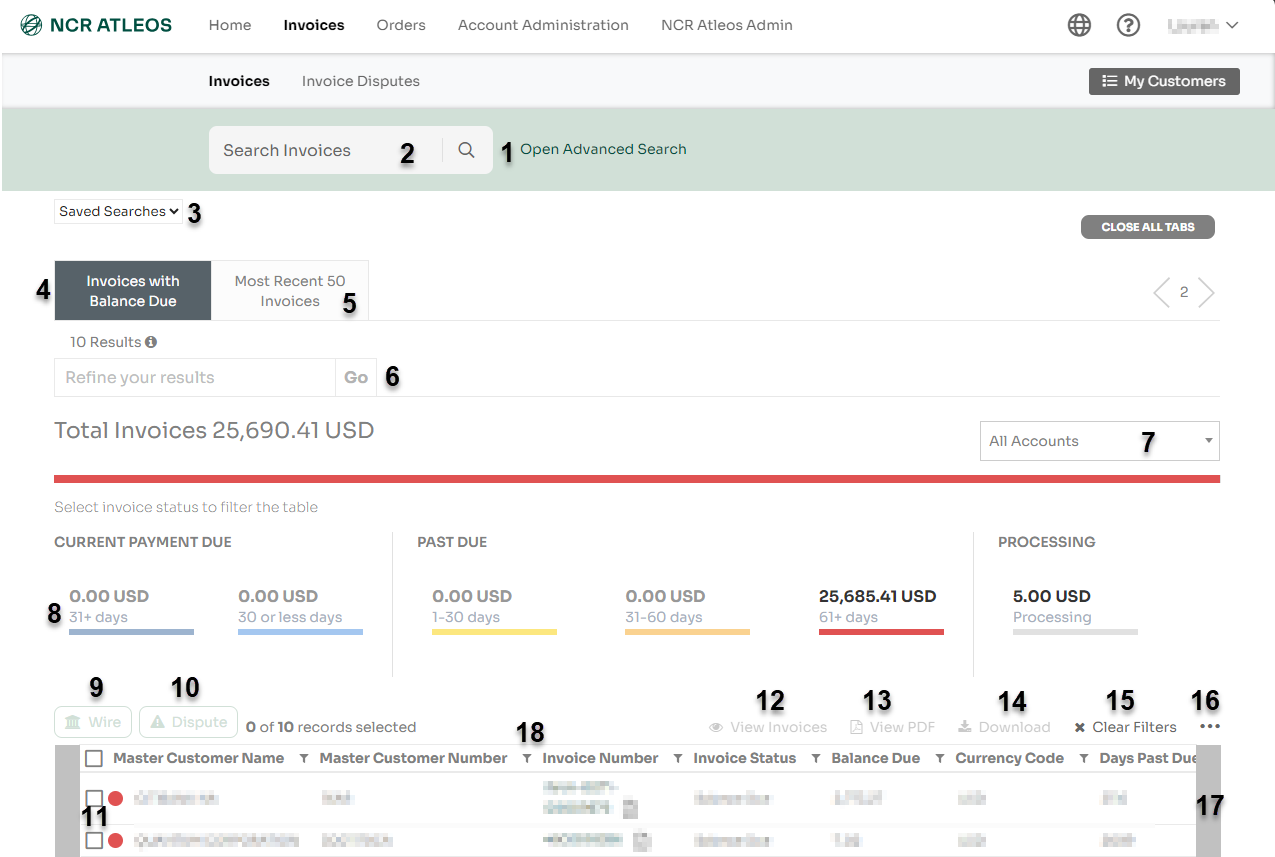
| 1. Advanced Search: Drop-down for detailed search options. | 2. Basic Search: Quick search across all invoice fields. |
| 3. Saved Searches: Access your saved advanced searches. | 4. Invoices with Balance Due: Shows invoices with unpaid amounts. |
| 5. Most Recent 50: Displays the latest 50 invoices (default view). | 6. Refine Results: Narrow down search results further. |
| 7. All Accounts: Choose which account’s invoices to view. | 8. Legend: Shows invoice statuses and lets you filter by them. |
| 9. Wire Transfer: Submit wire transfer details. | 10. Dispute: Begin a dispute process for an invoice. |
| 11. Invoice Selection: Checkboxes to select invoices. | 12. View Invoice: View selected invoices in-app. |
| 13. View PDF: Open invoice(s) as PDFs. | 14. Download: Export results as Excel, CSV, or text. |
| 15. Clear Filters: Reset all active filters. | 16. More Options: Customize table columns, refresh, or save searches. |
| 17. Scroll Bars: Scroll horizontally across the table. | 18. Filter Column: Filter each column by selected value. |
To view a particular invoice, follow these steps:
1. Go to the Manage Invoices page via the Invoices portlet or the top tab.
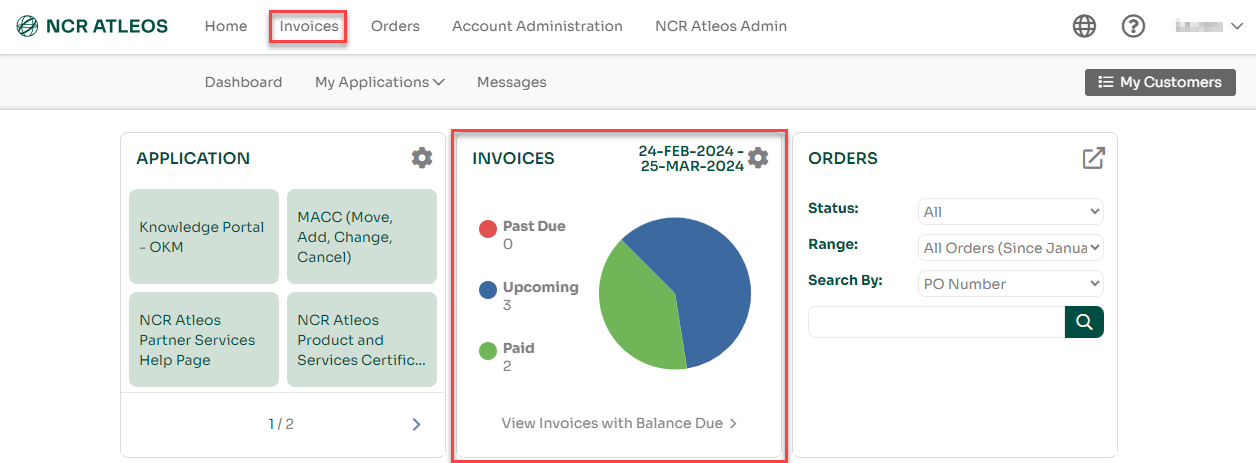
2. Find the invoice number under the "Invoice Number" column and click on it.

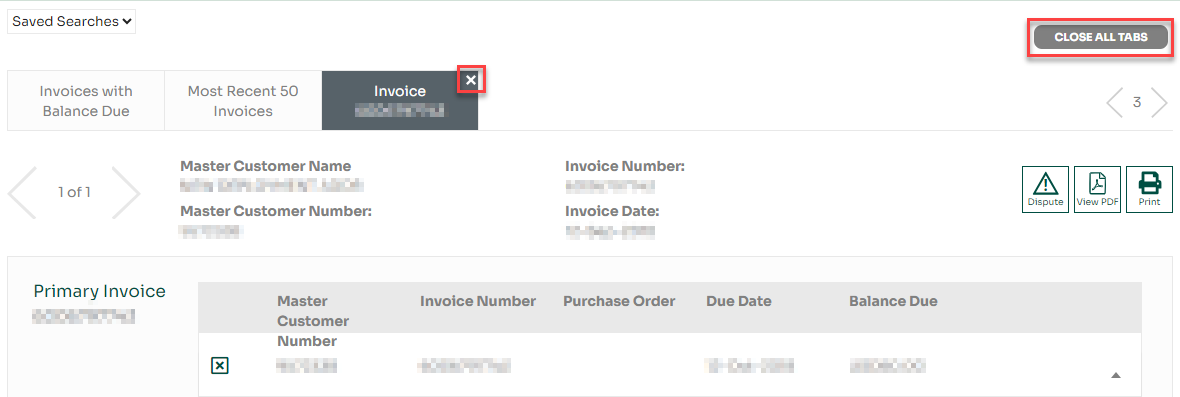
3. A new tab will open with a preview of the invoice. You can also dispute it, view it as a PDF, or print it from this screen.
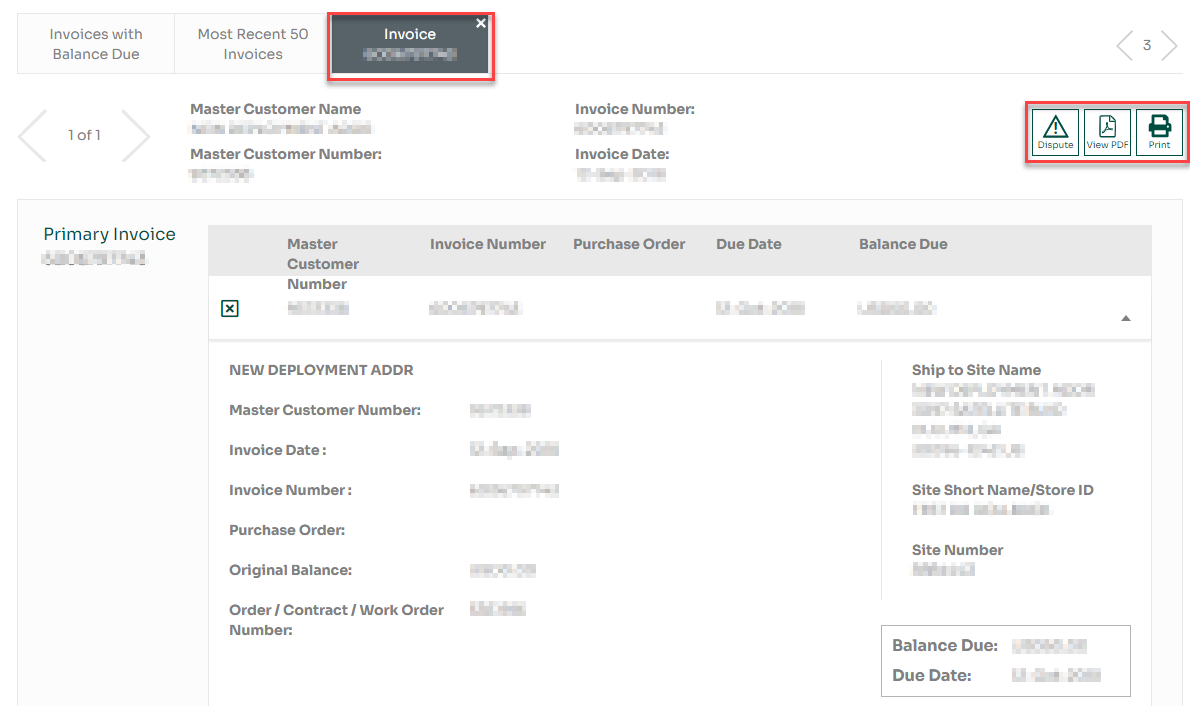
4. When finished, close the tab using the “x” or use the “Close All Tabs” button.
Use Advanced Search to customize your invoice search:
1. On the Invoice page, click “Open Advanced Search” to reveal additional fields.
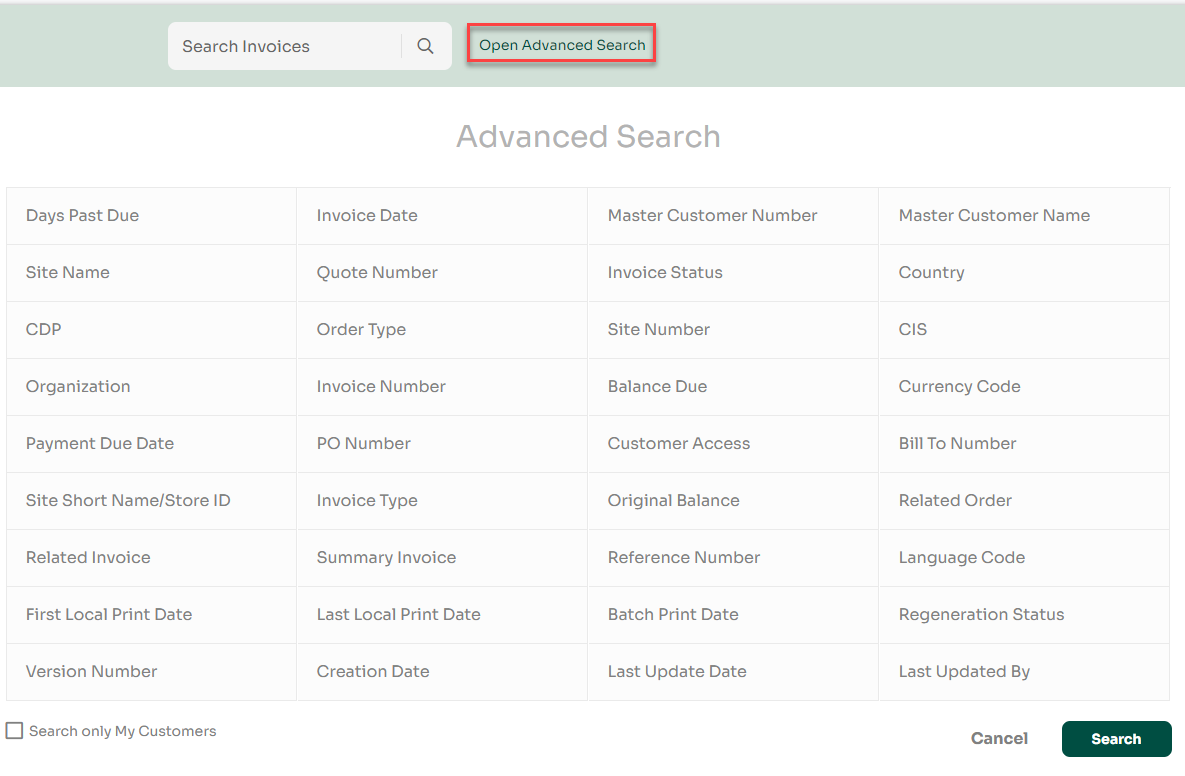
2. Select one or more fields to define your criteria. For example, choose “Invoice Status,” enter the value, and click “Search.”
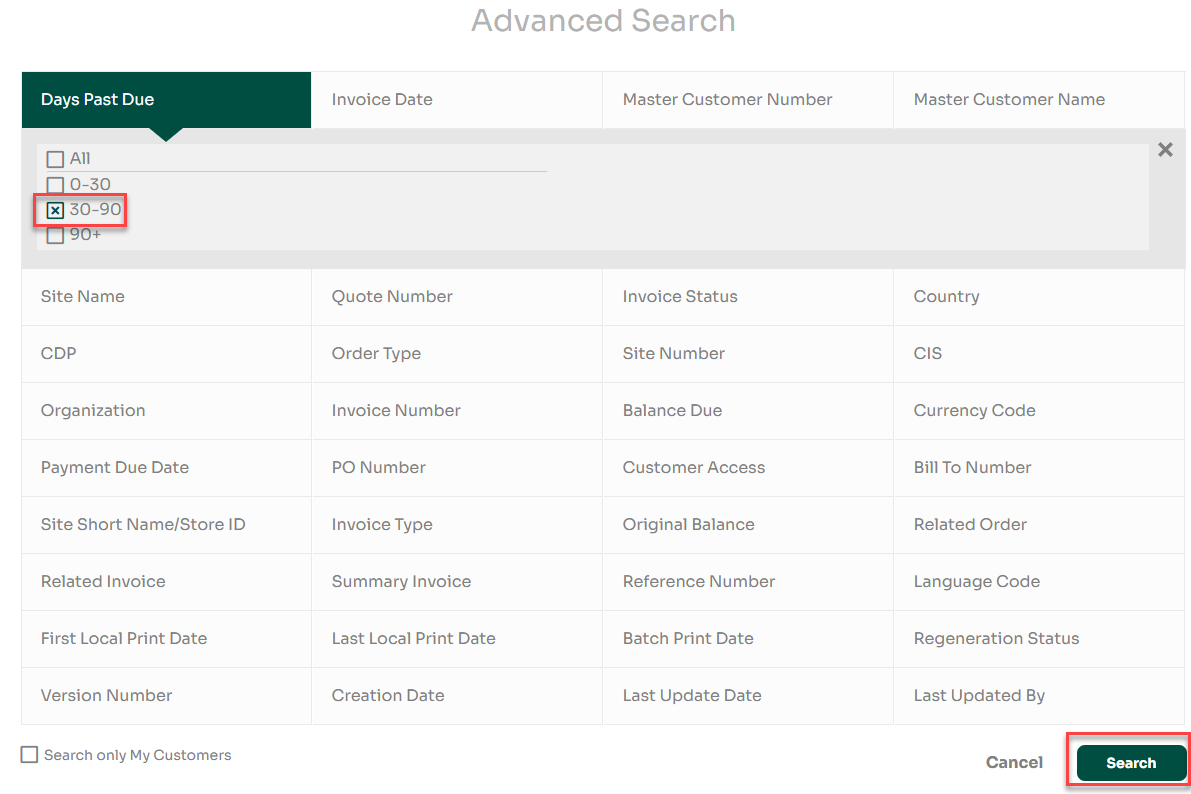
3. Your results will appear in a new tab. You can also download the results or save the search for later use.