Getting Started Guide
The Portal - A secure customer portal empowering you to transact with NCR Atleos anytime, anywhere.
Introduction to the Portal
The portal is a comprehensive customer portal designed to empower you to transact with NCR Atleos anytime and anywhere. This central interface provides access to real-time information, robust reporting capabilities, and account management features that streamline your business operations with NCR Atleos.
The portal serves as a one-stop shop for managing your NCR Atleos accounts, offering a centralized access point where you can view account information, generate reports, and utilize self-service features. By providing immediate access to these tools, the portal significantly reduces cycle time and promotes faster turnaround for your business needs.
Core Benefits
The portal delivers three primary advantages to users:
Instant access to account information- The portal allows you to access and manage all your NCR Atleos accounts in one place. You can search, download, view, and print invoices and order details, manage service requests, and access relevant business applications directly through the portal.
One-Stop-Shop experience- The portal provides a centralized access point for managing business operations with NCR Atleos, including real-time account information, comprehensive reporting capabilities, and convenient self-service features.
Reduced cycle time- The portal empowers you with immediate access to account information, reporting tools, and self-service features that promote faster turnaround. You can view account details, place service requests, and submit invoice disputes at any time, enhancing your operational efficiency.
The Portal Capabilities & Functionalities
The portal offers extensive functionality across several key areas:
Invoice Management- From the the portal dashboard, you can view and control an interactive pie chart display of paid, past due, and upcoming invoices. The portal Invoice page allows you to search, view, download, print, or dispute invoices online.
- Invoice Dispute Management
- The dashboard provides quick status updates of disputes that are open or awaiting your feedback. The portal Invoice Dispute page offers summary details on all invoice disputes.
- Order Reporting Management
- The portal Orders page enables you to search, view, download, and print order reports. You can access specific orders to view product details, status, and shipping information.
- Assets Management Access
- With approved access to NCR's Asset Management site (MACC), you can view the status of entitlements, annuities, and warranties, as well as navigate to the MACC site to manage NCR assets.
Incident Management Access- The portal provides a gateway to NCR Atleos's online system for managing incidents and service requests. With approved access to My Support Link, you can view, create, and manage service requests, access the knowledge repository, and more, depending on your line of business.
- NCR Atleos Applications Access
- Access all your NCR Atleos applications in one place with the portal Applications portlet. This feature navigates you to all your approved NCR Atleos business-relevant applications with a single click.
Self-Management of Users- The portal offers two different user roles that allow companies to manage their own users, including adding new users, resetting passwords, deleting users, and managing users' access and permission to information.
Key Features
- User Interface
- Modern, interactive design
- Embedded training, help, and support - Account & Information Access
- Access to real-time account information
- Invoice and order reporting capabilities
- View, download, print reports for invoices and orders - Management Tools
- Submit invoice disputes, access dispute and dispute summary details
- Gateway to Asset and Incident Management (My Support Link)
- Navigation to a collection of NCR Atleos applications - User Administration
- User role designation: Admin or User
- User role permission settings
- Self-Management of users for Admin: create new users, delete users, reset passwords, manage user permissions
The Portal Overview
The portal serves as a central interface that empowers customers to transact with NCR Atleos at their convenience. With access to real-time information, reporting tools, and account management features, portal simplifies doing business with NCR Atleos.
The portal enables customers to:
- View, Download, and Print Invoices and Orders
- Electronically Dispute Invoices
- Submit and View Service Requests
- View Status of Assets on Maintenance
- Access Business-Relevant NCR Atleos Applications in a Centralized Location
- Self-Manage Users
Portal User Roles
Portal Customer Administrator
Portal requires at least one designated Customer Administrator who has access to all Portal features at the enterprise level and is responsible for:
- Managing the company profile
- Creating and managing customer users
- Requesting application access
Portal Customer User
The Portal Customer User is a general user who can view, manage, and interact with Portal depending upon user permissions granted by the Customer Administrator.
Portal Dashboard
The Portal Dashboard serves as the homepage of the portal and consists of:
- NCR Atleos Brand Block
Provides access to the Portal homepage at any time - Portlet Boxes
Interactive, rearrangeable information boxes - Navigation Bar
Alternative access to portlet pages - Customer Name
Access to profile settings - Toolbar
Access to quick functions - Portlet Gear
Displays settings available for select portlets - Portlet Expand
Displays drop-down views for select portlets
- Portlet Page Access
Navigates to portlet page for select portlets
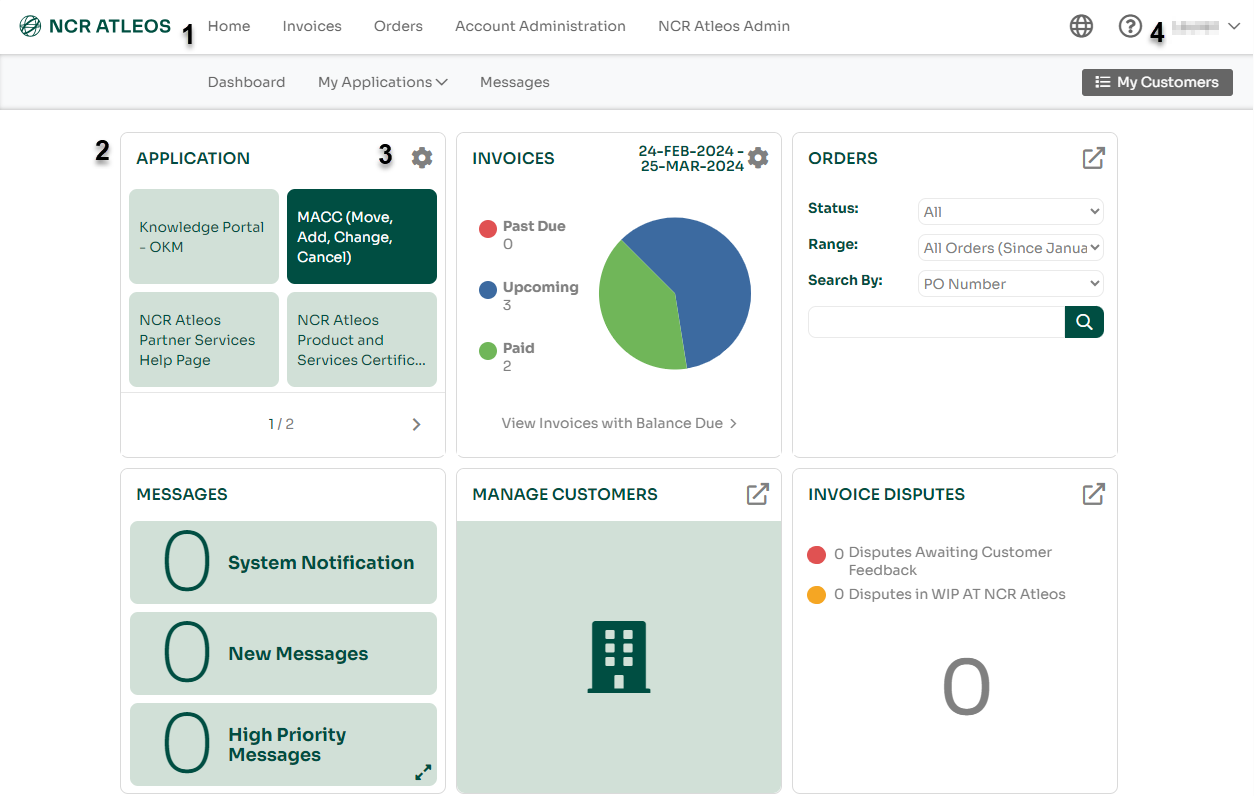
Dashboard Components
- Toolbar
The toolbar is available on all pages and offers quick functions like page tutorials, saving customized pages, providing help, and accessing customers. - Portlets
These interactive, rearrangeable boxes on your dashboard help you navigate to different areas of Portal. Available portlets include Manage Customers, Manage Users, Messages, Invoices, and Application. - Settings
Several portlets feature a gear icon that offers access to different options within the portlet. For example, in the Invoices portlet, the gear allows you to select the date range displayed on the pie chart. - Profile
This identifies you as the user. Clicking on your name takes you to your profile page, which displays information unique to you such as username, role, and email, as well as showing the customers you are linked to and the applications you have access to.
Portal Searches
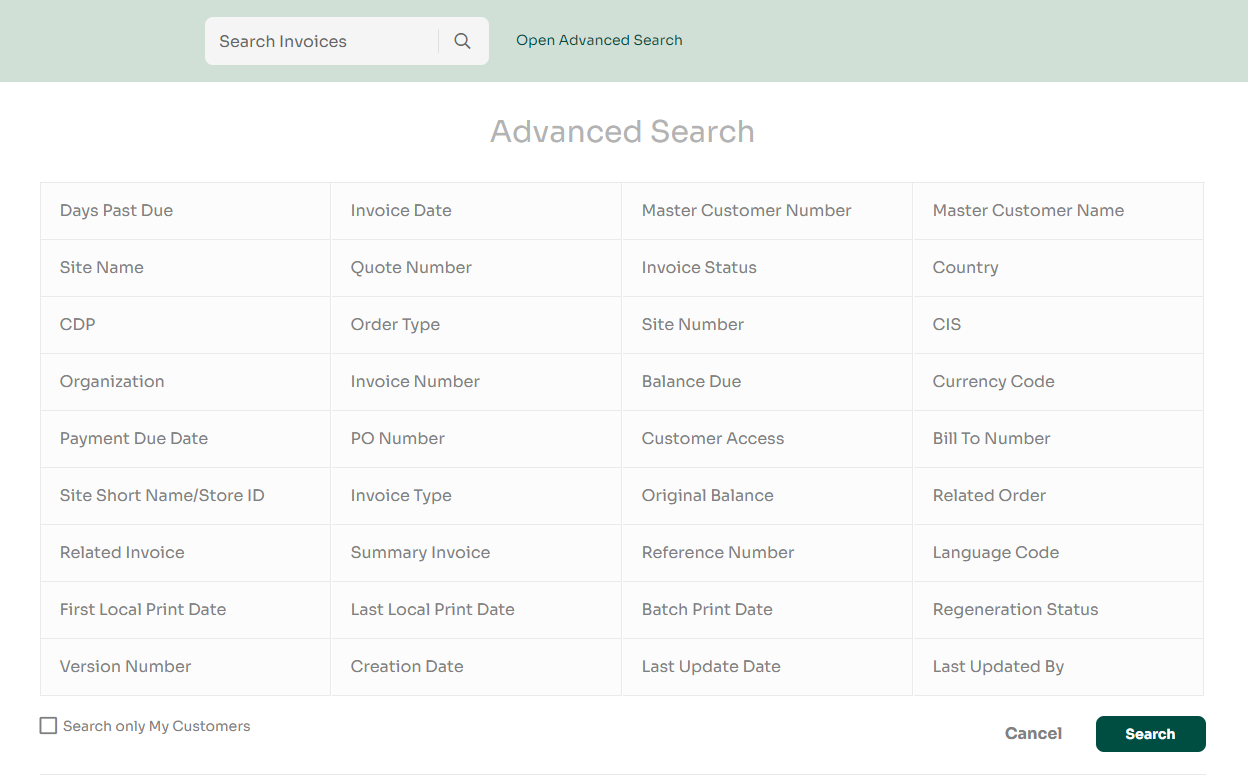
Select portlet pages allow basic and advanced search options, as well as features to customize and filter search results. Search criteria can also be saved for quick access to specified search terms.
Perform a Search
- Basic Search: General search across all search terms.
- Advanced Search: Click to access advanced search terms.
- Select and Search: Select term and enter criteria to search.
- Advanced Search Terms: Display of advanced search terms.
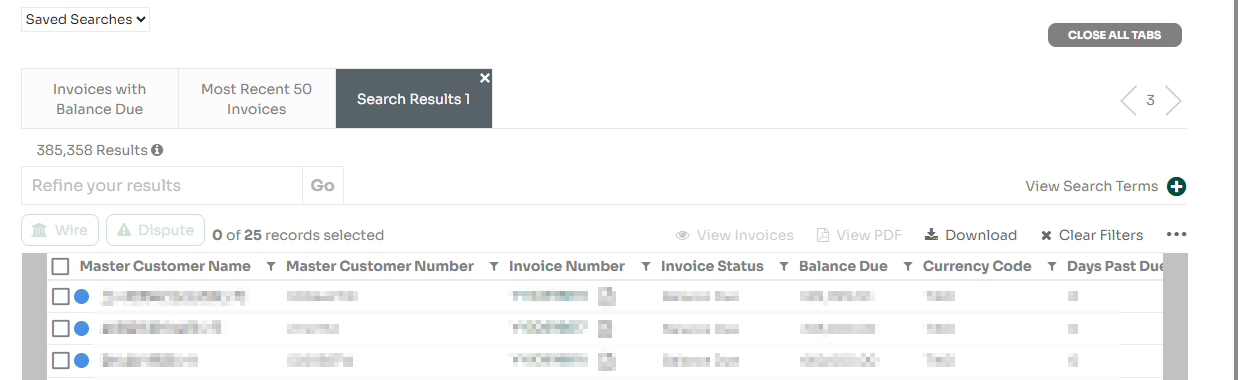
Search Results
- Saved Search: Saved searches will display here
- Filters: Each column can be filtered to narrow results
- Search Terms: View advanced search terms
- Refine Results: Add additional search refining criteria
Portal Terminology and Icons
Throughout the portal, there are key terms and icons used to navigate users to information, functions, and features.
Terminology
| Applications |
These are tools or resources related to your business with NCR Atleos. Not everyone needs them—they're optional and based on your role or business needs. |
| Customers |
This refers to NCR Atleos account holders. Each customer is part of a larger structure like an entity or enterprise. One enterprise can include multiple entities, each with its own customers. |
| Enterprise |
The top-level identifier for a company—basically the company as a whole. |
| Entity |
A group within a company, often made up of several customers or divisions. Depending on how the company is organized, there might be one or many entities within an enterprise. |
| Linked |
When your account is connected to a specific customer, entity, or enterprise, you’ll be able to see and access related info. Your access level (customer, entity, or enterprise) depends on your role and is managed by a Customer Administrator. |
| Unlinked |
If your account isn't connected to any customer, entity, or enterprise, you won’t have access to related information. This can be updated by a Customer Administrator. |
All Pages

|
MY CUSTOMERS
Opens a menu listing all customers linked to the user account.
|

|
LANGUAGES
Displays a list of available languages so users can set their preferred language.
|

|
SAVE CUSTOMIZED PAGE
Saves any layout or content changes made for future use.
|

|
HELP
Opens links to the Training Center and NCR support contact info.
|
Dashboard

|
SIGN OUT
Logs the user out of the portal.
|

|
EXPAND
Opens a dropdown to quickly view the portlet.
|

|
GO TO PORTLET
Takes the user to the full portlet page.
|

|
SETTINGS
Shows available configuration options for a portlet.
|
Portlet

|
SEARCH
Finds content in the portlet based on entered keywords.
|

|
ADD/REMOVE COLUMNS
Customize which columns appear in the search results.
|

|
DOWNLOAD
Export the current search results.
|

|
ENABLE USER
Grants a user access to the portal.
|

|
DISABLE USER
Removes a user's access to the portal.
|

|
DELETE MESSAGE
Removes a message from the Messages portlet.
|

|
ADVANCED SEARCH
Search using multiple filters for precise results.
|

|
CLONE USER
Duplicates a user’s configuration to create a similar user.
|

|
CLOSE ALL TABS
Closes all open tabs at once.
|

|
CLEAR ALL FILTERS
Removes all active filters from the column view.
|

|
FILTER
Sorts data by the selected field.
|

|
REFRESH
Reloads the most recent data in the portlet.
|

|
VIEW INVOICES
Opens the selected invoices for viewing.
|