MyNCR Portlets Guide
Portlets
Portlets are small, interactive boxes on your portal dashboard that display relevant data or offer functionality depending on your access.
Portlet Functions
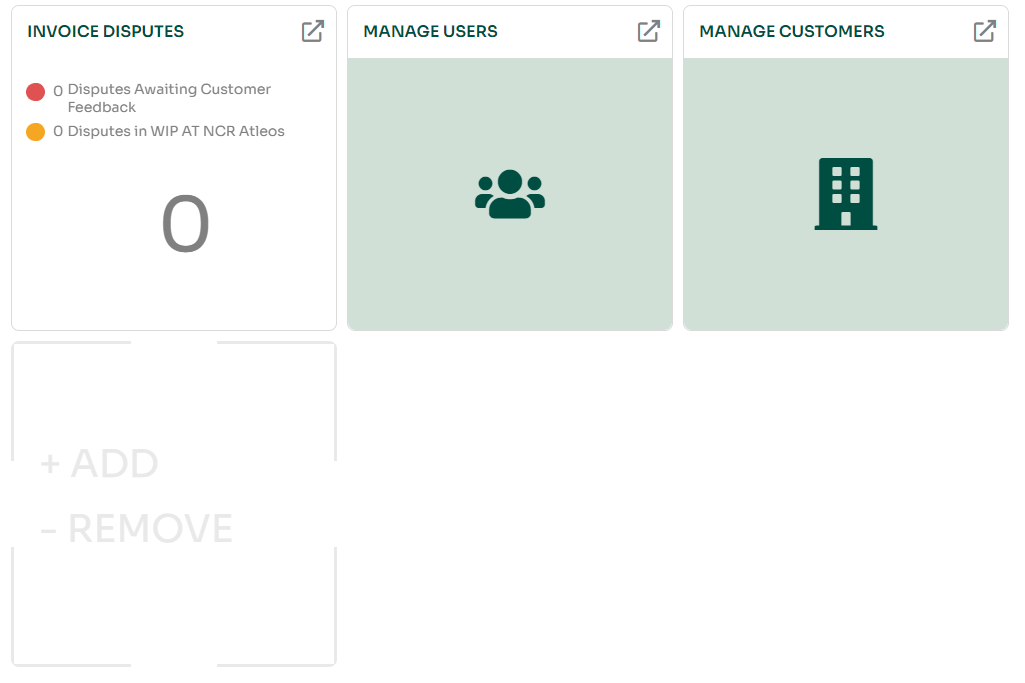
Manage Customers Portlet
This portlet provides access to all the customers you're linked to. You can:
- Search for customers
- View customer profiles
- (Admins only) Link users to a customer
- View users associated with a customer
- (Admins only) Create groups and assign permissions
- View applications assigned to a customer

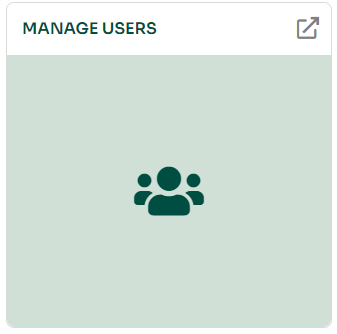
Manage Users Portlet
This portlet lets you view all users within your organization. You can:
- (Admins only) Create new users
- View user profiles
- Download user information
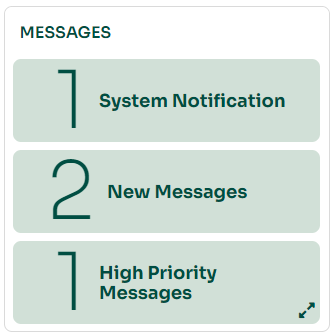
Messages Portlet
This shows messages from an administrator—usually when an application is requested and a portal Administrator responds. Outage notices, new features, and enhancements will now appear in a pop-up at login. Users can dismiss notifications, but they will be archived in the Messages Portlet for future reference.
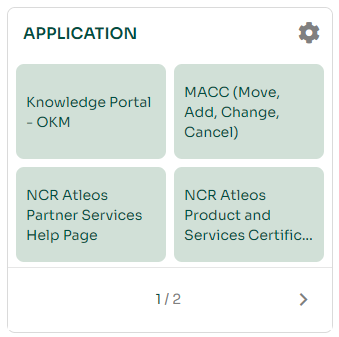
Applications Portlet
Displays up to 6 applications per page that you have access to. To customize what’s shown:
- Click the gear icon to select which applications to display
- Click any application name in the portlet to access it
Disputes Portlet
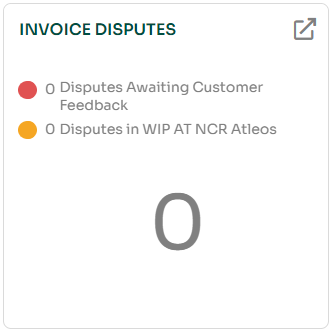
This portlet provides quick visibility into disputed invoices:
- Red: Disputes awaiting customer feedback
- Yellow: Disputes currently being worked
- Click the pie chart or the icon to open the "Invoice Disputes" page
Orders Portlet
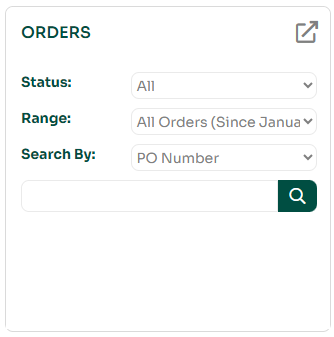
Shows your 50 most recent orders with line-level detail. Features include:
- Order numbers are clickable to view order details
- Download order header details using the download icon
- Download order line details using the download icon
- Use the search bar to refine results
- Advanced search is also available
Invoices Portlet
Allows users with invoice access to view, print, and download invoices. Shows data for paid, past due, and upcoming invoices. Features:
- Change portlet settings by clicking the gear icon
- Click any color in the pie chart to filter by category
- Click the white space to go to the full invoices page
- Click the "Invoices with Balance Due" button for a filtered view

Adding/Removing Portlets from the Dashboard
Adding Portlets
Here’s how to add the "Manage Customers" portlet to your dashboard:
- On your dashboard, click the "Add/Remove Portlet" button.
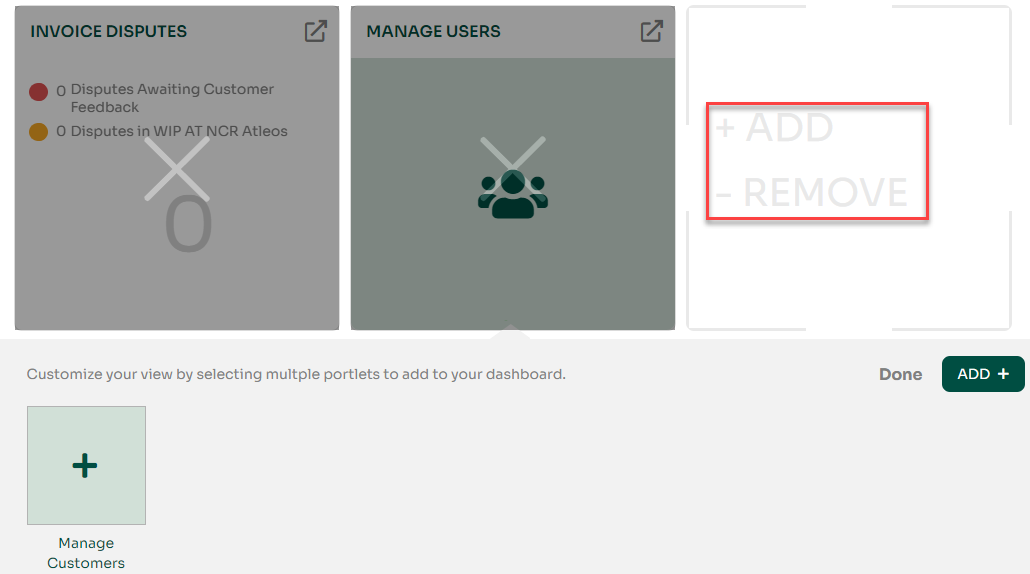
- In the Add/Remove Portlet menu, click the “+” next to Manage Customers. Then click “Add +” to add it to your dashboard.
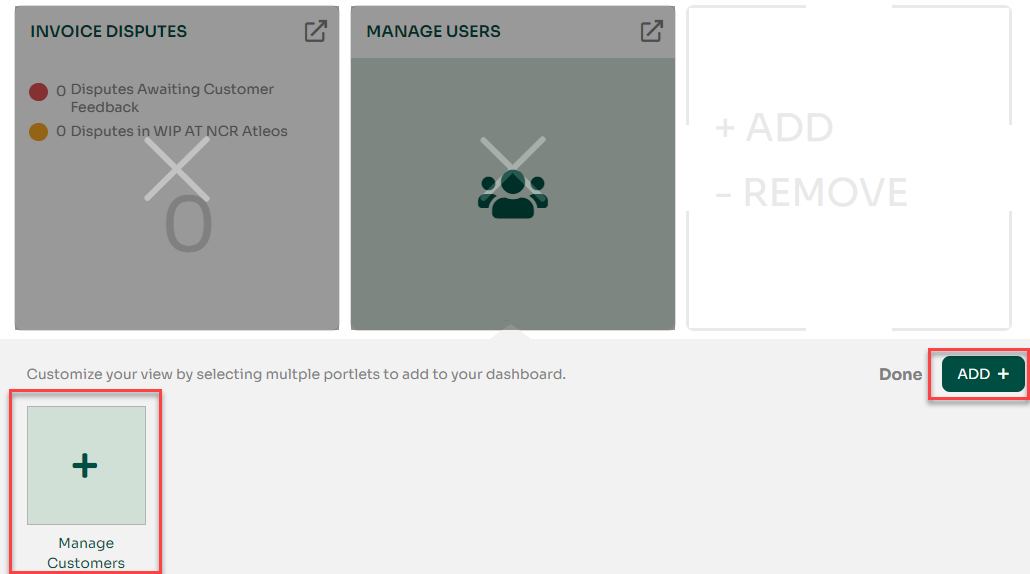
- Make sure you now see the Manage Customers portlet on your dashboard.
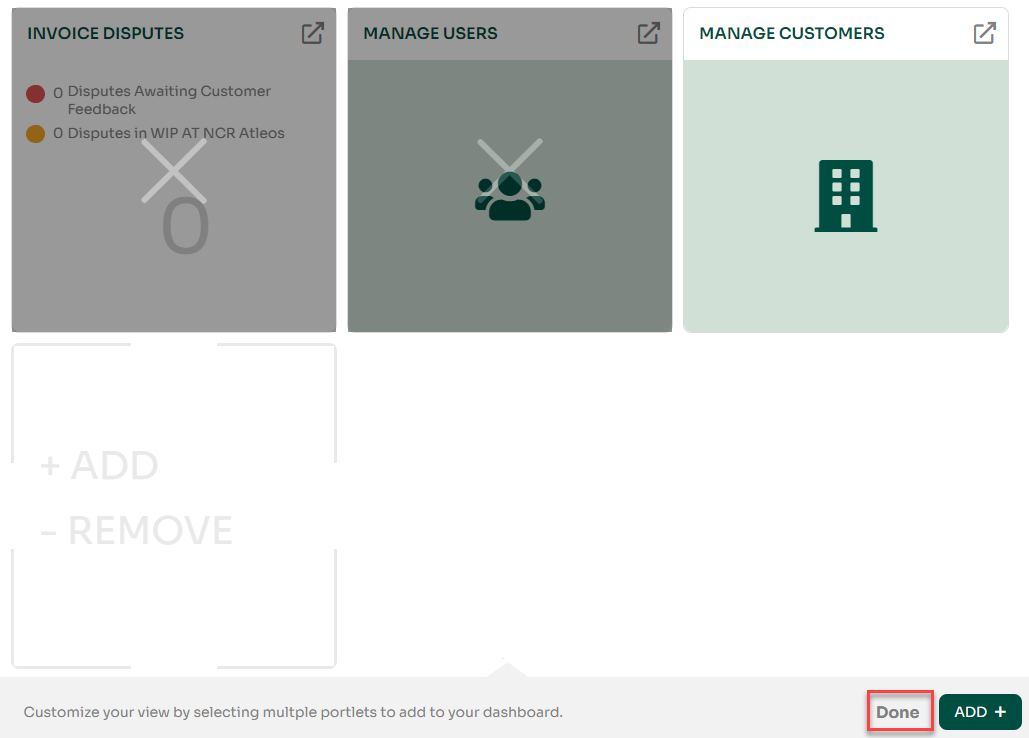
- Click the “Done” button in the Add/Remove Portlet menu.
The Manage Customers portlet will now be visible on your dashboard.