
See below for frequently asked questions regarding account set up, credentials, and applications.
The MyNCR platform now uses Multi-Factor Authentication (MFA) for enhanced security. Login now requires your email address — usernames are no longer supported. A full PDF guide with screenshots for the new MFA-based login process is available here: View MFA Login Process PDF
This section applies to users who have been recently registered in MyNCR but are signing in for the first time and have not yet set a password or MFA method.
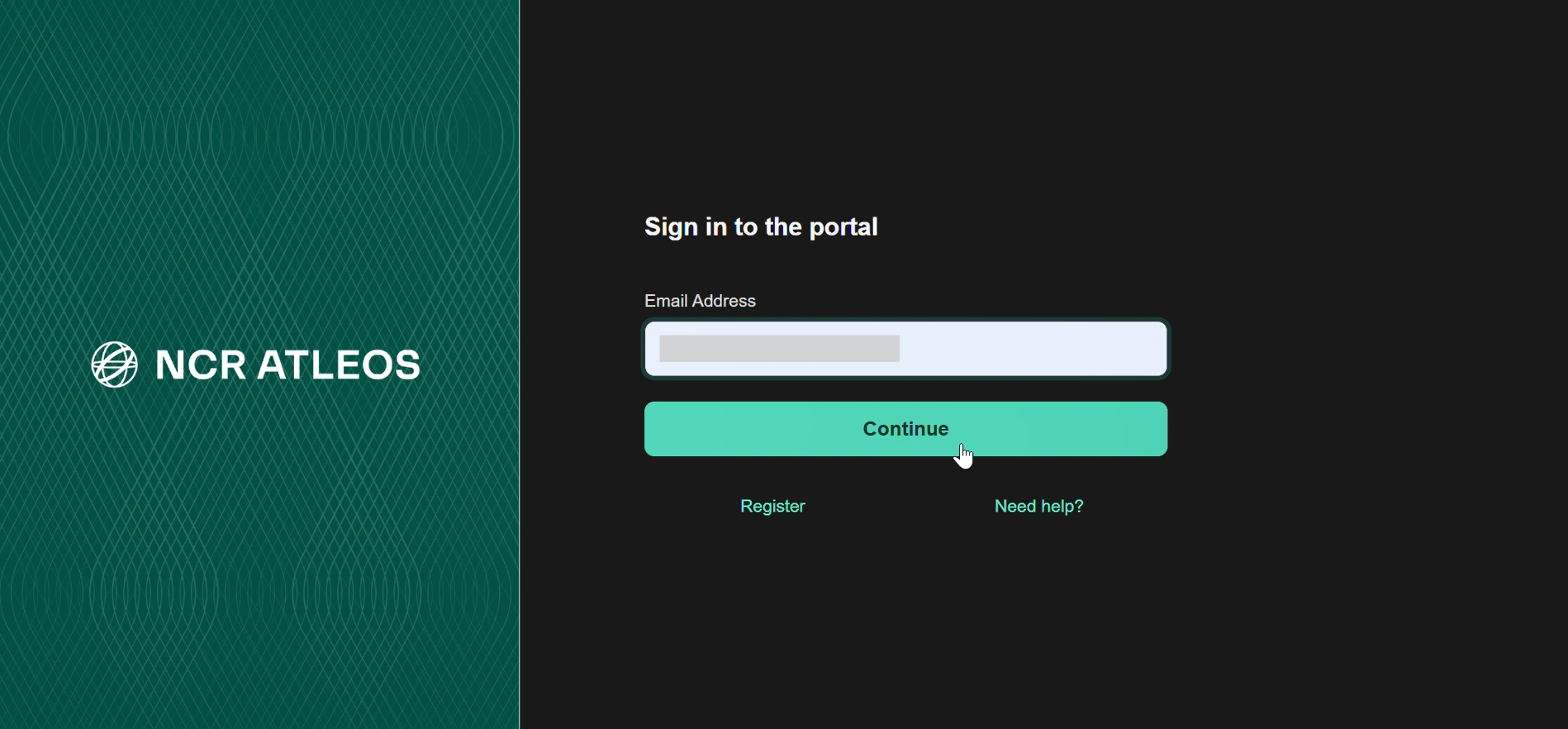
Go to the MyNCR Login Page and enter the email address associated with your account. At this stage, no password is required yet.
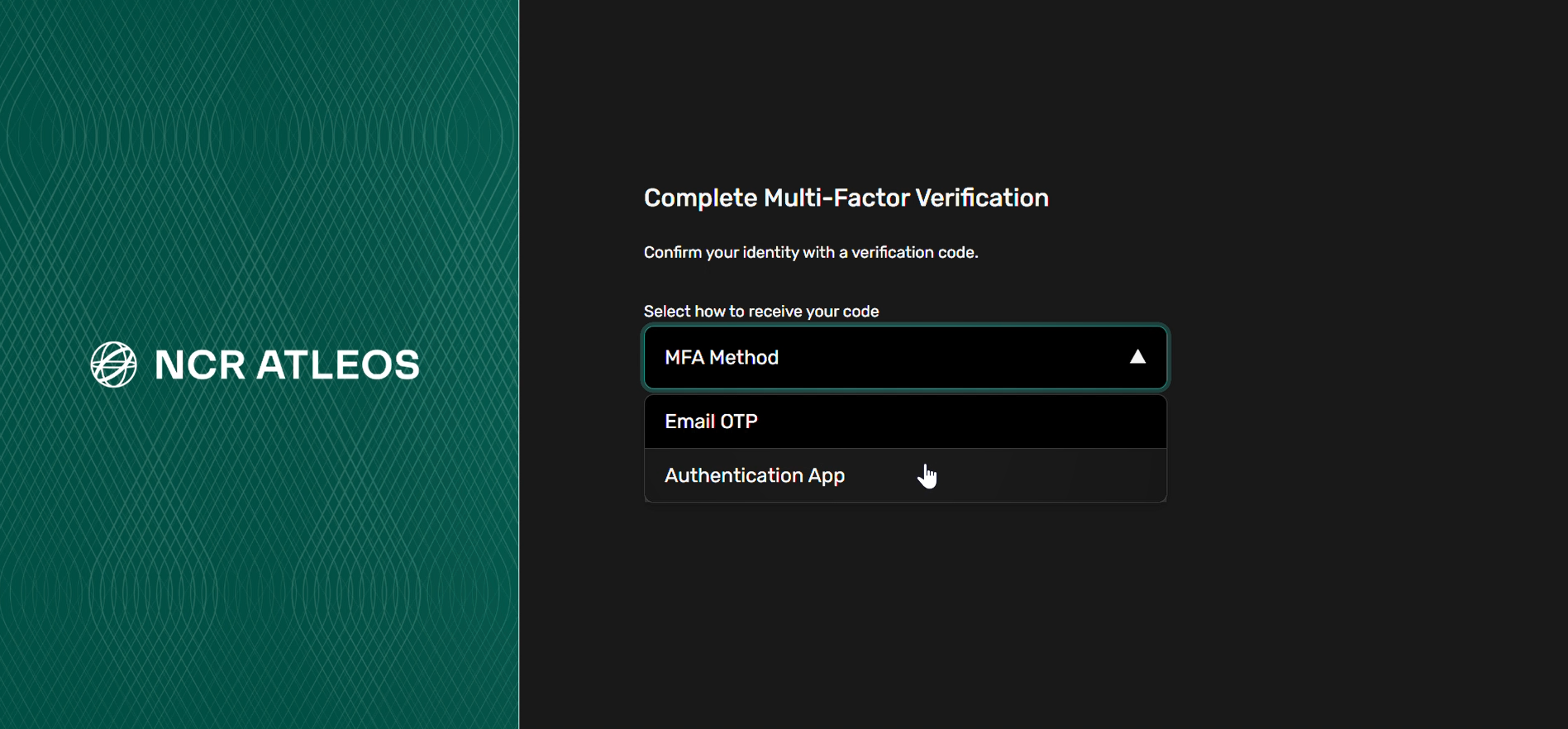
After entering your email, you will be prompted to complete Multi-Factor Verification. From the dropdown, choose one of the following:
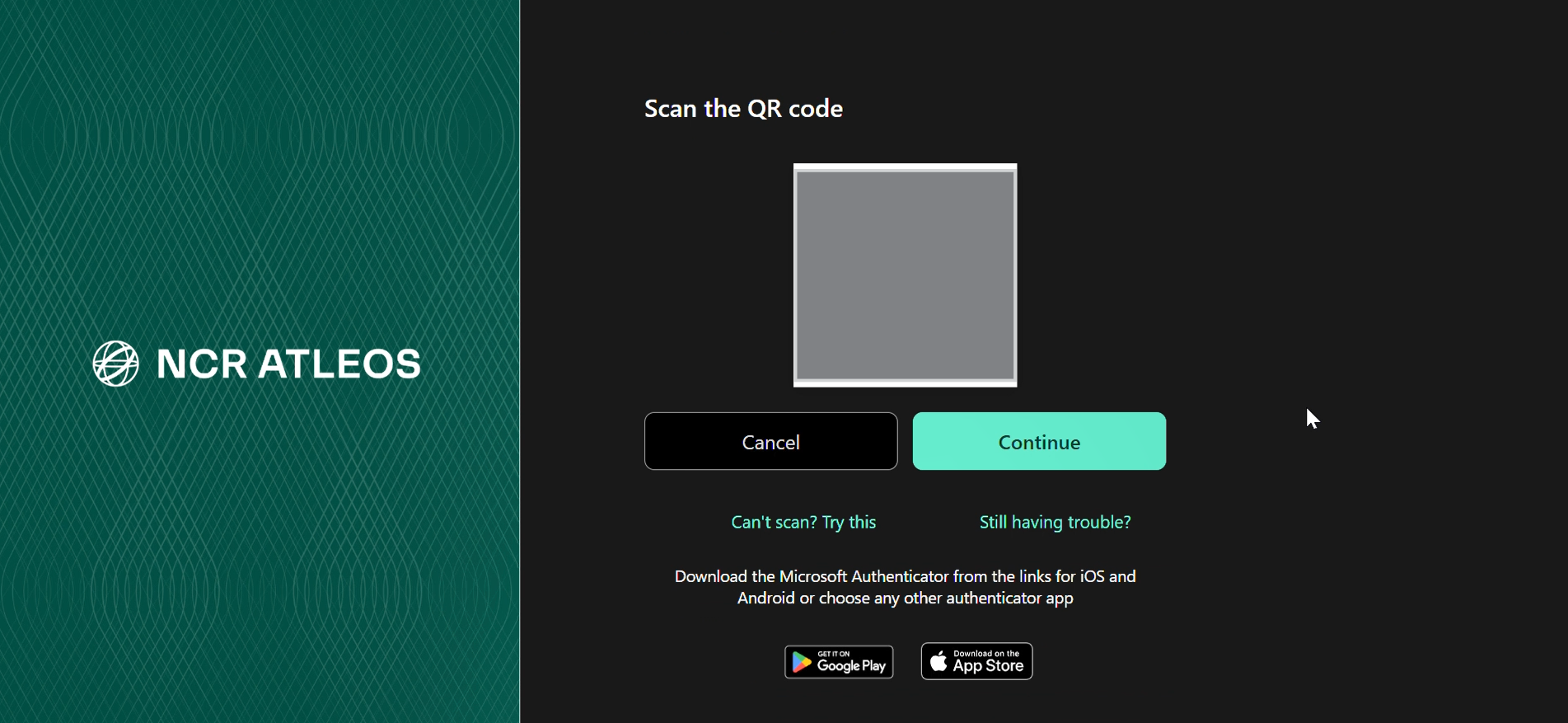
If you select Authentication App, a QR code will be displayed. Scan it using an authenticator app on your mobile device.
We recommend Microsoft Authenticator, available on:
You may also use any other authenticator app that supports QR code–based MFA.
otpauth://.
?secret= keyword and before the &issuer string. Enter this specific sequence of letters into your authenticator app by following the instructions for "entering a secret key" or "manual entry" within that app.

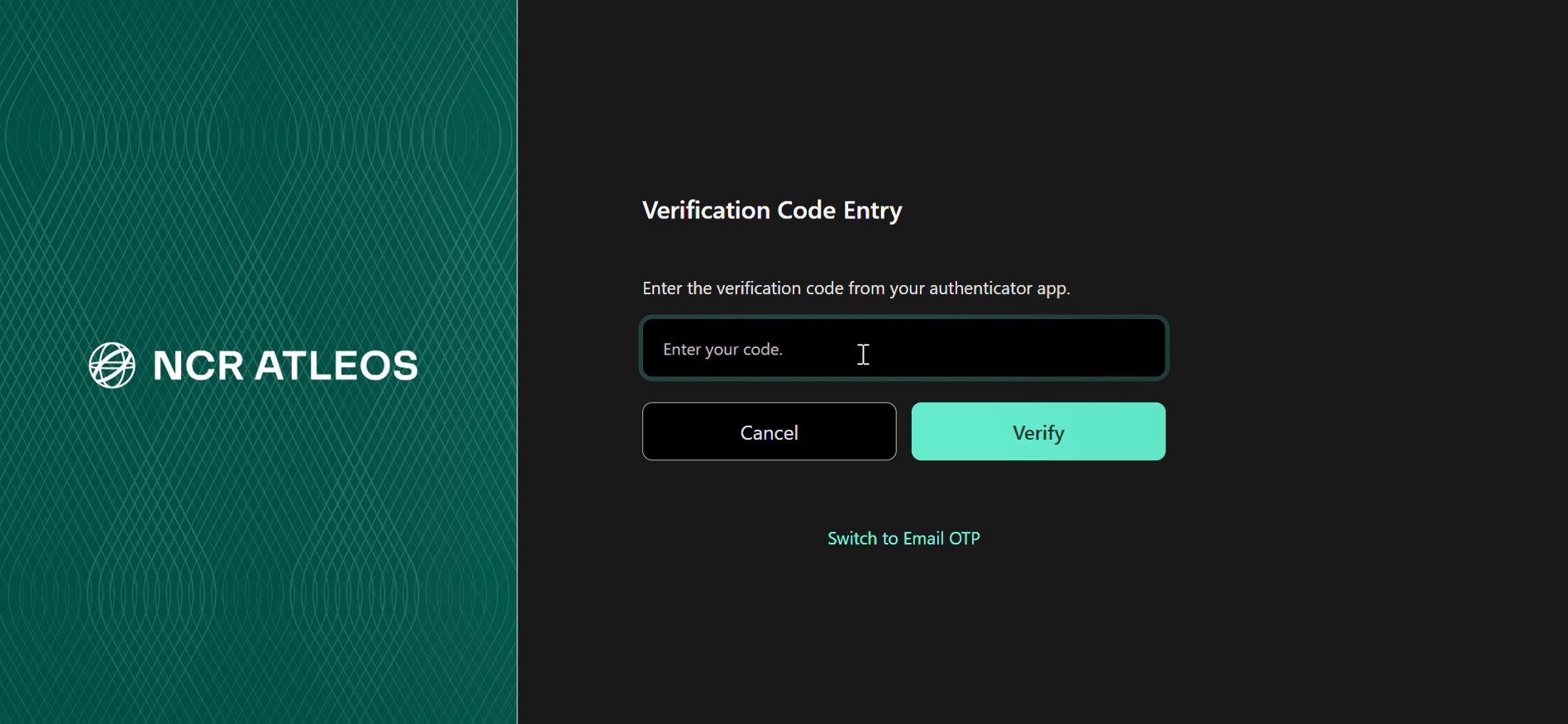
After scanning the QR code, your authenticator app will generate a time-based verification code. Enter this code in the field shown on screen and click Verify.
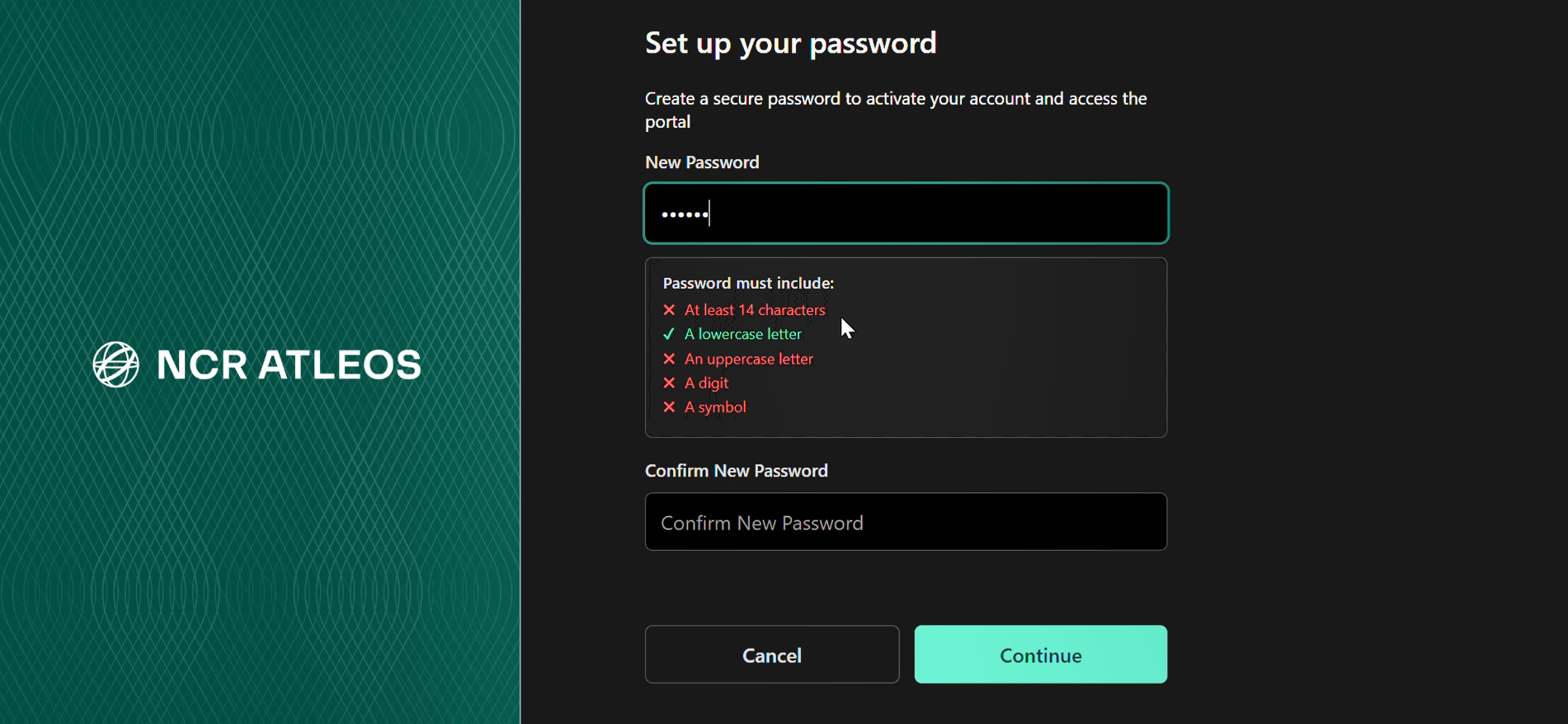
Once verification is successful, you will be prompted to create a new password. Your password must meet all of the following requirements:
Enter the password again to confirm, then click Continue. You will then be signed in and taken directly to the portal.
Go to the MyNCR Login Page and enter your email address. Usernames are no longer supported.
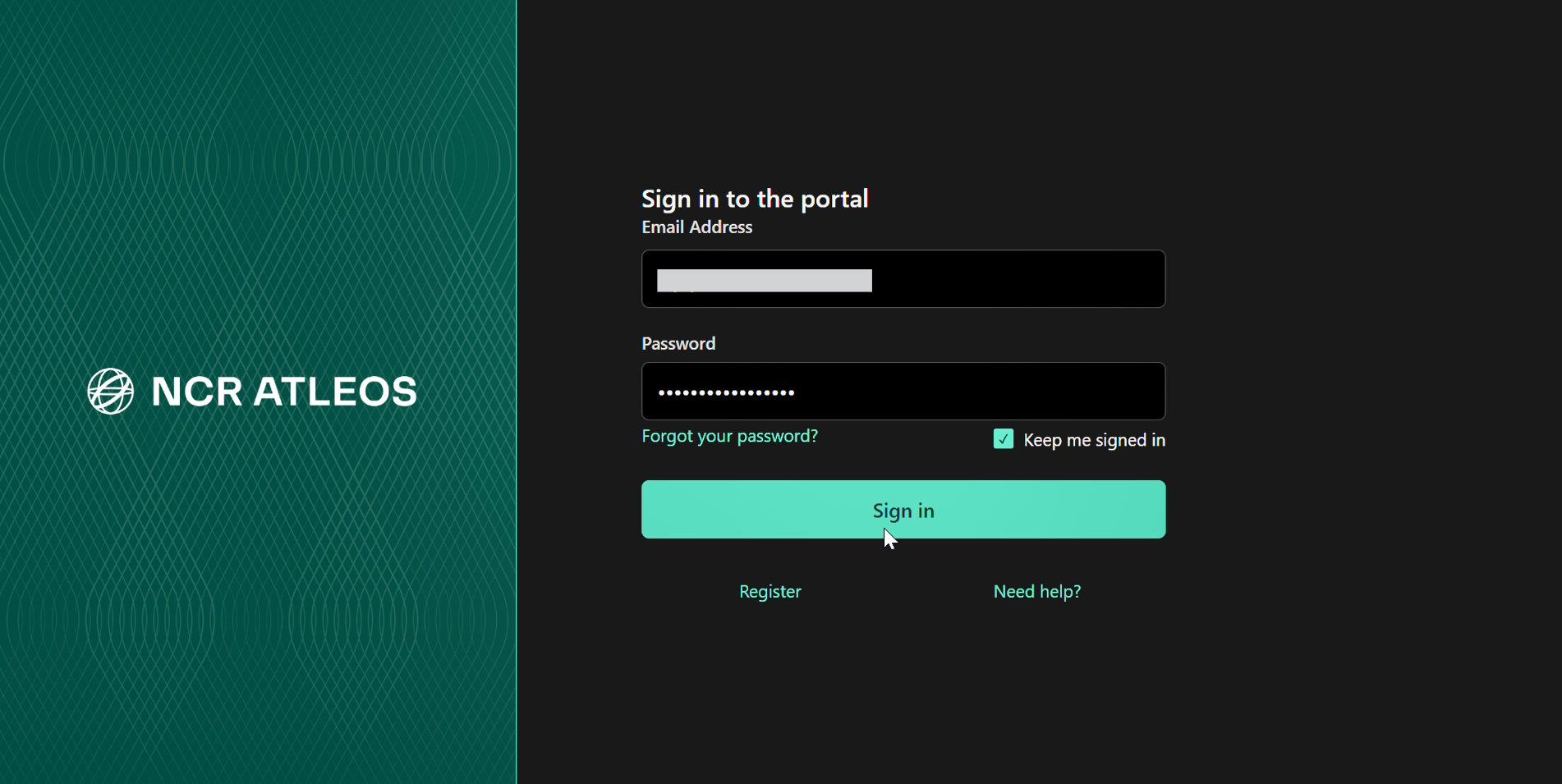
This login screen includes the "Forgot your password?" link located under the password field.
After entering your email, type in your password. You may be prompted to reset your password depending on system requirements.
Click "Send Verification Code". A code will be sent to your registered email inbox.
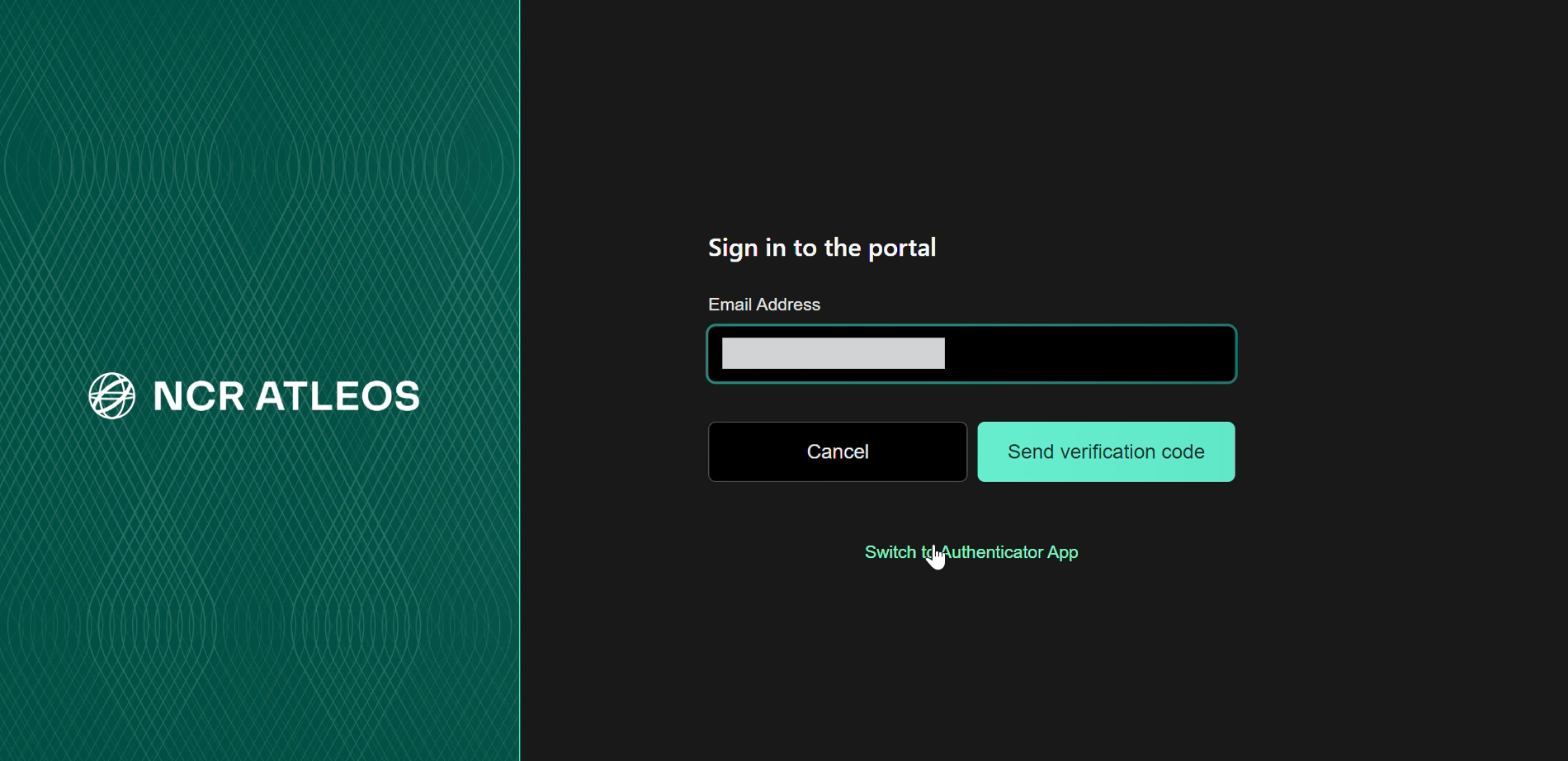
On this screen you can also switch to Authenticator App verification by clicking "Switch to Authenticator App".
Once you receive the code, enter it in the field provided to complete the login process.
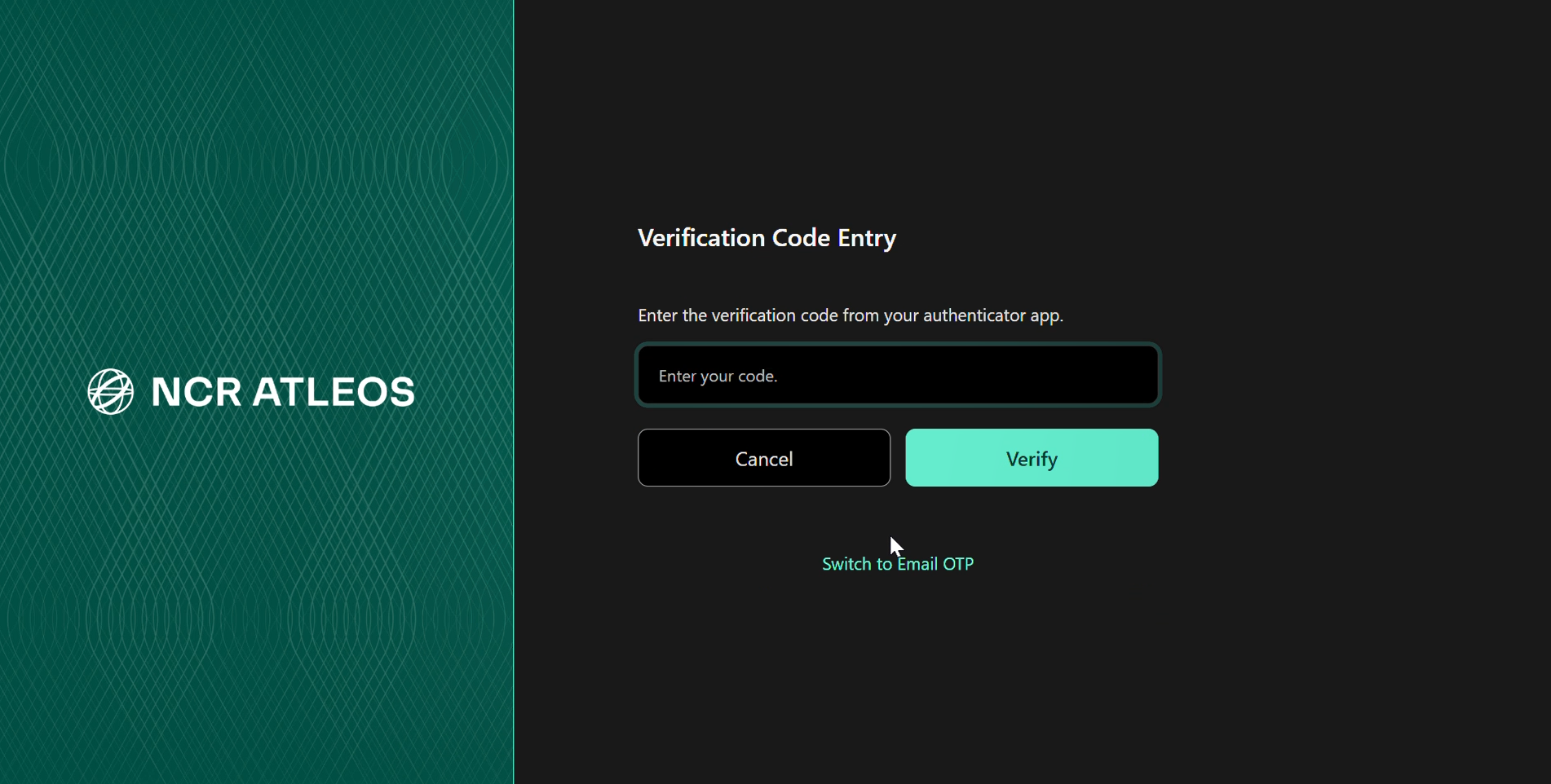
If you prefer email-based verification instead, click "Switch to Email OTP".
The MyNCR MFA experience is being enhanced to make sign-in faster and more flexible. These enhancements will roll out progressively. When an update becomes available, a notification banner will appear in the portal with guidance.
Users will be able to receive a one-time verification code through an authenticator app based on their selected MFA preference, reducing sign-in steps and speeding up access.
Users will be able to set and change their preferred MFA method at any time, choosing between Email or Authenticator App.
If you've already completed First Time Log On but cannot access your account, click the "Forgot Password" link on the login screen. You'll receive an email with a reset link valid for 30 minutes. Your new password must differ from previously used ones.
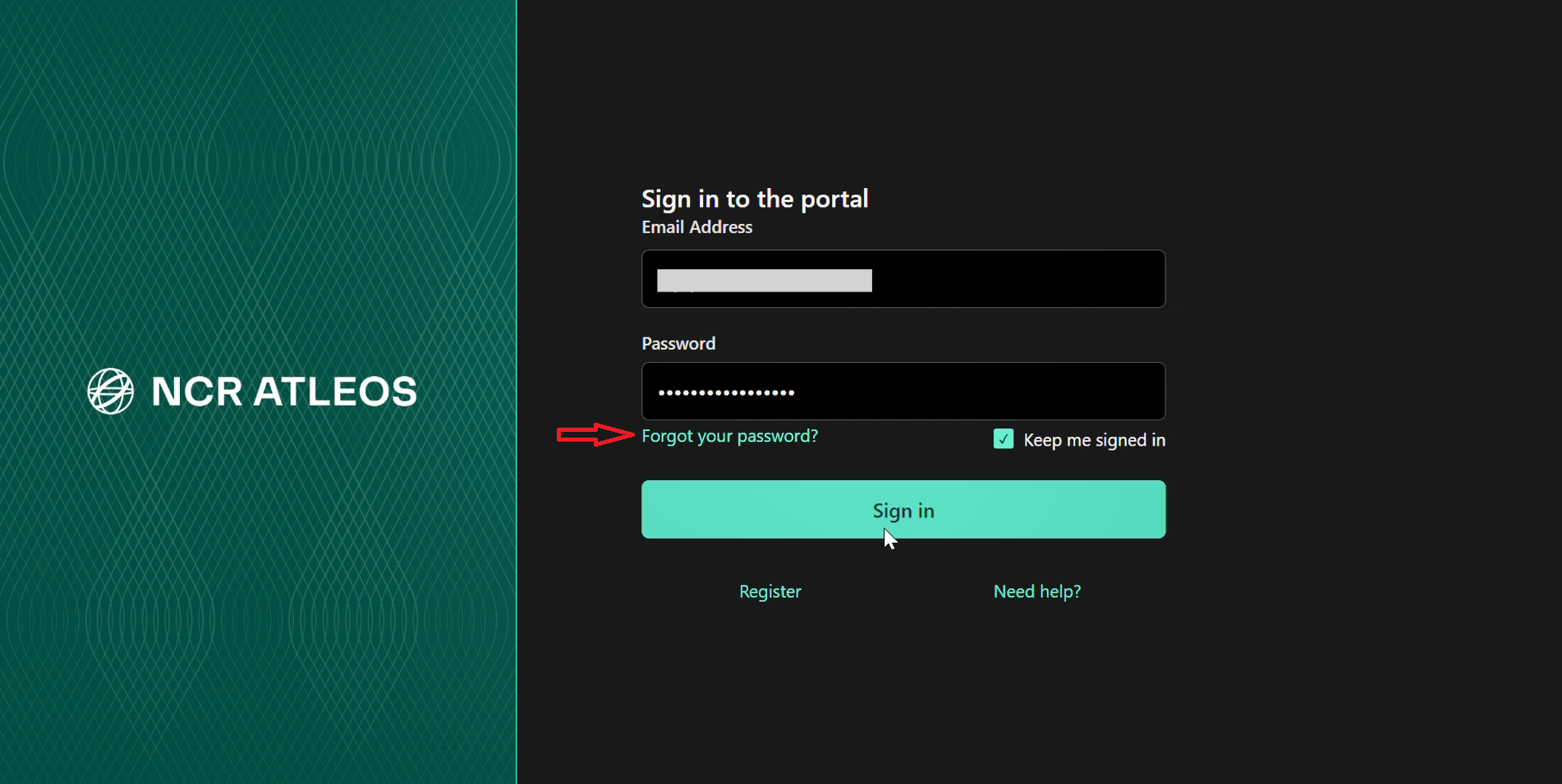
If you are still unable to reset your password, contact your assigned Customer Administrator or use the Existing Account Support Form.
If you are experiencing issues where applications are not working as expected or are redirecting you back to the dashboard, please ensure you are accessing the portal correctly:
ao.portal.ncratleos.com), as these may cause session or access issues.Customer Administrators can register multiple users at once using the Bulk User Customer Load file. This section covers user registration only — application assignment is handled separately.
Open the Bulk User Customer Load file and fill in the Bulk User Customer Load tab. Only the following six fields are mandatory to register users:
| Field | Description |
| Username | The unique login username for the user. |
| First Name | User's first name. |
| Last Name | User's last name. |
| Email Address | The email address the user will use to log in. Must be unique and valid. |
| User Role | Set to either Customer User or Customer Admin. |
| MCN | The Master Customer Number the user should be registered under. |
Once user accounts are created, each user should follow the Initial Account Setup steps at the top of this page to complete their first-time login, set up MFA, and create their password.
If application access is also required for any of the uploaded users, that must be configured separately by the Customer Administrator through the User Application Assignment tab in the same bulk upload file, or manually via Manage Users in the portal.
Q: I didn't receive my verification code. What should I do?
Check your Spam or Junk folders, as automated emails may be filtered there. If the code doesn't arrive within a few minutes, click "Send Verification Code" again. If you still don't receive it, verify that your registered email address is correct. Contact your Customer Administrator or fill out the Existing Account Support Form for assistance.
Q: I entered the verification code, but it says "Invalid Code."
The verification code is time-sensitive and valid only for a short duration. Request a new one by clicking "Send Verification Code" again and enter the new code promptly.
Q: How do I reset my Authenticator App (scan a new QR code)?
You may need to reset your Authenticator app if you got a new phone, deleted and reinstalled the app, want to switch from email verification, or your device changed and the app no longer works.
Contact the Global Help Desk and request an MFA reset. Once reset, the next time you sign in you will automatically be prompted to set up the Authenticator app again.
Q: I forgot which email is linked to my account.
Since usernames are no longer used, your email address is now your login ID. If you're unsure which email is associated with your account, contact your Customer Administrator or fill out the Existing Account Support Form. A new account may need to be created if the email cannot be verified.
Can I change my email address used for login?
No. MyNCR accounts cannot be reassigned to a different email. If your email must be changed, a new account must be created and the old one deleted or disabled. This can be performed by your Customer Administrator or by submitting a request via the Existing Account Support Form.
Q: I receive a "Server Error" during login.
Try using an incognito/private browser window or clear your browser cache, then reattempt login. If the issue persists, try again later as there may be a temporary network or server issue.
If you're unsure how to proceed with a portal access issue, please complete the Existing Account Support Form.
| Issue / Problem | Contact Information |
| Supplier using iSupplier portal, Cloud SP portal, or needing access to Supplier portal for invoice upload/payment | iSupplier.ERP@ncratleos.com |
| Invoice-related issues or questions | InvoiceEngine.Application@ncratleos.com |
| NCR Atleos Invoice Disputes | Disputes.GBS@ncratleos.com |
| Cardtronics related Invoice Disputes | Disputes.Cardtronics@ncratleos.com |
| User registration in MyNCR or password reset | Designated Customer Administrator |
| User Registration in the Portal (no Customer Administrator available) | New Account Registration Form |
| Portal Voyix login assistance | customerportal.admin@ncrvoyix.com |
| QuoteBuilder issues | support.quotebuilder@ncratleos.com |
| My Support Link (N@YS) or DLC (Download Center) applications | Existing Account Support Form (include issue description and screenshot) |
| Partner-related inquiries/orders/payments | Partner.Assist@ncratleos.com |
If you're a partner and need assistance, please refer to the contacts below based on your issue:
| Partner Issue / Scenario | Contact Information |
| User Registration in the Portal (no Customer Administrator available) | partner.assist@ncratleos.com (Provide your full name and registered email address) |