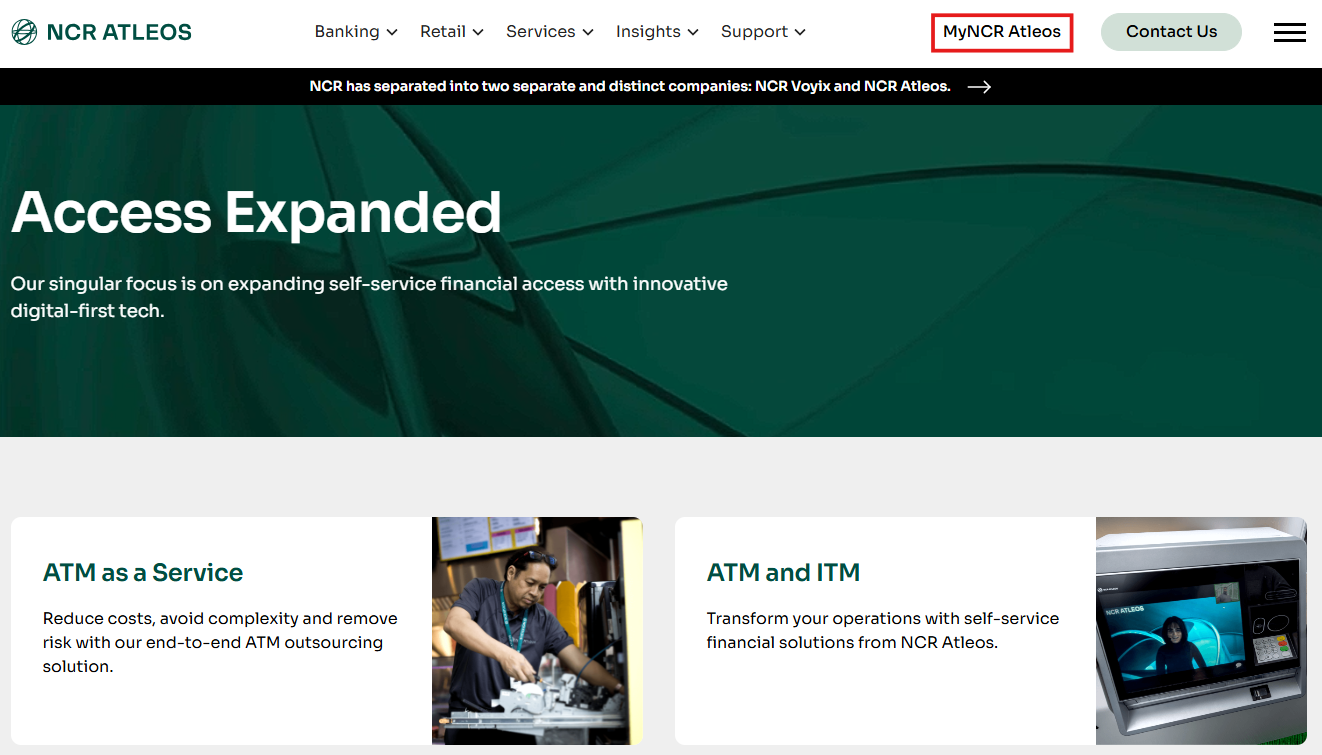
To access your portal account, go to ncratleos.com, and click “MyNCR Atleos”.
On the login page, enter your Username and Password; Then click “Login”.

NOTE: Your username is not your email address. If you have forgotten your username, use the options to retrieve your username and/or reset your password.
Access your profile page by clicking on your name in the top right of the page.

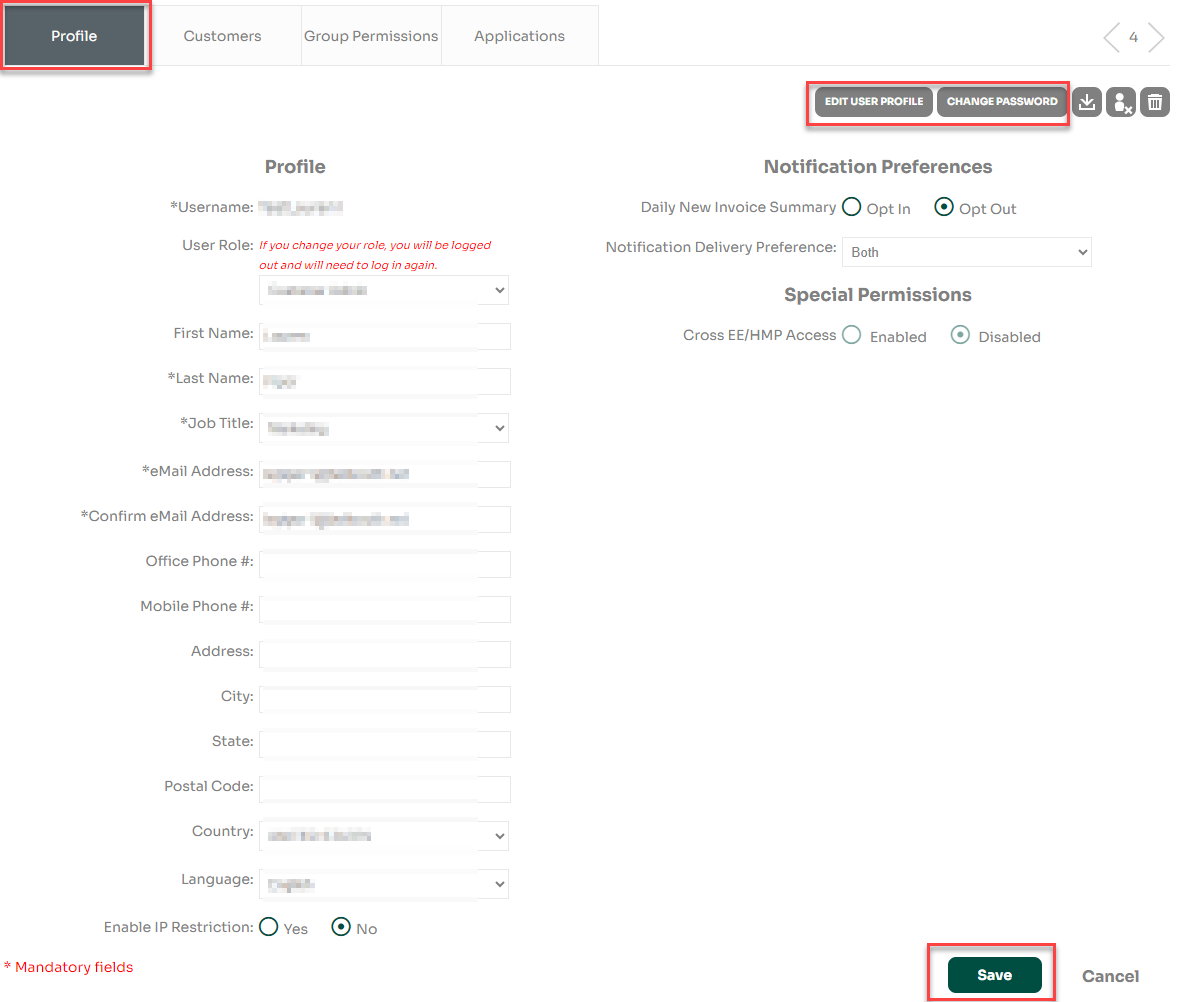
Within your profile page, you will see the following tabs for the sections you can view and manage: Profile, Customers, and Applications.

Profile Tab
In the Profile tab, you can edit profile details by clicking on the “Edit User Profile” button, making the changes, then clicking “Save”. You can also click on “Change Password” to change your password at any time.
Customers Tab
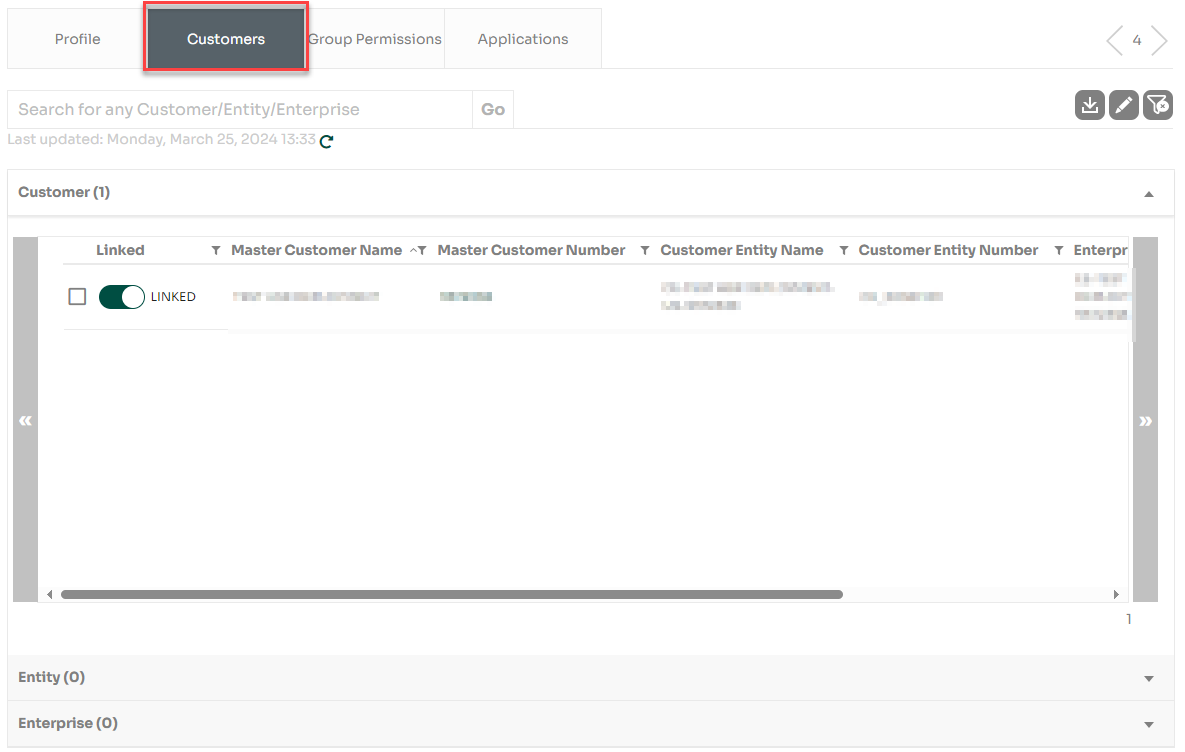
In the Customers tab you will see a list of NCR Atleos Master Customer Numbers to which you are linked and have access.
Applications Tab
The Applications tab will show a list of applications that are available for use.
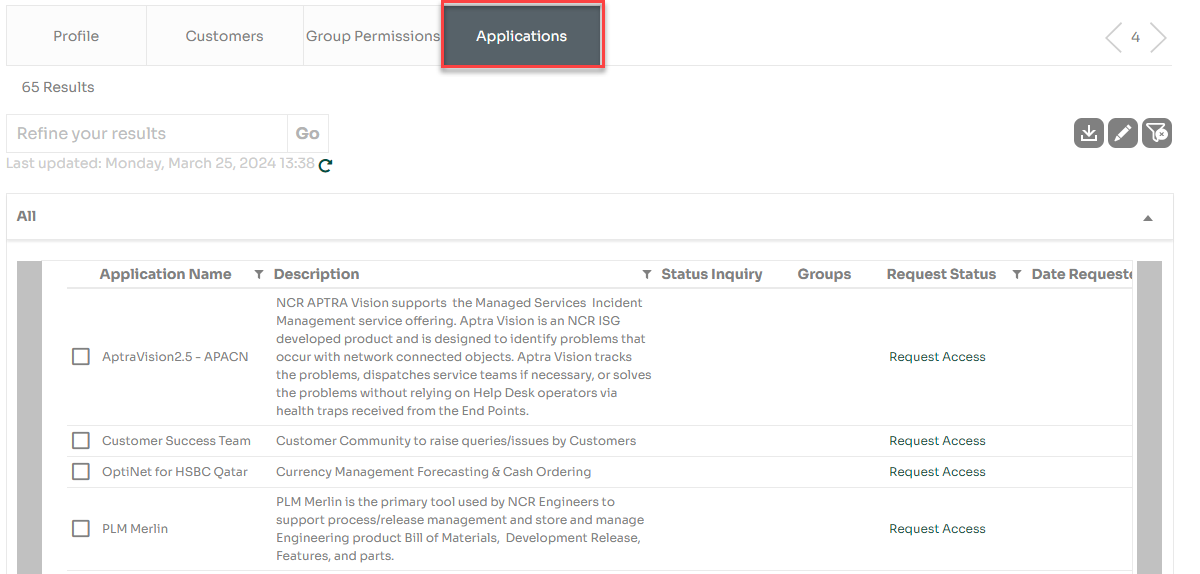
You have access to the Manage Users page to locate your Customer Admin and other users from your organization who also use the portal.
LOCATING CUSTOMER ADMINS
From the portal homepage, access the Manage Users page by clicking on the “Expand” button, or by clicking anywhere within the purple space.
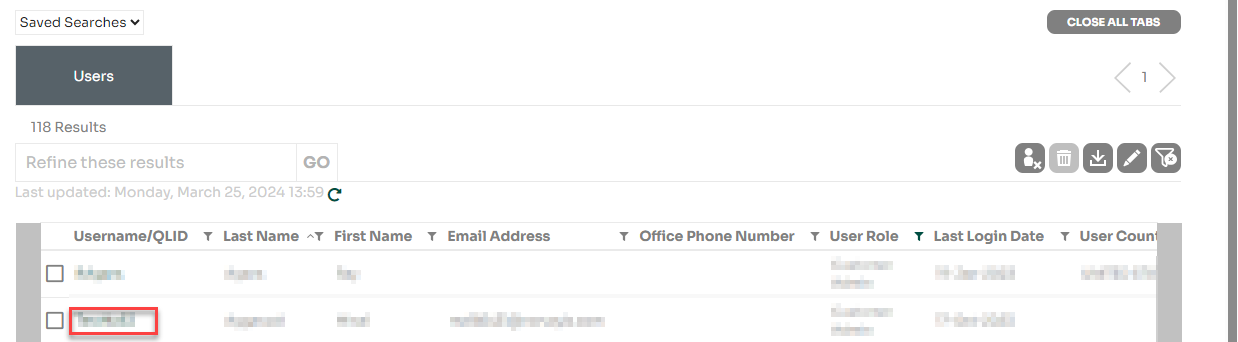
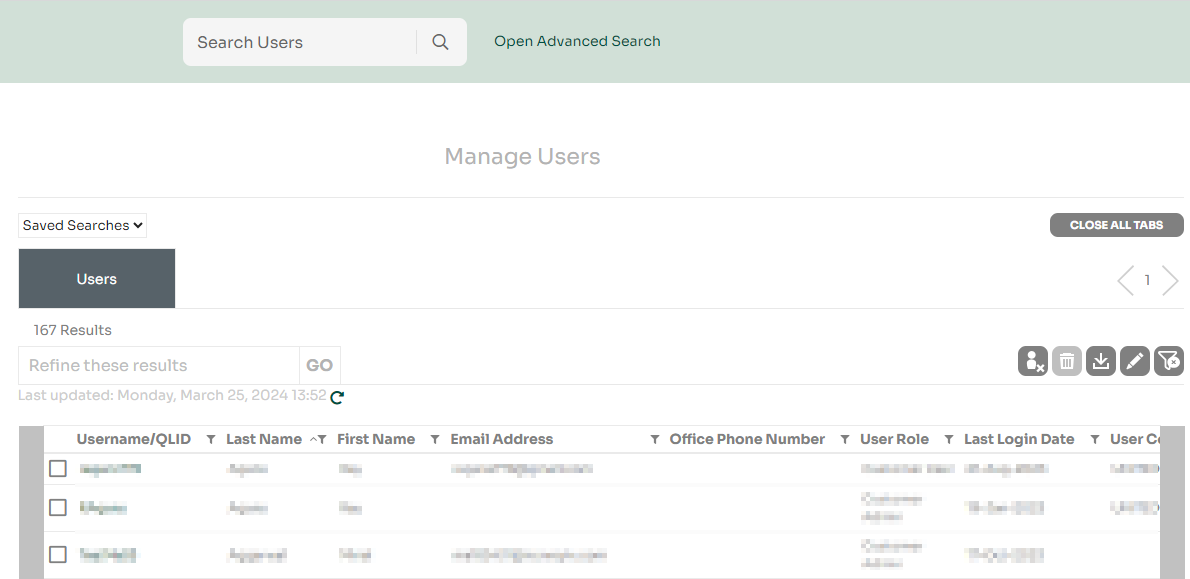
The Manage Users page will display a report of Users from your organization. The report is interactive and allows you to move and filter columns.
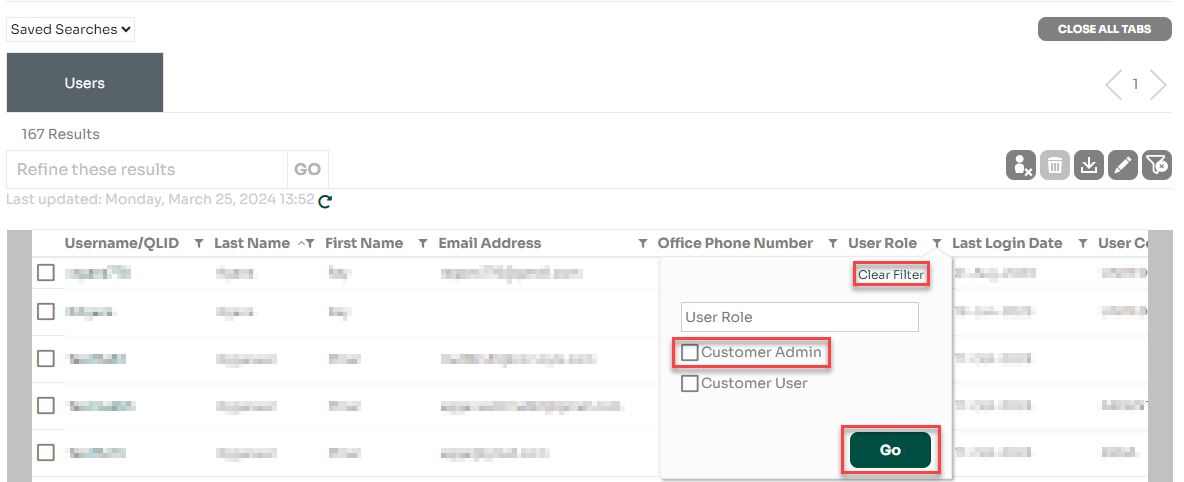
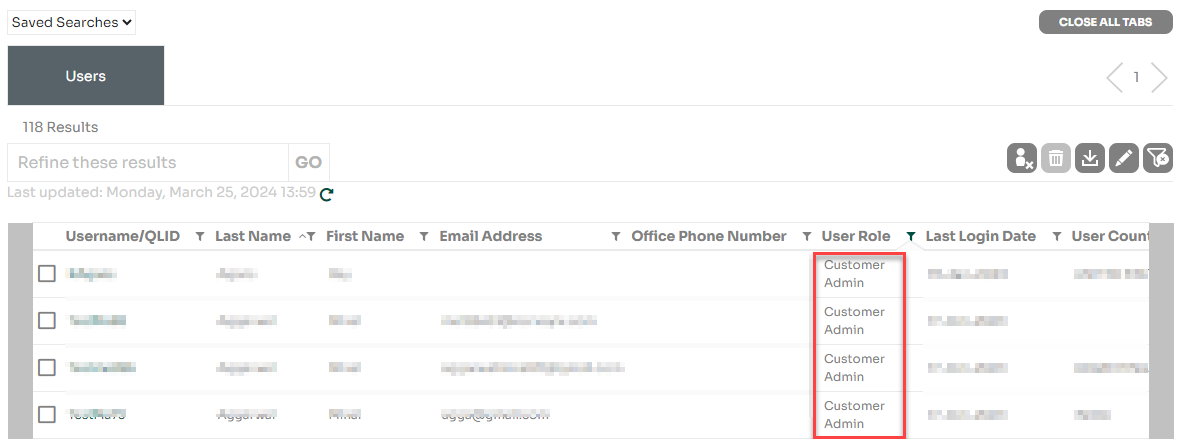
Locate Customer Admins by using the filter button next to User Role, select Customer Admin, then click Go.
After you filter on User Role for Customer Admin you will see a report of Customer Admins from your organization who can change your permissions or request access to an application for you.
LOCATING OTHER USERS
From the portal homepage, access the Manage Users page by clicking on the “Expand” button, or by clicking anywhere within the purple space.
The Manage Users page will display a report of Users from your organization. The report is interactive and allows you to move and filter columns.
There are two ways that you can search for users:
Option 1: Click on Advanced Search button, enter a search term, then click Search.

Option 2: Click on the Filter button next to any column you wish to use for searching, enter the search criteria, then click Go.
Once you have found the user, click on the green username to open the user’s profile page where you can view Profile, Customer & Application access.