
Managing User Access and Status
A clear, step-by-step administrative procedure for regulating user account status and platform accessibility.
Account Status Control
Modifying a user's status between active and disabled regulates their ability to log into NCR Atleos Central. If a user was not previously linked to any accounts, linking them requires you to update their status from Disabled to Active so they can successfully log in.
Step-by-Step Management Procedure
Follow these portal workflows to locate a user profile and toggle their status.
Navigate to Account Administration
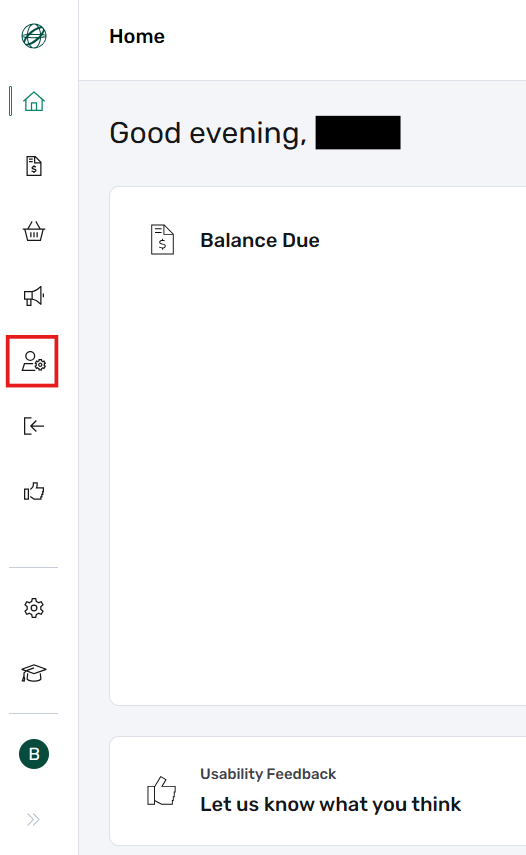
From the left-hand vertical navigation bar in NCR Atleos Central, click Account Administration.
Open the Manage Users Tab
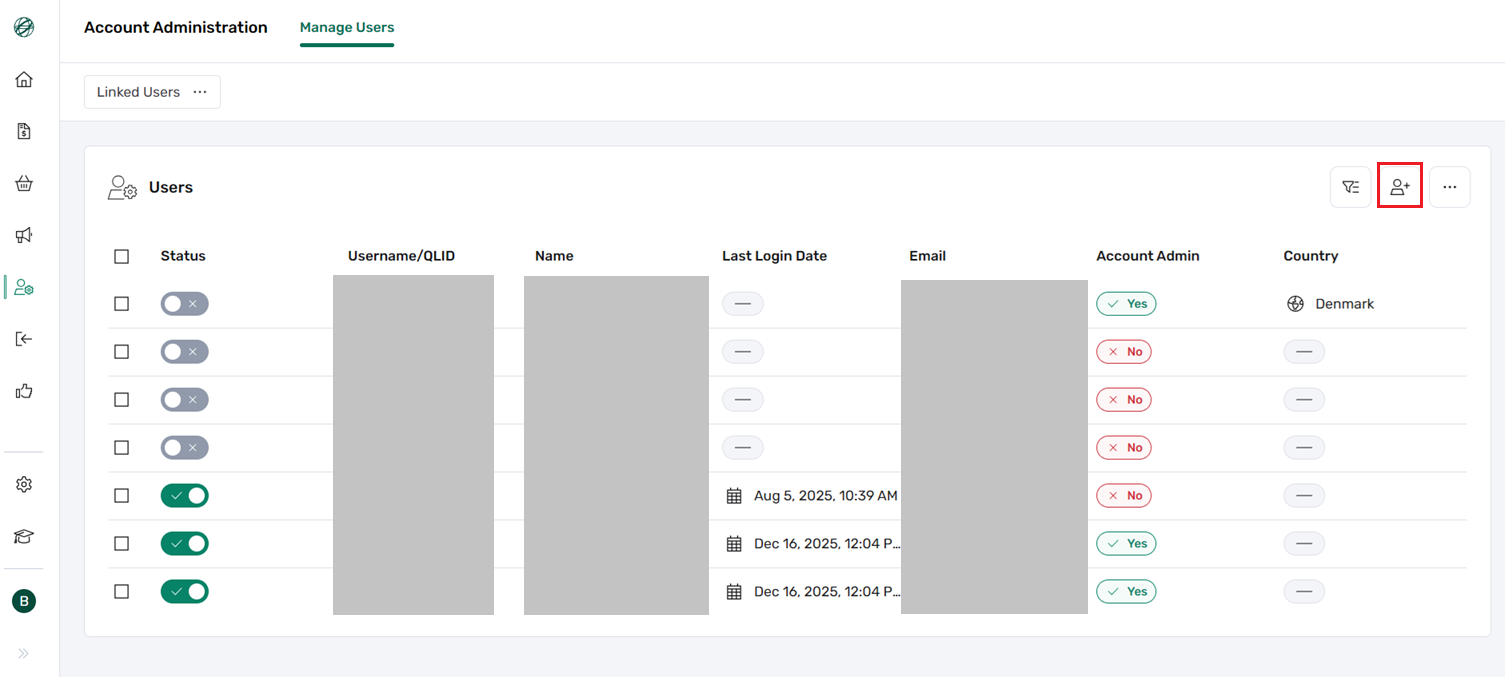
Inside the Account Administration dashboard, open the Manage Users tab to view the list of all users. Note that the Create a User button is located here, but you do not need to click it for managing existing users.
Enable or Disable via Status Toggle
Find the user in the list and use the Status toggle button directly next to each user row:
- • Grey Toggle: Indicates the user account is disabled.
- • Dark Green Toggle: Indicates the user account is enabled.
Alternative: Profile Edit View
Alternatively, you can hover your mouse over the user in the results list and click the arrow icon on the right side of the user's row to open their account page.
Once inside the profile view, click the Edit button to enable or disable the user from there, and finally click the submit button at the bottom of the form to save your changes.
Best Practices & Automation
When toggling user status, always verify account associations and ensure that downstream application mappings align correctly.
For special user types, refer to specific routing rules before modifying profile flags.
Automated Notifications
Changing a user's status to Active triggers an automated notification email. Ensure the user's email address is accurate prior to saving changes so they receive their login prompt seamlessly.