Account User Guide
Logging In
-
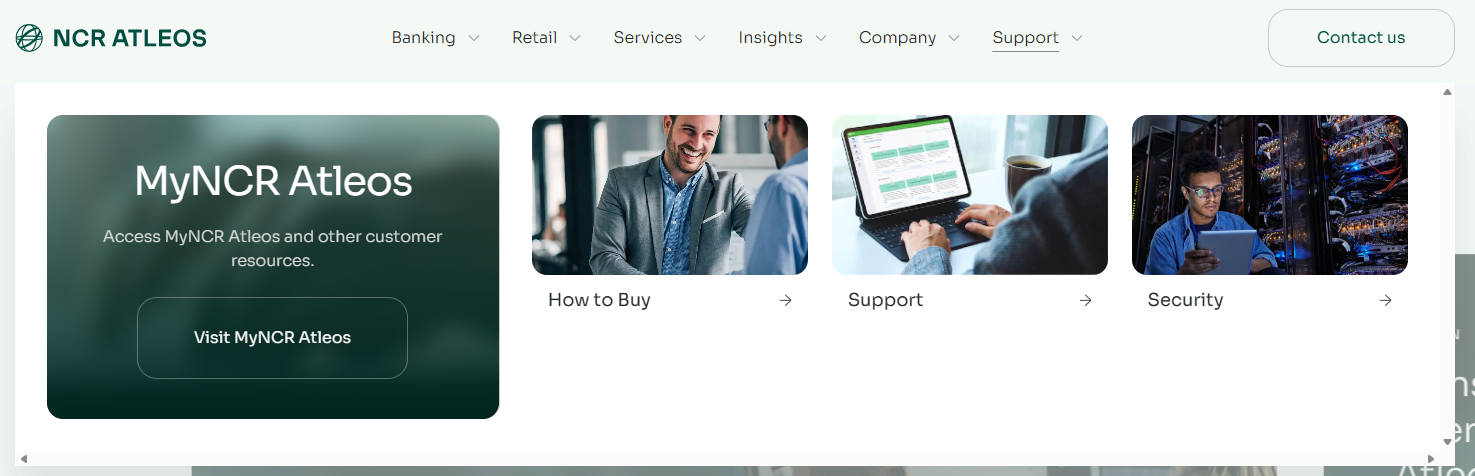
To access your account, navigate to ncratleos.com. Hover over the Support menu item in the top navigation, then click the green "Visit MyNCR Atleos" button on the left side of the dropdown.
-
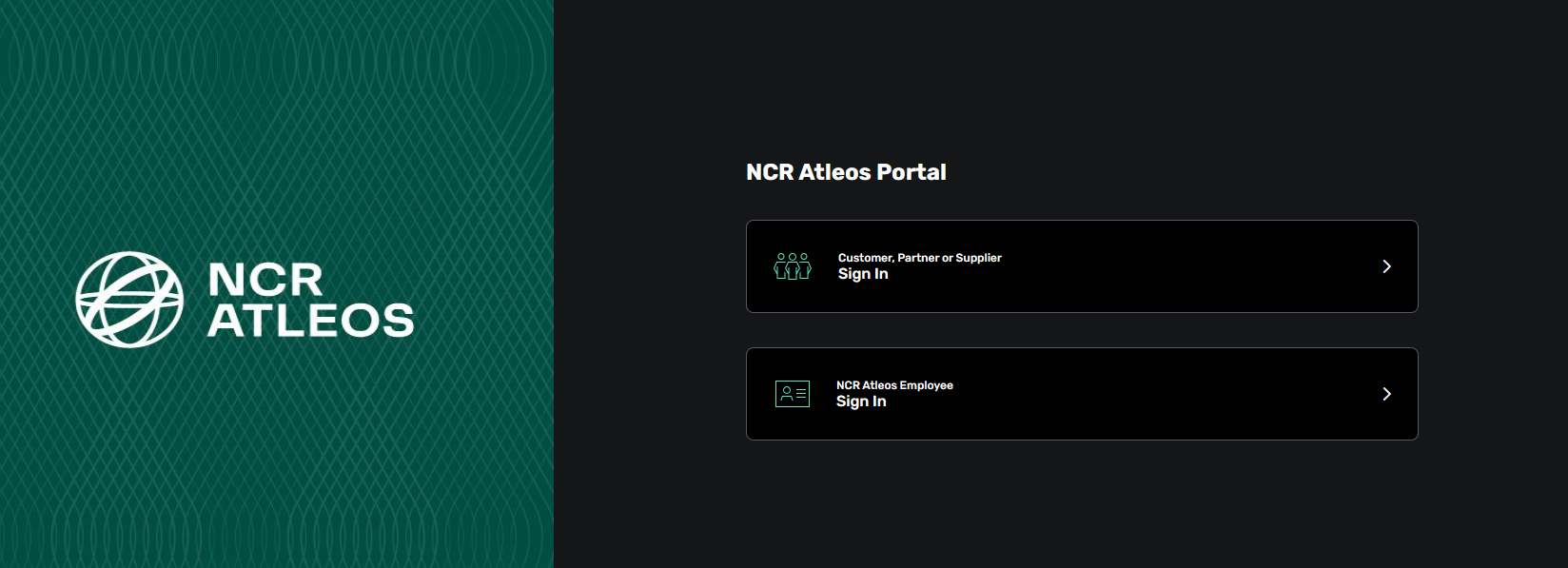
On the subsequent login selection screen, click the top button to log in as a Customer. You will then be prompted to enter your Email and Password.
NOTE: Your email is your login ID. If you have forgotten your login credentials, use the options provided on the sign-in screen to retrieve them or reset your password.
Managing Your Profile
-
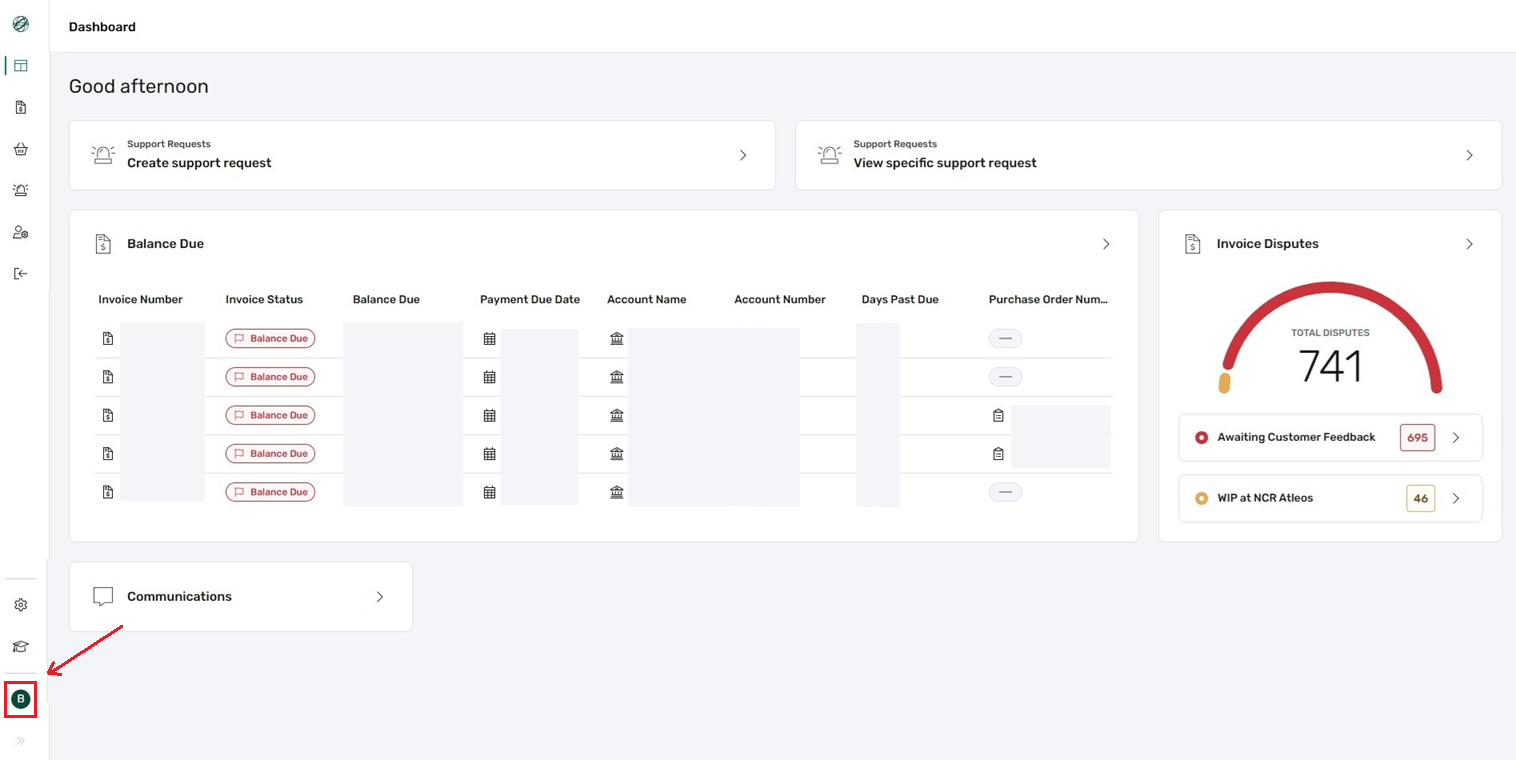
Access your profile page by clicking on your profile icon located in the bottom left corner of the portal dashboard.
-
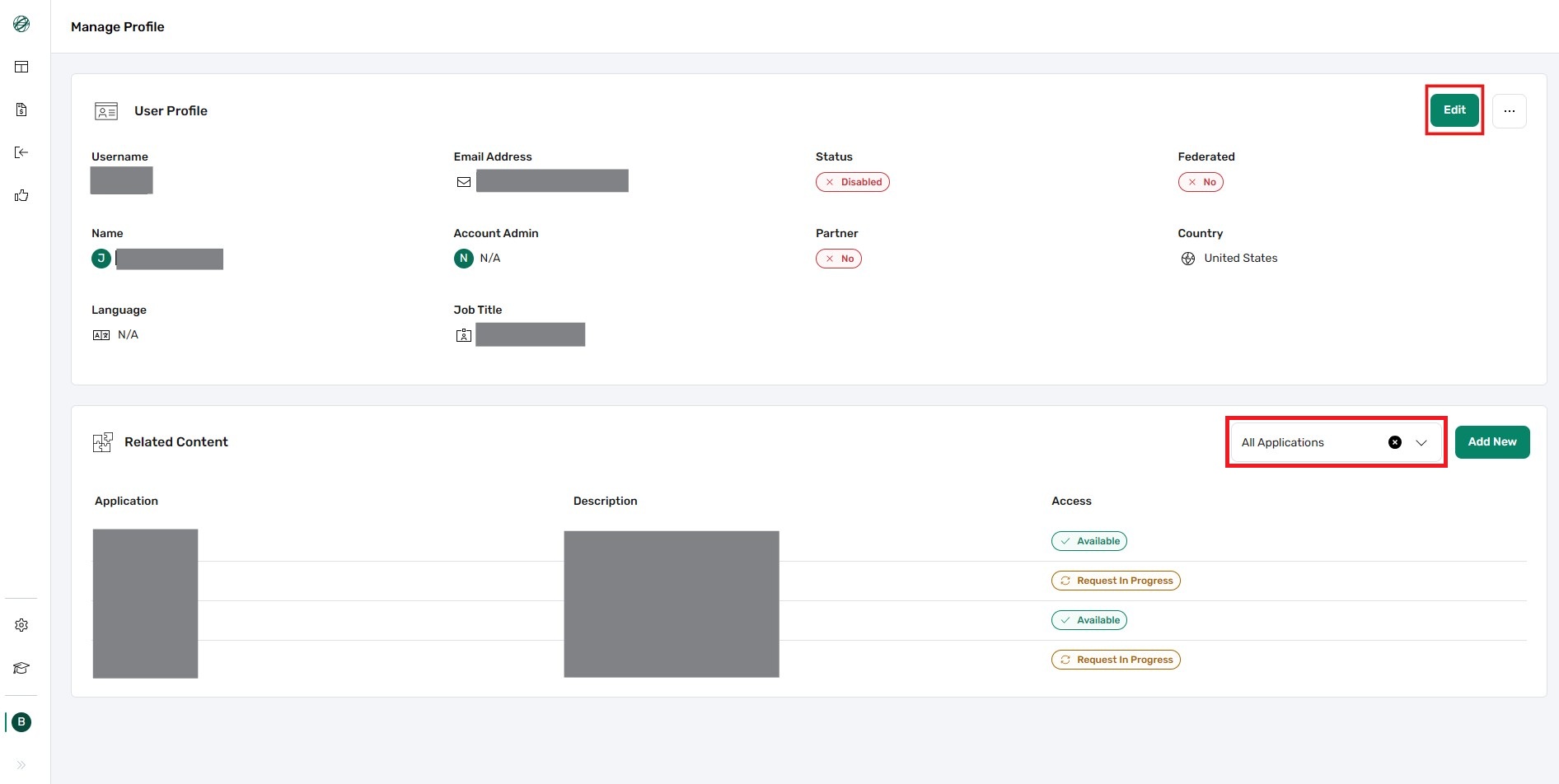
Your profile page is divided into two primary sections:
- User Profile: Contains your personal details and a green Edit button in the top right.
- Related Content: Found at the bottom of the page, providing access to your linked accounts, permissions, and applications via the dropdown menu on the right.
-
Edit Details: Click the green Edit button to update your name, job title, or preferred language.
-
Linked Accounts: Select Accounts from the Related Content dropdown to view all business entities associated with your login.
-
Applications: Select All Applications to manage your tools, view pending approvals, or filter your access status.