
Adding and Managing User Permissions
A step-by-step administrative procedure for assigning roles, account links, and feature permissions to user profiles.
Granular Access Control
Permissions define what sections, accounts, and tools a user can access within NCR Atleos Central. Proper permission assignment ensures security compliance while giving team members the exact tools they need for their workflow.
Step-by-Step Permission Assignment
Follow these portal workflows to configure user permissions and account mappings.
Navigate to Account Administration
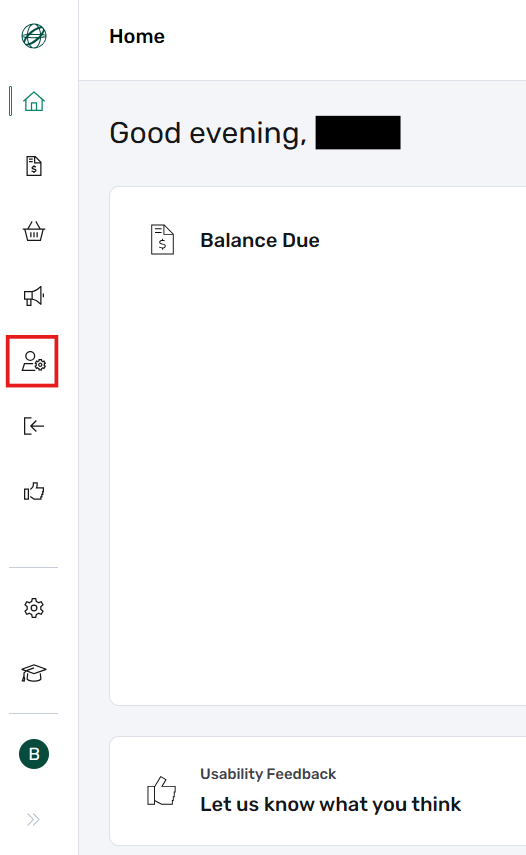
From the left-hand vertical navigation bar in NCR Atleos Central, click Account Administration.
Access the Manage Users Tab
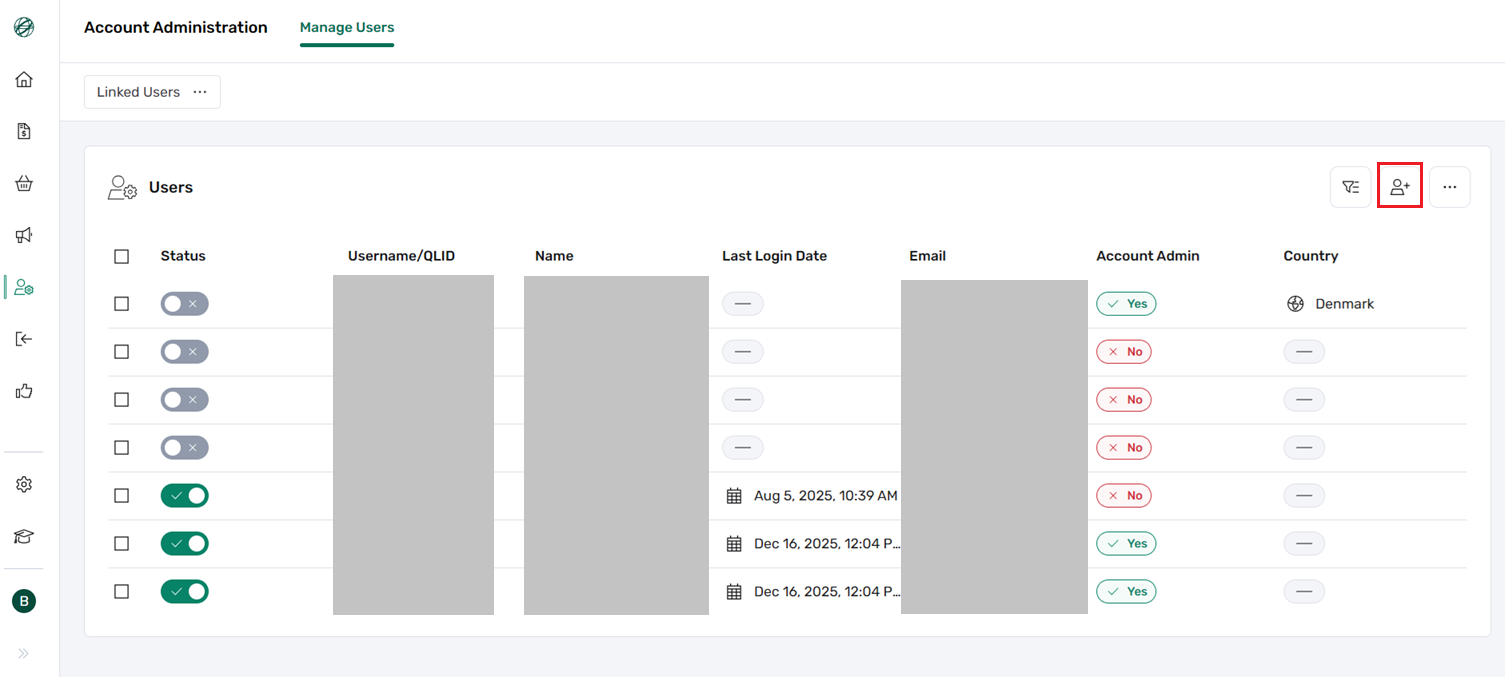
Inside the Account Administration dashboard, open the Manage Users tab to view the directory of registered users.
Open the User's Profile
Locate the target user in the list, hover your mouse over their row, and click the arrow icon on the right side to enter their individual profile page.
Select Permissions from Related Content
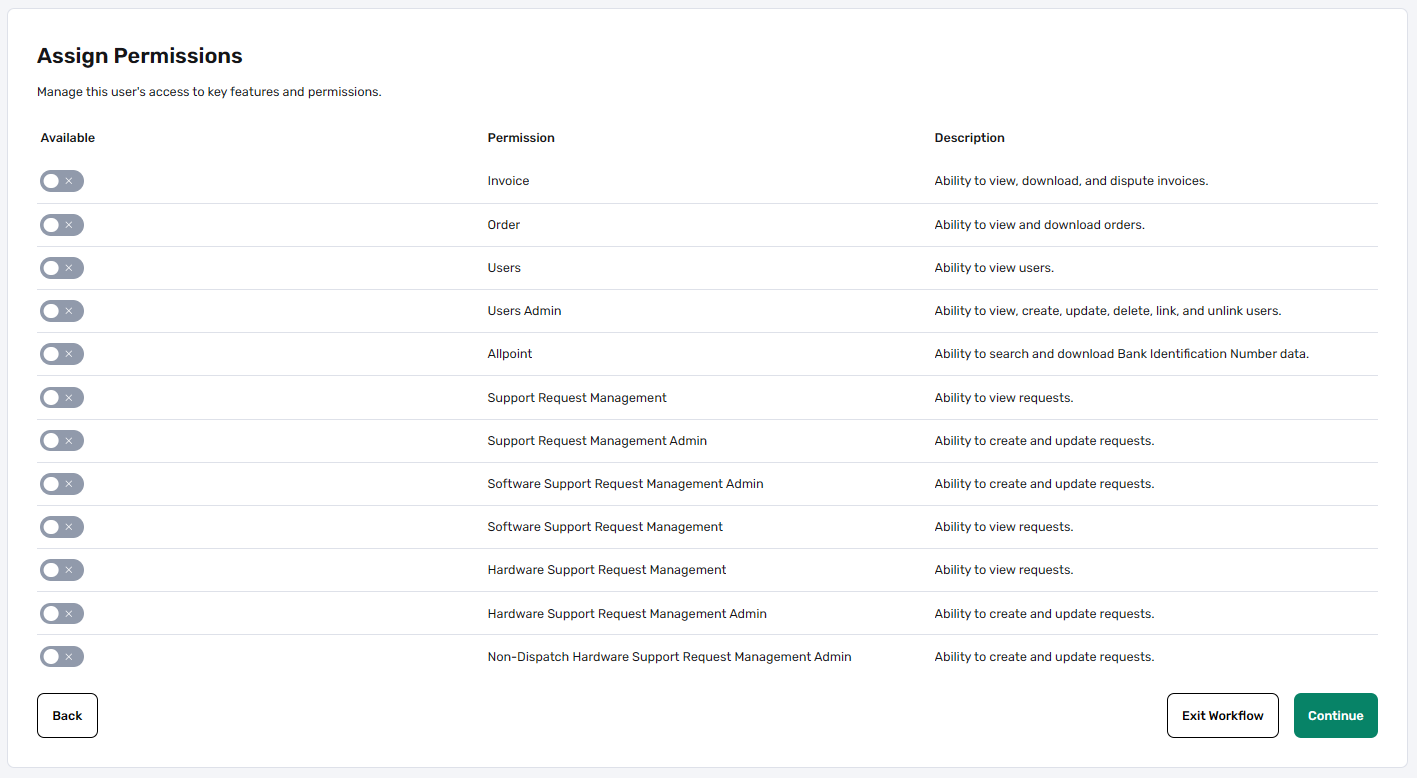
Scroll down to the Related Content section at the bottom of the user's profile page and select Permissions from the dropdown menu. This will display the Permissions screen.
Toggle Permissions On or Off
Simply toggle the permission on or off by clicking the button directly. Changes are automatically saved with no additional submit button needed:
- • Grey Toggle: Indicates the permission is turned off / disabled.
- • Dark Green Toggle: Indicates the permission is turned on / enabled.
Permission Best Practices
Always ensure that newly linked accounts accompany a status check. If a user was previously disabled, updating their permissions and ensuring their main profile status is active will enable them to log in successfully.
Adhere to the principle of least privilege when assigning administrative rights across portfolios.
Automatic Saving
Because permission toggles apply instantly upon clicking, verify each change carefully before moving away from the screen.