
Deleting Users
Remove a user from your organization in NCR Atleos Central
Before You Begin
Account Admins with user-management access can delete users linked to their organization's accounts.
Important: Before continuing, confirm that you selected the correct user and email address.
Delete a User
Open Manage Users
Sign in to NCR Atleos Central. Open Account Administration, and then select Manage Users.
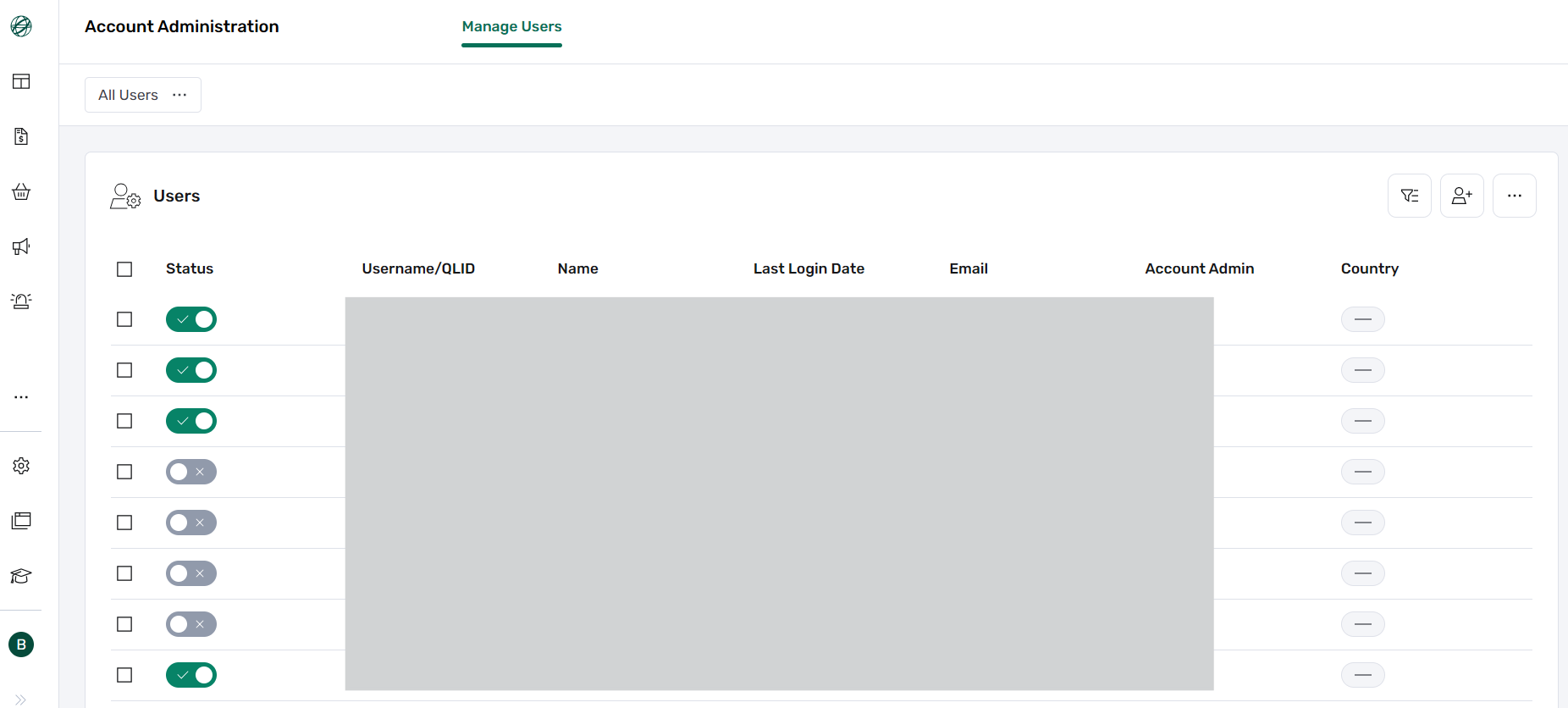
Select the image to enlarge.
Find the User
Search for the user by name or email address. Confirm that the displayed account belongs to the user you want to delete.
Open the User's Profile
Move your pointer over the correct user and select View Profile.
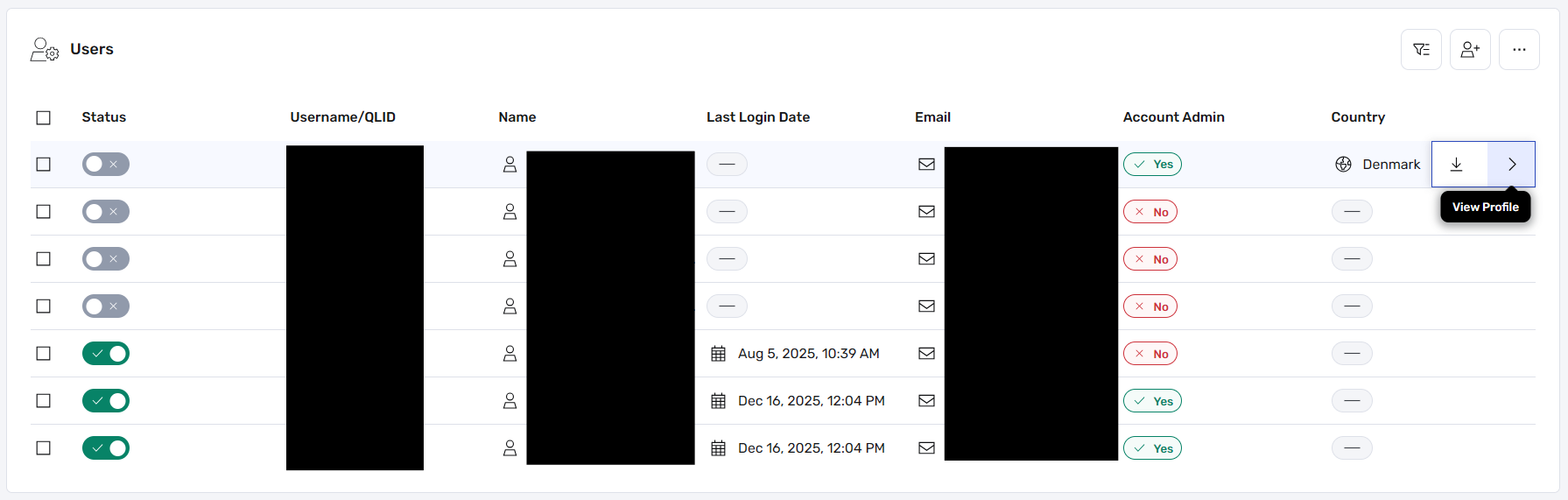
Select View Profile for the user you want to remove.
Open the Three-Dot Menu
On the user's profile page, select the three-dot menu in the upper-right area of the profile. The Delete option appears in the expanded menu.
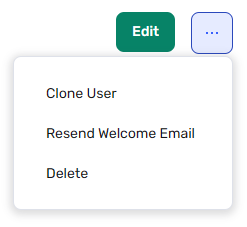
Open the available actions in the upper-right area of the user's profile. The Delete option appears in the expanded menu.
Select Delete
From the three-dot menu, select Delete. Review the selected user and complete the confirmation shown on the screen.
Check before confirming: Make sure the name and email address belong to the user you intend to delete.
Don't See the Delete Option?
Confirm that you have Account Admin or user-management access for the account linked to the user. If the option is still unavailable, contact your NCR Atleos representative for assistance.