User Administration
Everything you need to manage users on your NCR Atleos Central account — all in one place.
User Registration
A comprehensive guide for User Admins to provision, configure, and manage new team members.
User Admin Privilege: User creation is a core administrative function exclusive to designated User Admins. Keep in mind that newly created User Admins will also possess the capability to provision and designate other administrators. Permissions and available applications are dictated by the specific account the user is linked to.
Step 1: Accessing Administration
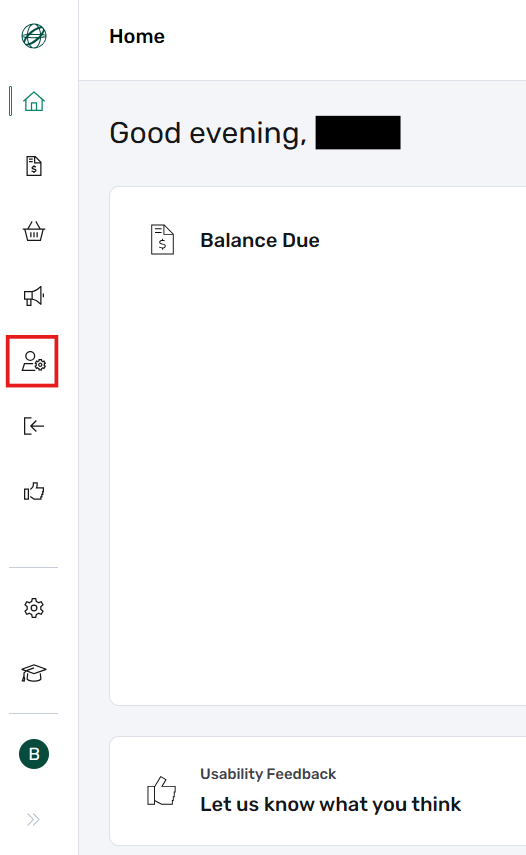
The Administration button can be found on the Dashboard, which serves as the primary landing page immediately after logging into the NCR Atleos Central portal. To begin, locate and click the Administration icon on the left-hand vertical menu bar.
Step 2: Initiate User Creation
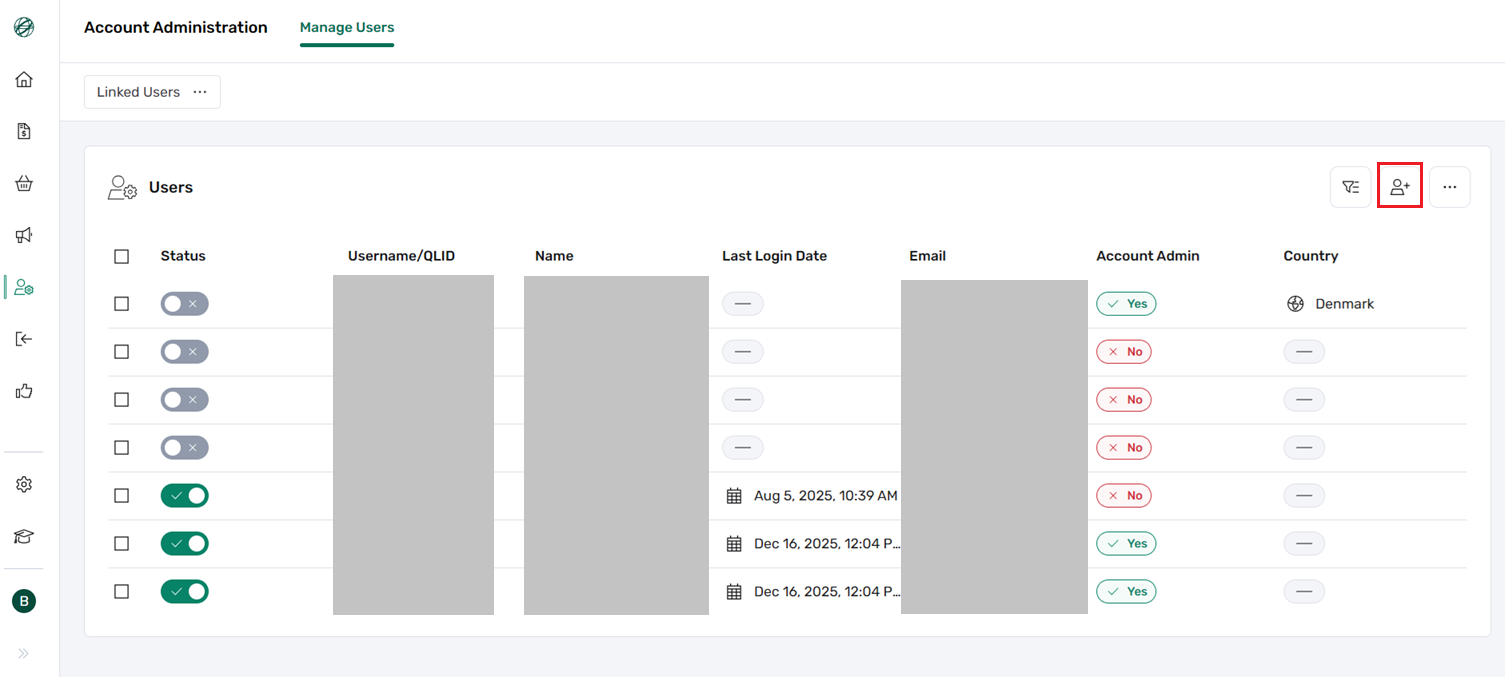
Once inside the Administration view, you will see a complete list of all users linked or unlinked to your account. To add a new team member, click the Create User button located in the upper right corner of the screen.
Step 3: Enter User Details
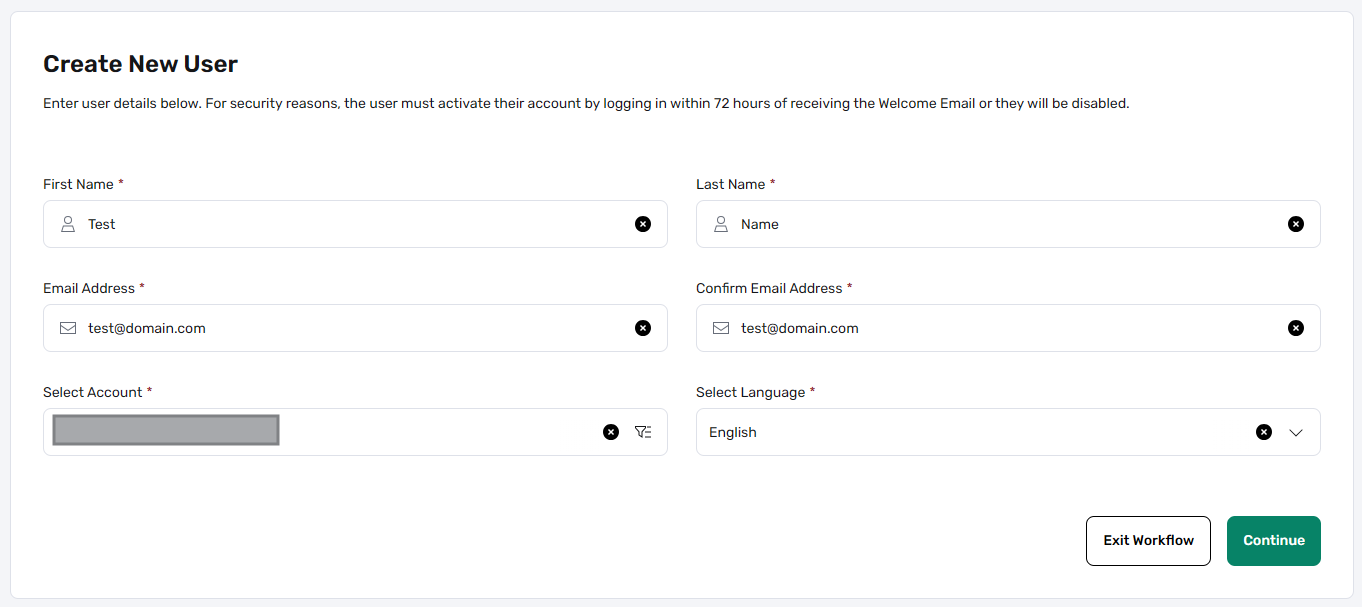
On the user creation page, you must input the primary profile details required for the new account:
- First Name and Last Name
- Email Address: Must be unique per user and confirmed accurately.
- Select Account: Use the search field to properly link the user to the appropriate account.
- Language: Select the preferred Portal UI language for the user from the dropdown menu.
Step 4: Assign Permissions
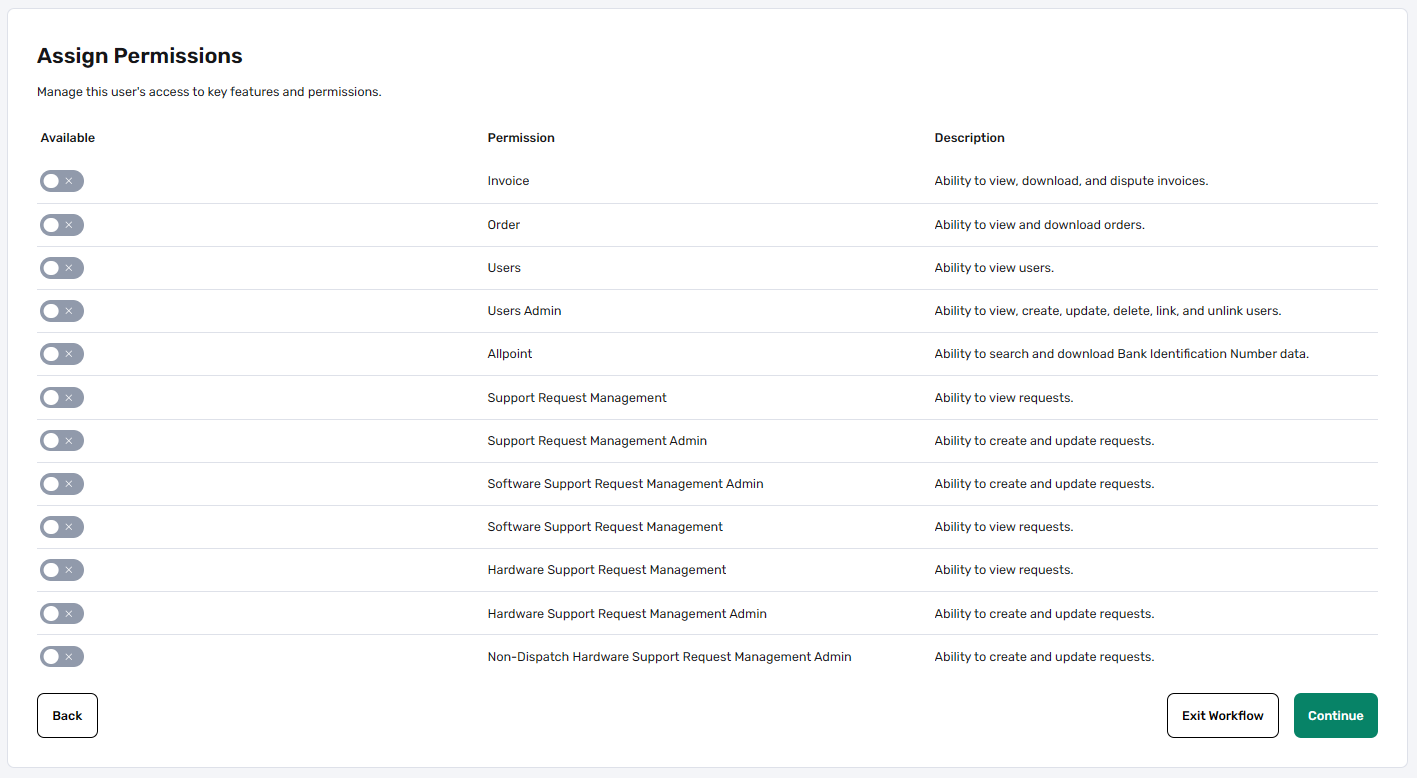
After clicking Continue, you will reach the Assign Permissions step. The specific range of permission options available here will adapt automatically based on the account selected in the previous step.
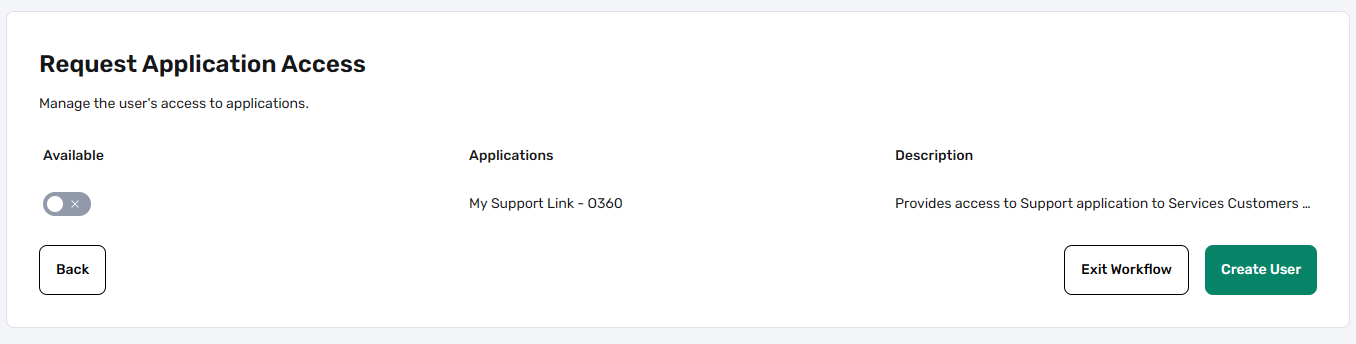
Step 5: Request Application Access
On the final access page, select any specific portal applications your user needs based on their account type.
Note: Some applications require secondary approval, which is typically processed within approximately 2 business days.
Finalizing Creation
Click Create User to complete the setup. Once submitted:
- The user record is created in the system.
- An automated welcome email is sent to the new user.
- The email contains instructions for registration and account setup.
Important Setup Requirement: Users have 72 hours from the time of account creation to complete their setup and registration. If the setup is not completed within this timeframe, the account will be automatically disabled for security purposes.
Recommendation: To ensure users have ample time to respond during business hours, it is best to create new users at the beginning of the week.
Enable / Disable Users
A clear, step-by-step administrative procedure for regulating user account status and platform accessibility.
Account Status Control: Modifying a user's status between active and disabled regulates their ability to log into NCR Atleos Central. If a user was not previously linked to any accounts, linking them requires you to update their status from Disabled to Active so they can successfully log in.
Step 1: Navigate to Account Administration
From the left-hand vertical navigation bar in NCR Atleos Central, click Account Administration.
Step 2: Open the Manage Users Tab
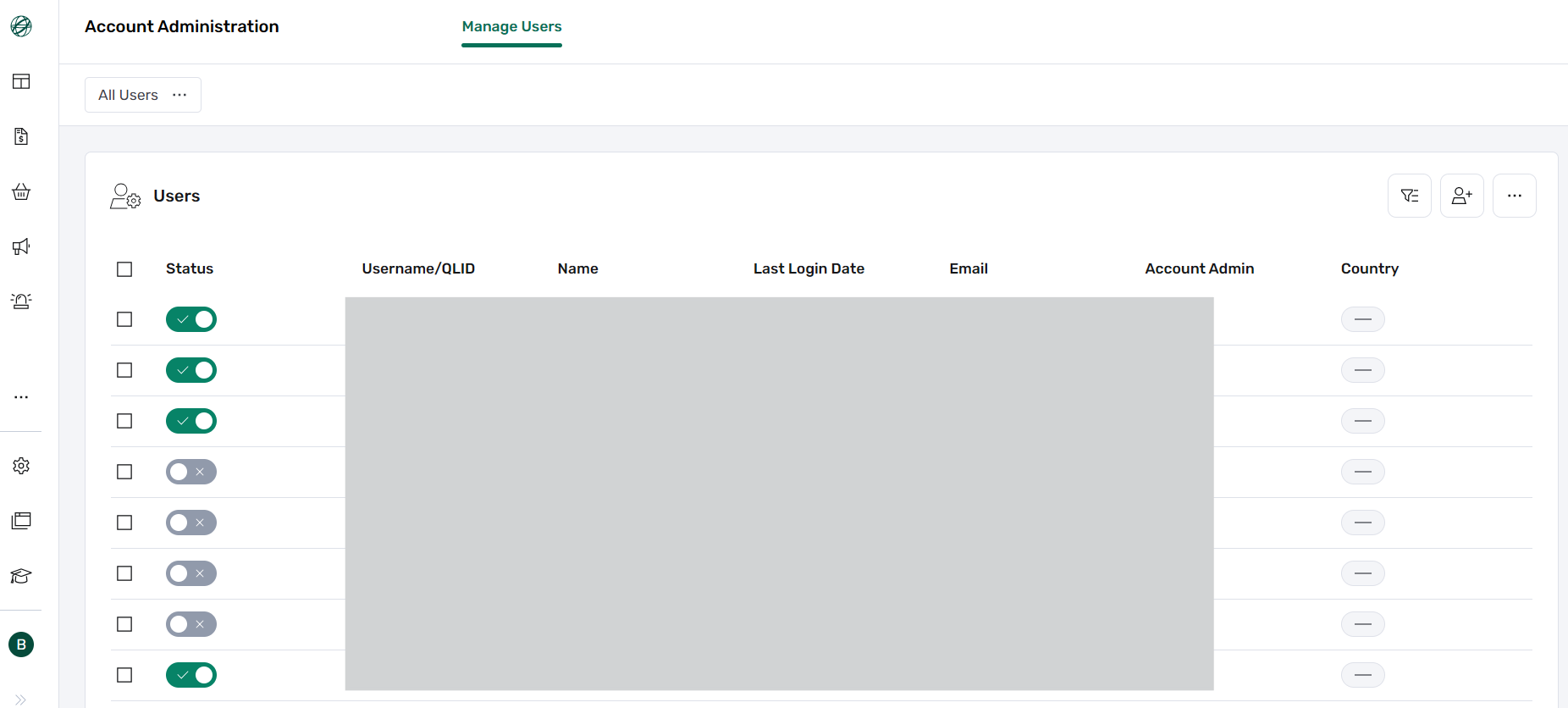
Inside the Account Administration dashboard, open the Manage Users tab to view the list of all users. Note that the Create a User button is located here, but you do not need to click it for managing existing users.
Step 3: Enable or Disable via Status Toggle
Find the user in the list and use the Status toggle button directly next to each user row:
- Grey Toggle: Indicates the user account is disabled.
- Dark Green Toggle: Indicates the user account is enabled.
Step 4: Alternative: Profile Edit View
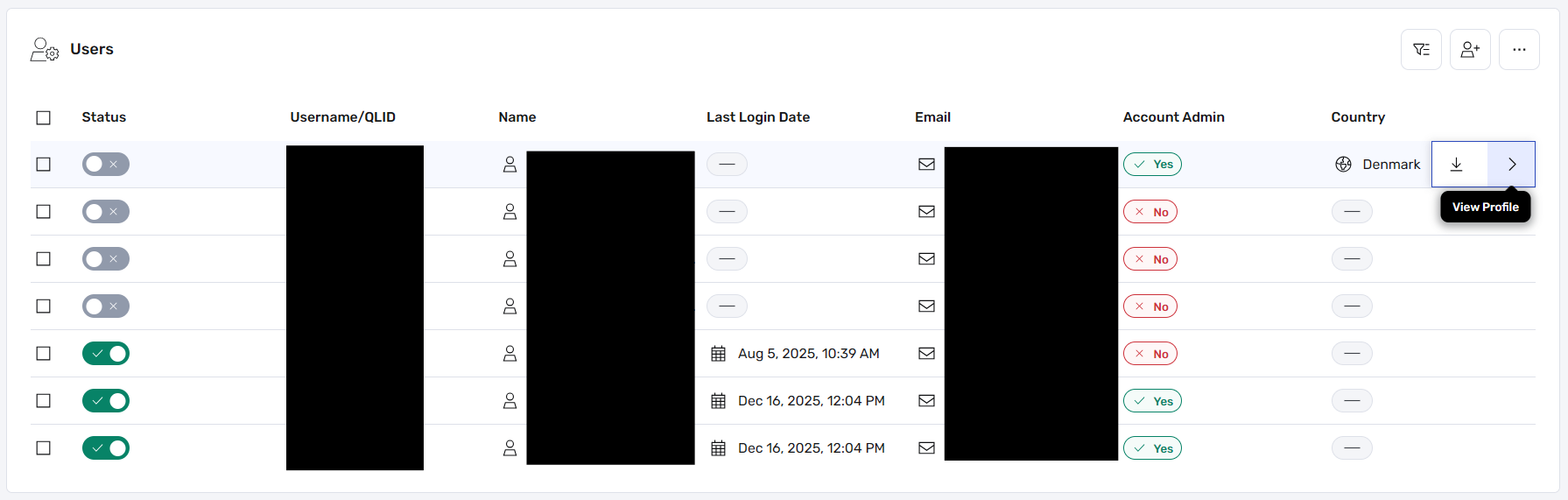
Alternatively, you can hover your mouse over the user in the results list and click the arrow icon on the right side of the user's row to open their account page.
Once inside the profile view, click the Edit button to enable or disable the user from there, and finally click the submit button at the bottom of the form to save your changes.
Best Practices and Automation
When toggling user status, always verify account associations and ensure that downstream application mappings align correctly.
For special user types, refer to specific routing rules before modifying profile flags.
Automated Notifications: Changing a user's status to Active triggers an automated notification email. Ensure the user's email address is accurate prior to saving changes so they receive their login prompt seamlessly.
Manage Permissions
A step-by-step administrative procedure for assigning roles, account links, and feature permissions to user profiles.
Granular Access Control: Permissions define what sections, accounts, and tools a user can access within NCR Atleos Central. Proper permission assignment ensures security compliance while giving team members the exact tools they need for their workflow.
Step 1: Navigate to Account Administration
From the left-hand vertical navigation bar in NCR Atleos Central, click Account Administration.
Step 2: Access the Manage Users Tab
Inside the Account Administration dashboard, open the Manage Users tab to view the directory of registered users.
Step 3: Open the User's Profile
Locate the target user in the list, hover your mouse over their row, and click the arrow icon on the right side to enter their individual profile page.
Step 4: Select Permissions from Related Content
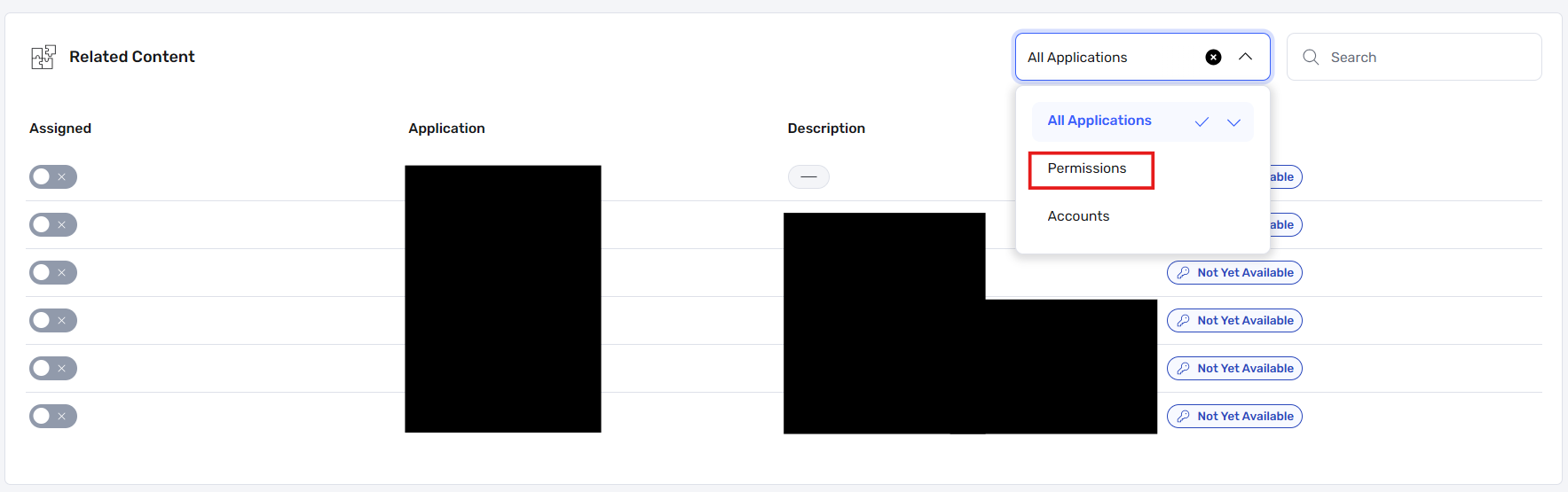
Scroll down to the Related Content section at the bottom of the user's profile page and select Permissions from the dropdown menu. This will display the Permissions screen.
Step 5: Toggle Permissions On or Off
Simply toggle the permission on or off by clicking the button directly. Changes are automatically saved with no additional submit button needed:
- Grey Toggle: Indicates the permission is turned off / disabled.
- Dark Green Toggle: Indicates the permission is turned on / enabled.
Permission Best Practices
Always ensure that newly linked accounts accompany a status check. If a user was previously disabled, updating their permissions and ensuring their main profile status is active will enable them to log in successfully.
Adhere to the principle of least privilege when assigning administrative rights across portfolios.
Automatic Saving: Because permission toggles apply instantly upon clicking, verify each change carefully before moving away from the screen.
Add Applications
Account Admins can request applications for users in their organization directly from the user's profile.
Note: Only applications available to the user's linked account will appear. If an application is not listed, it may not currently be available for that account.
Step 1: Find the User
Open Account Administration, select Manage Users, and find the user by name or email address.
Step 2: Open the User's Profile
Move your pointer over the correct user and select View Profile.
Step 3: Open Applications
Scroll to Related Content, open the dropdown, and select Applications.
Step 4: Request the Application
Select the application the user needs and submit the request.
Some applications may require additional processing before access becomes available.
Don't See the Application?
Confirm that the user is linked to the correct account. Only applications available to that account can be requested. If you still need assistance, contact your NCR Atleos representative.
Add Accounts
How to link a user's profile to another account, so they can view and manage more than one account.
Delete a User
Account Admins with user-management access can delete users linked to their organization's accounts.
Important: Before continuing, confirm that you selected the correct user and email address.
Step 1: Open Manage Users
Sign in to NCR Atleos Central. Open Account Administration, and then select Manage Users.
Step 2: Find the User
Search for the user by name or email address. Confirm that the displayed account belongs to the user you want to delete.
Step 3: Open the User's Profile
Move your pointer over the correct user and select View Profile.
Step 4: Open the Three-Dot Menu
On the user's profile page, select the three-dot menu in the upper-right area of the profile. The Delete option appears in the expanded menu.
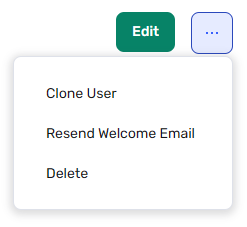
Step 5: Select Delete
From the three-dot menu, select Delete. Review the selected user and complete the confirmation shown on the screen.
Check before confirming: Make sure the name and email address belong to the user you intend to delete.
Don't See the Delete Option?
Confirm that you have Account Admin or user-management access for the account linked to the user. If the option is still unavailable, contact your NCR Atleos representative for assistance.