Orders
This guide explains how to navigate to your order history, use search filters, and understand the detailed fields within an individual order record in NCR Atleos Central.
Accessing Order History
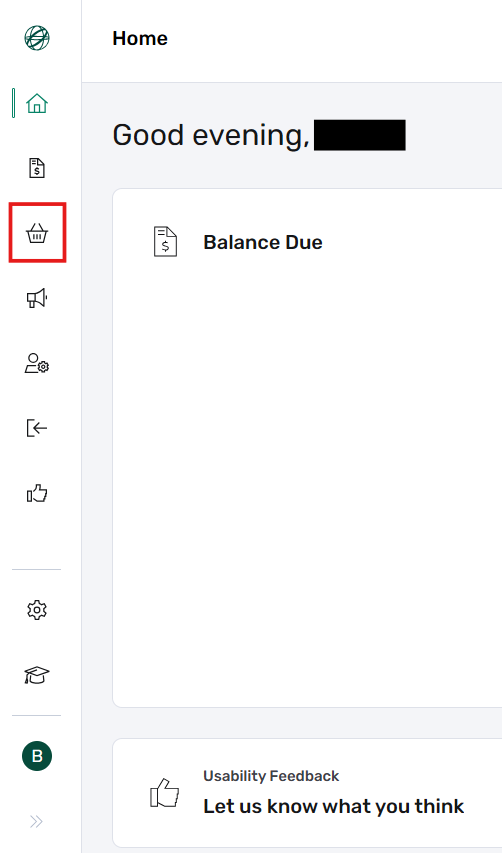
From the main Dashboard or landing page, locate and click the Orders button.
This will take you to the Order History page, where you can view all orders associated with your customer account.
Managing the Order History Table
The Order History view displays a comprehensive list of your account's orders. For each entry, you can quickly identify the status, PO Number, and key logistical dates.
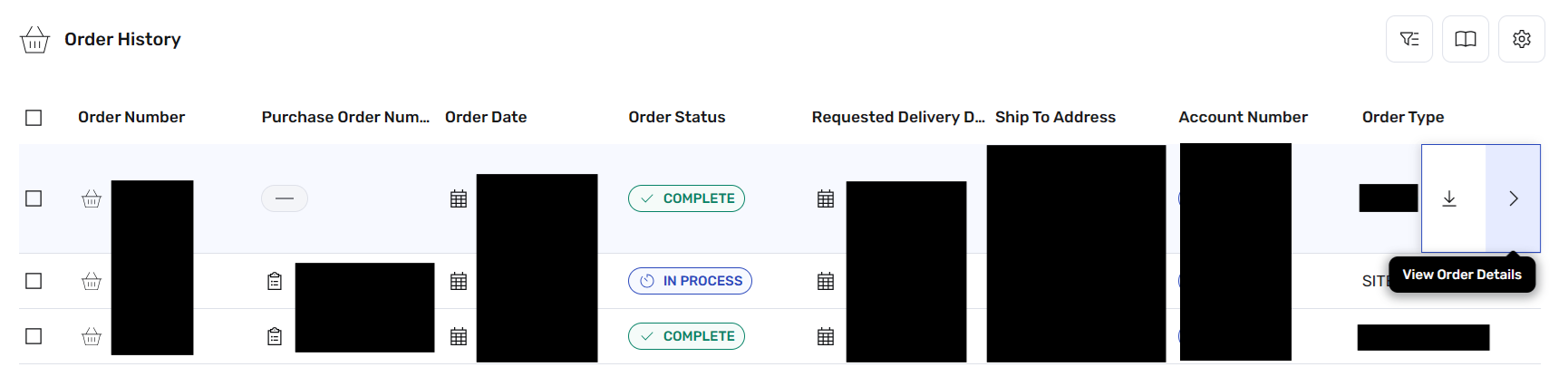
Table Features and Actions
- Hover Actions: When you hover your mouse over an order row, an Arrow icon (to view details in-browser) and a Download icon will appear on the far right.
- Bulk Actions: Use the checkboxes to the left of each order to select multiple records for batch downloading.
- Management Tools: Use the Advanced Filter, Saved Searches, and Edit Table Columns buttons at the top to customize your search results.
Statuses You May See
- Complete
- In Process
- Cancelled
Understanding Order Details
Order Details Section
This section includes the green Download button and provides high-level administrative and financial data. It includes tracking numbers (Order, PO, Quote), account identifiers, financial totals (Subtotal, Tax, Freight), and logistical settings (Payment Terms, Invoice Criteria, Hold Status).
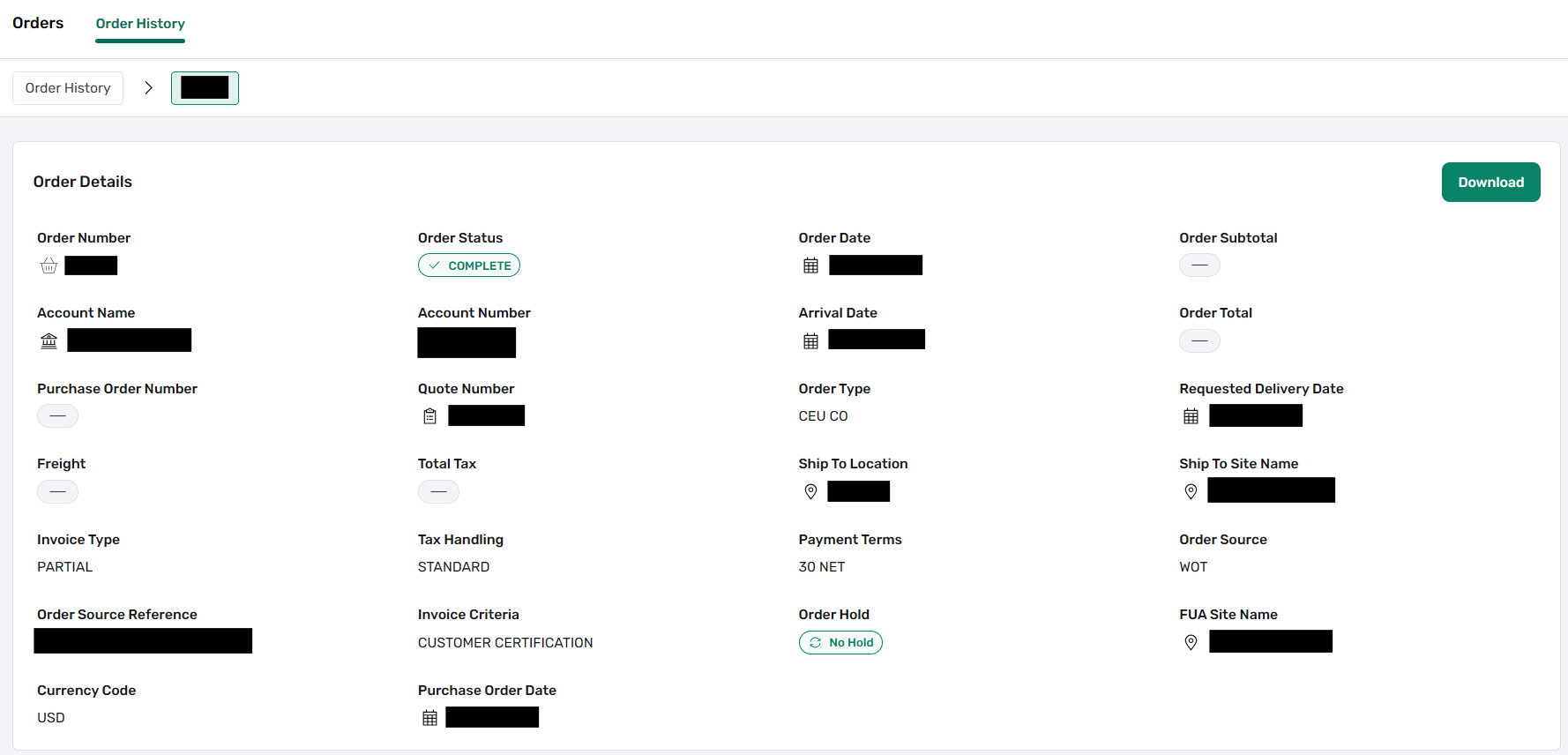
Note: Fields without applicable data for a specific order will display a "-" dash.
Order Address
The Address section displays three critical locations for the order:
- Ship To Address: The physical destination where products are delivered.
- Bill To Address: The entity or department responsible for invoicing and payment.
- For Use At (FUA): The specific end-site where equipment is installed or service is performed.

Product Details
Located at the bottom of the page, this section breaks down the specific items within the order. It displays the Product ID, Name/Description, pricing, and the current status and ship date for each individual line item.
