FAQs
See below for frequently asked questions regarding account set up, credentials, and applications.
First-Time Login
The NCR Atleos Central platform now uses Multi-Factor Authentication (MFA) for enhanced security. Login now requires your email address — usernames are no longer supported. A full PDF guide with screenshots for the new MFA-based login process is available here: View MFA Login Process PDF
Note: If you need to change the email address associated with your account, a new account must be created and the old one deleted or disabled. This can only be done by your dedicated Customer Administrator or by the NCR Atleos Central Administrator Application team by completing the Existing Account Support Form.
This section applies to users who have been recently registered in NCR Atleos Central but are signing in for the first time and have not yet set a password or MFA method.
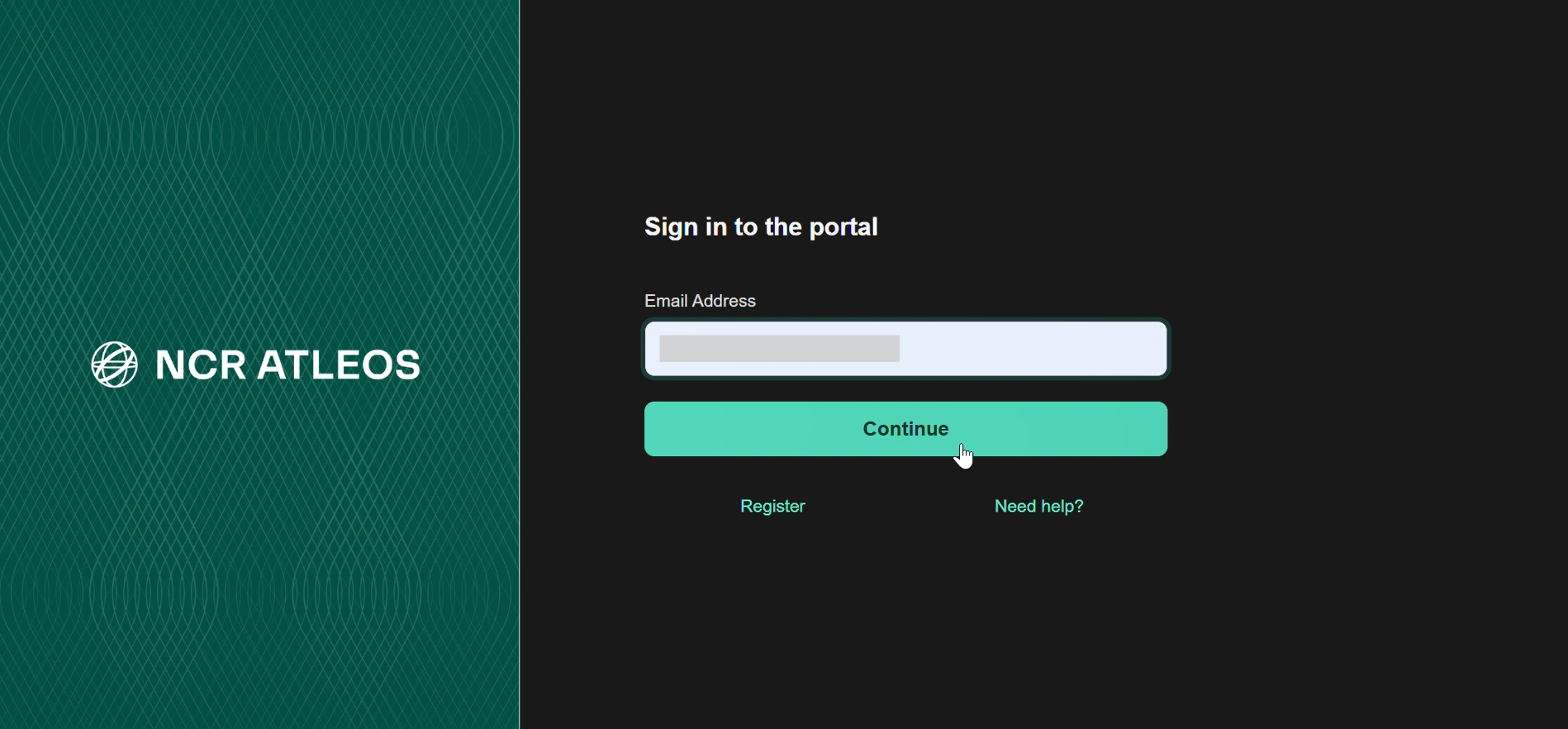
Step 1 – Enter Your Email Address
Go to the Login Page for the portal and enter the email address associated with your account. At this stage, no password is required yet.
Step 2 – Choose Your Verification Method
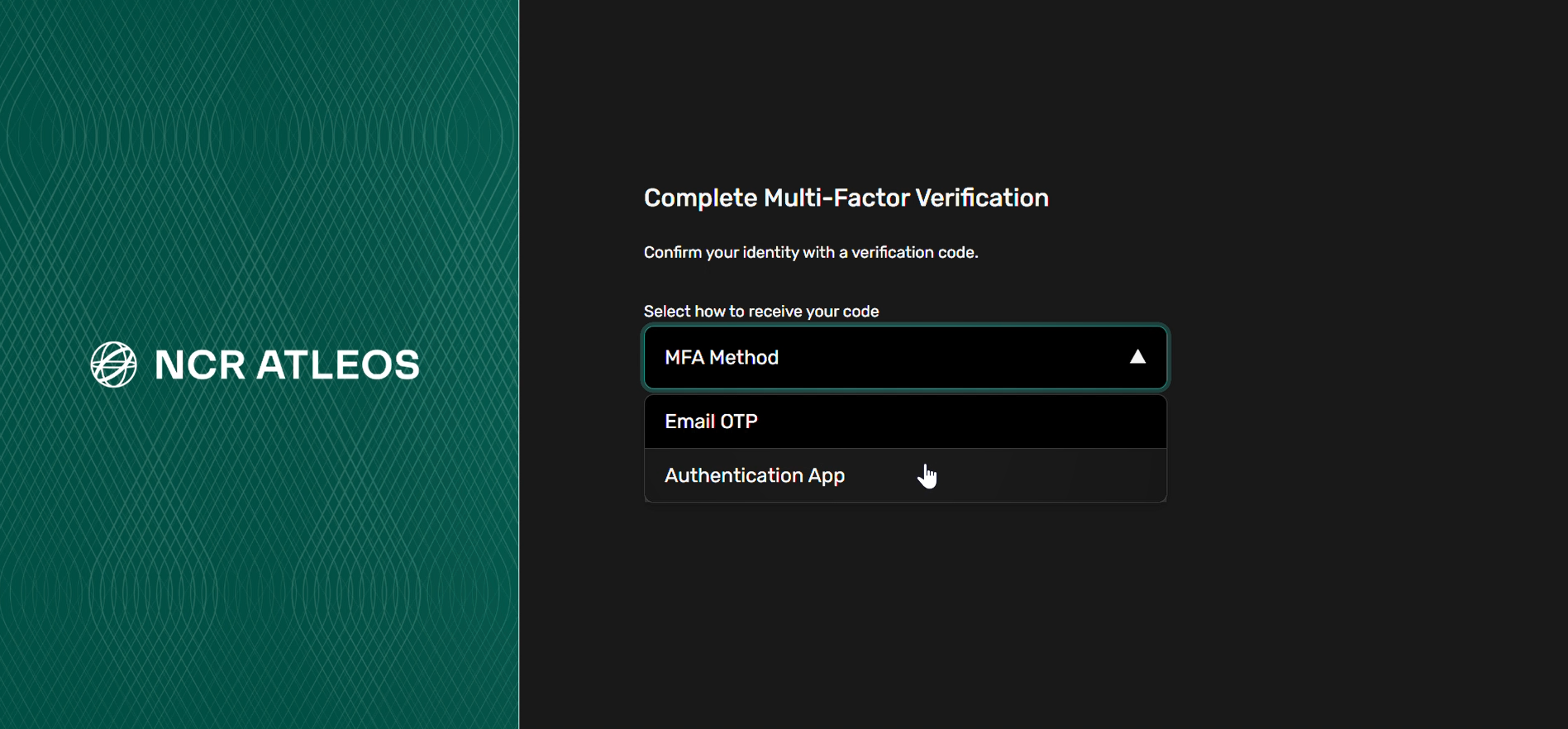
After entering your email, you will be prompted to complete Multi-Factor Verification. From the dropdown, choose one of the following:
- Authentication App – Verify using an authenticator app
- Email OTP – Receive a one-time code by email
Step 3 – Set Up MFA via Authenticator App
If you select Authentication App, a QR code will be displayed. Scan it using an authenticator app on your mobile device.
We recommend Microsoft Authenticator, available on:
You may also use any other authenticator app that supports QR code–based MFA.
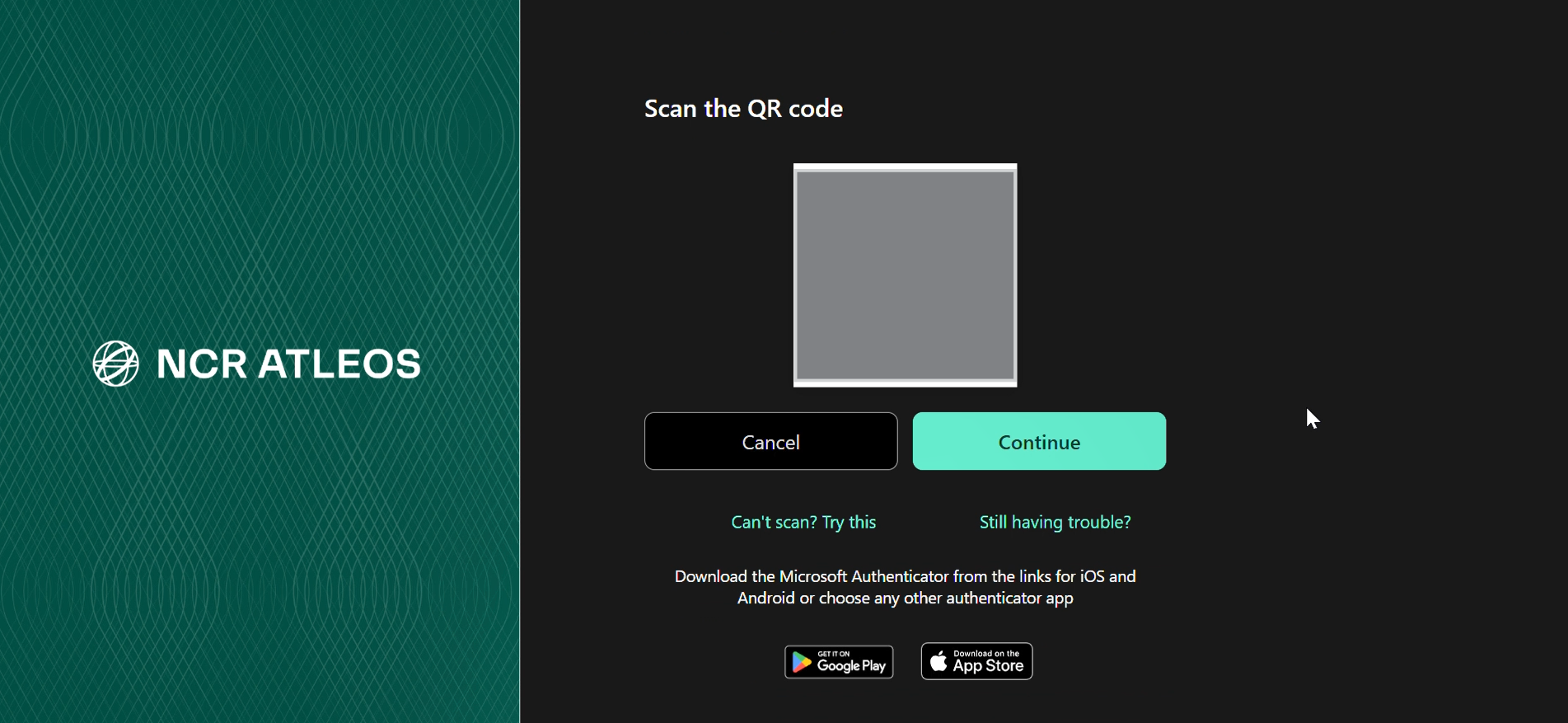
Manual Setup Option: If you are unable to sign in by scanning the QR code, hover your mouse over the "Can't scan? Try this" link located in the lower left relative to the QR code. A small browser popup will appear in the lower left corner showing a URL that starts with otpauth://. The URL contains your login ID and a secret key. To set up your app manually, identify the segment of the URL that appears after the ?secret= keyword and before the &issuer string. Enter this specific sequence of letters into your authenticator app by following the instructions for "entering a secret key" or "manual entry" within that app.

Step 4 – Enter the Verification Code
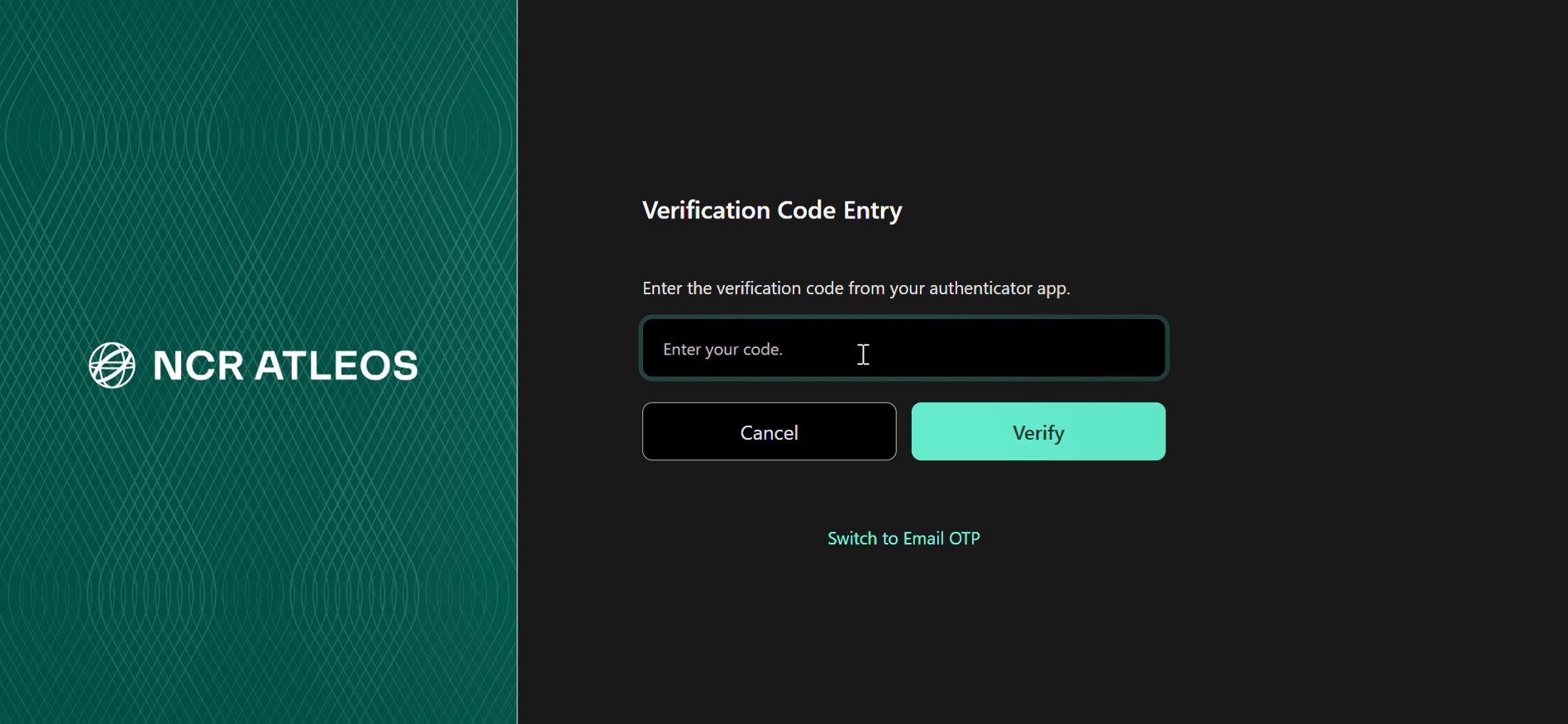
After scanning the QR code, your authenticator app will generate a time-based verification code. Enter this code in the field shown on screen and click Verify.
Step 5 – Create Your Password
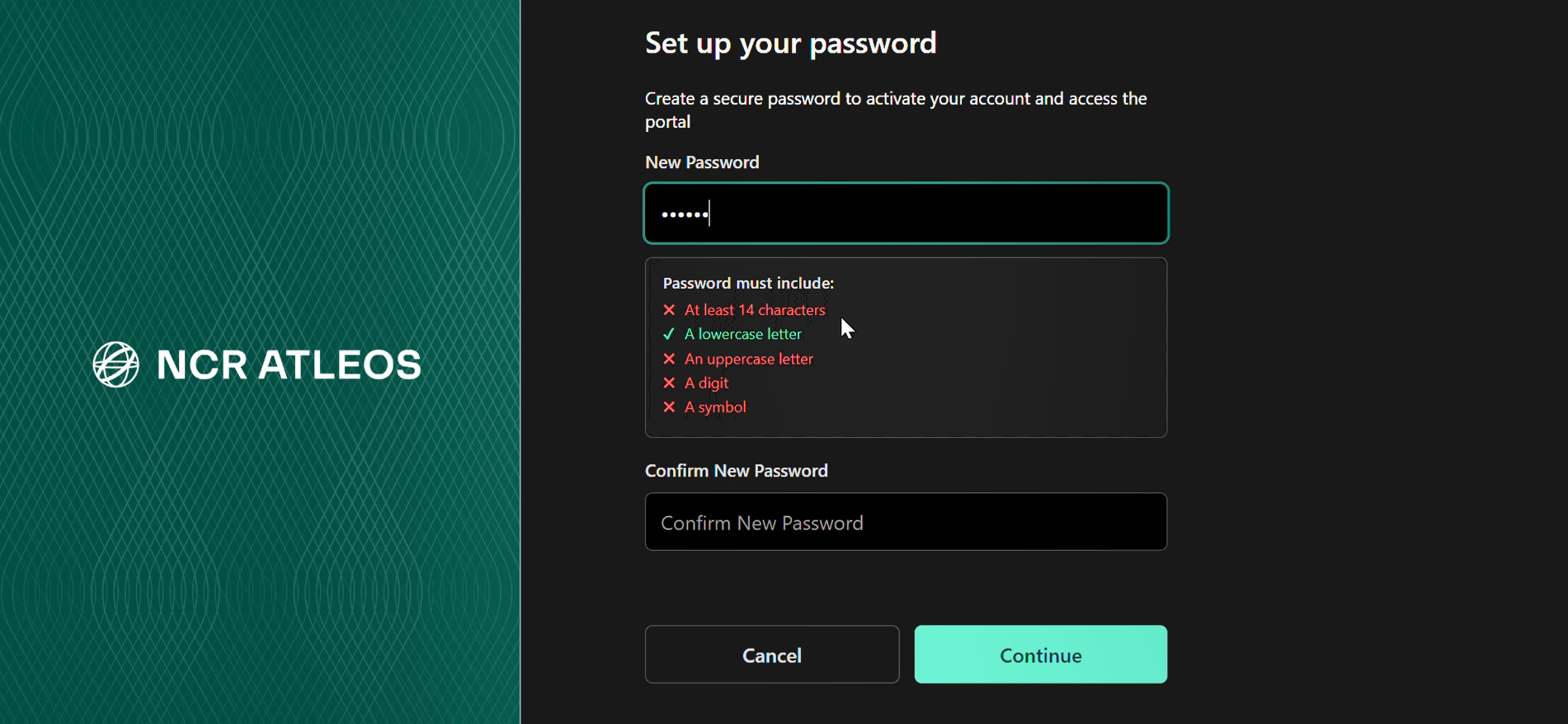
Once verification is successful, you will be prompted to create a new password. Your password must meet all of the following requirements:
- At least 14 characters
- At least one lowercase letter
- At least one uppercase letter
- At least one digit
- At least one symbol
Enter the password again to confirm, then click Continue. You will then be signed in and taken directly to the portal.
Returning Users
Step 1 – Enter Your Email Address
Go to the Login Page for the portal and enter your email address. Usernames are no longer supported.
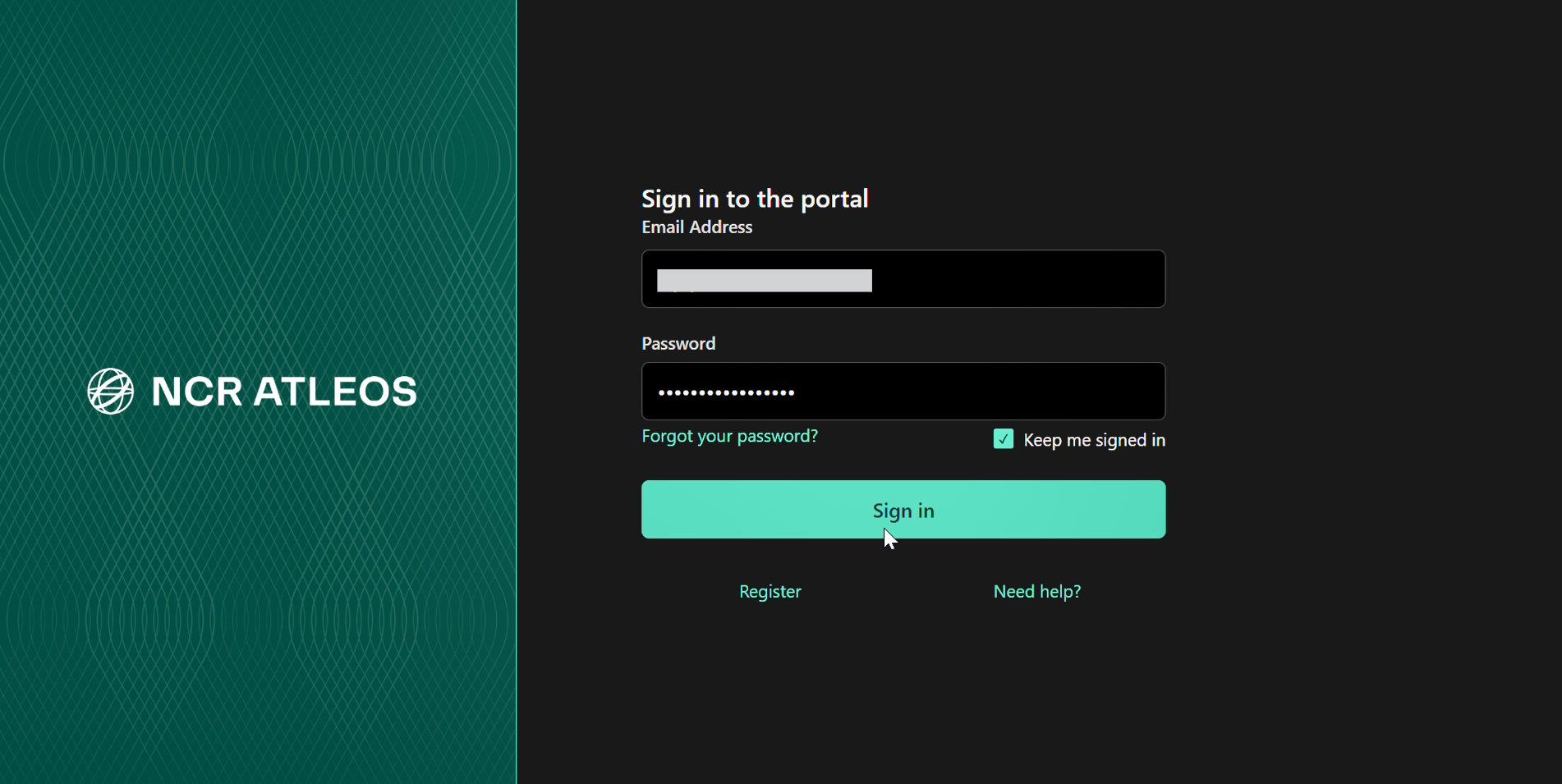
This login screen includes the "Forgot your password?" link located under the password field.
Step 2 – Enter Your Password
After entering your email, type in your password. You may be prompted to reset your password depending on system requirements.
Step 3 – Send the Verification Code
Click "Send Verification Code". A code will be sent to your registered email inbox.
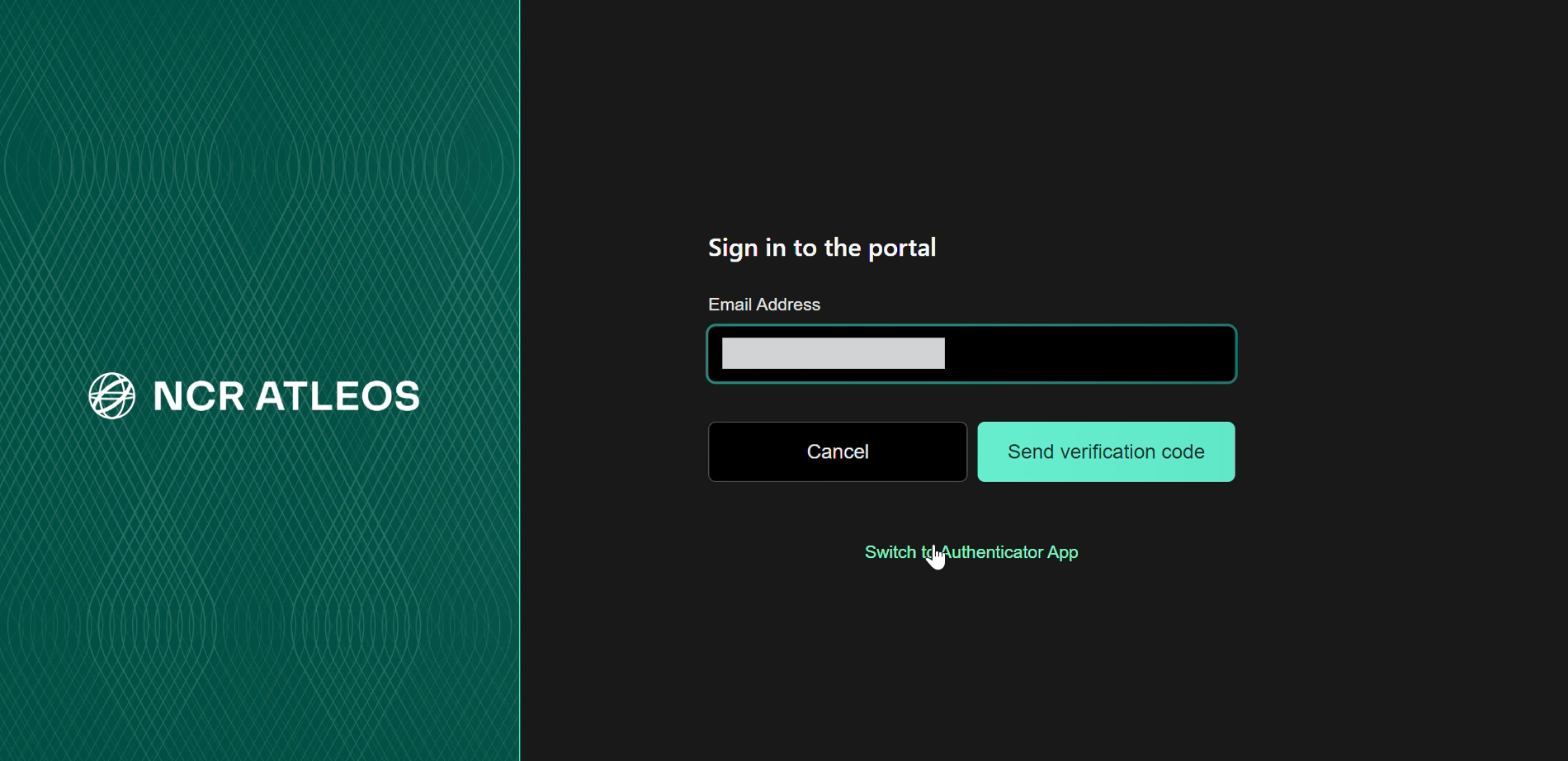
On this screen you can also switch to Authenticator App verification by clicking "Switch to Authenticator App".
Step 4 – Enter the Verification Code
Once you receive the code, enter it in the field provided to complete the login process.
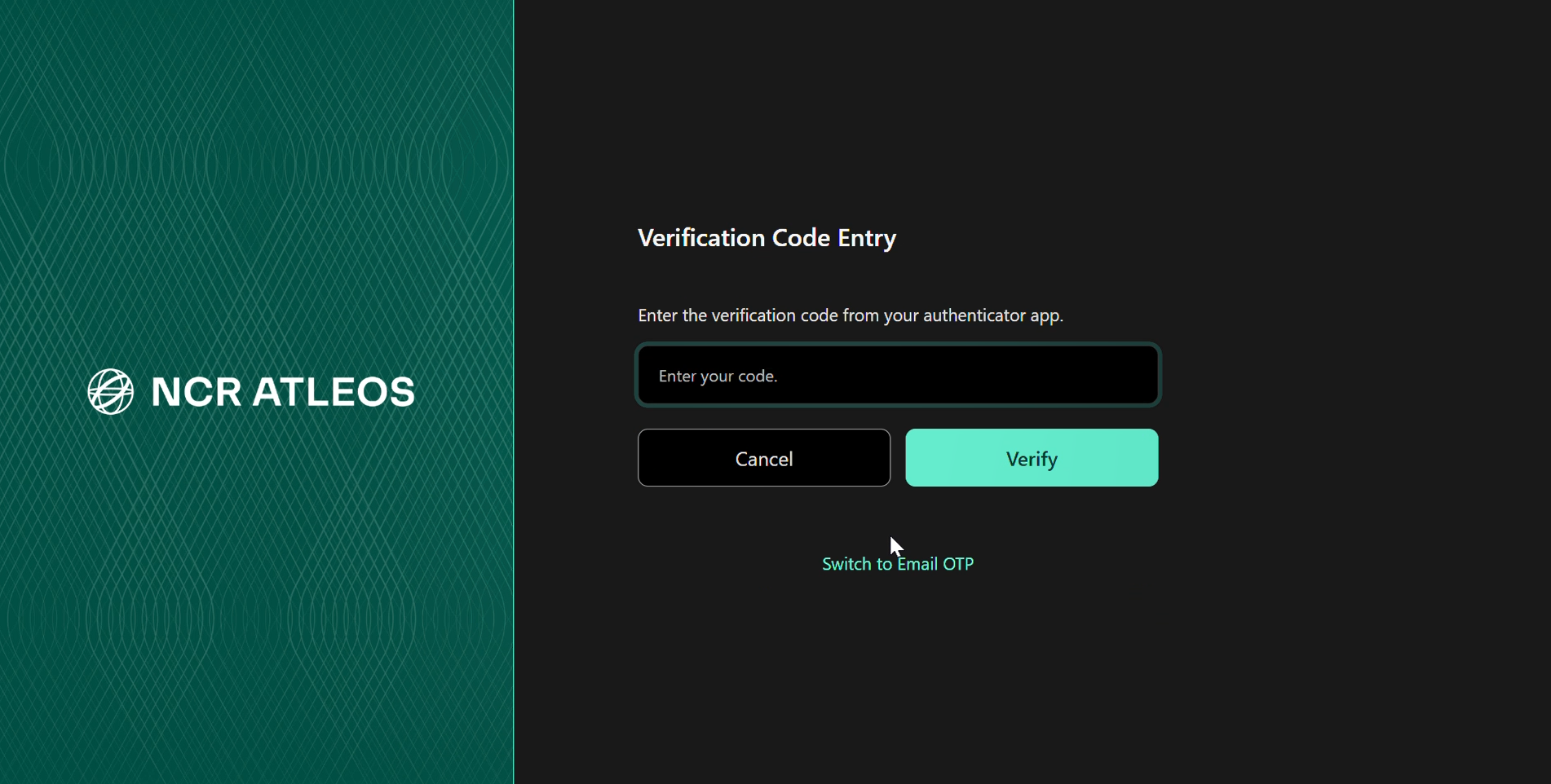
If you prefer email-based verification instead, click "Switch to Email OTP".
Global Account Switching
If you need portal access to multiple Global Accounts (customers) and your profile is linked to more than one, you can choose which account to operate under when accessing NCR Atleos Central.
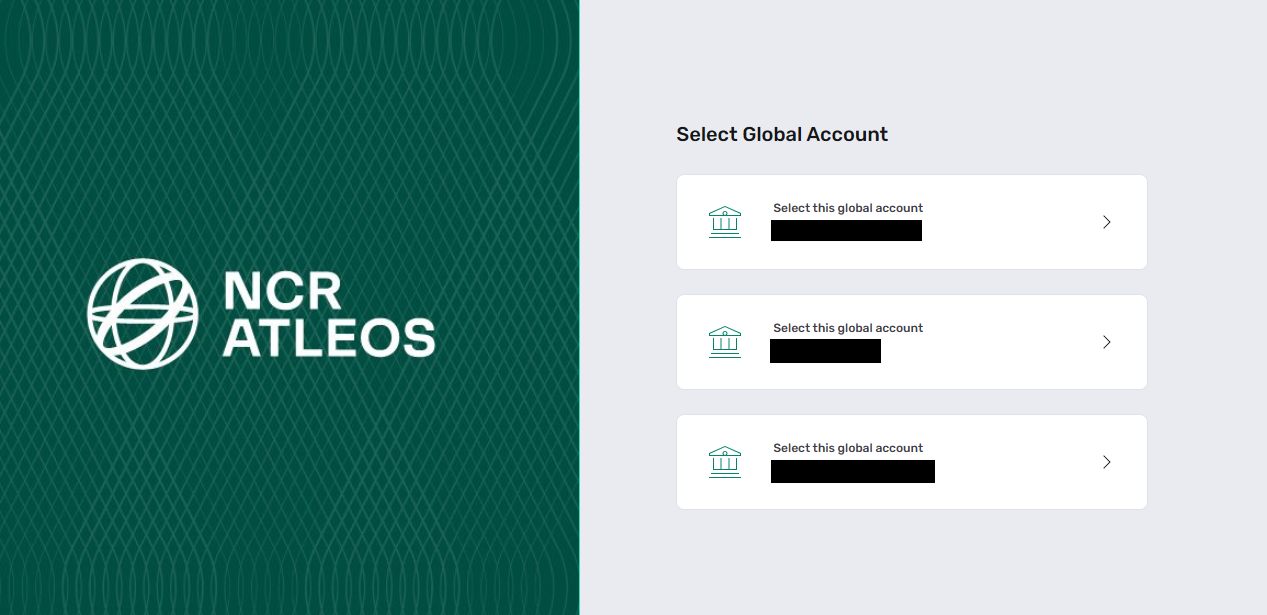
Selecting an Account at Login
After entering your credentials and completing MFA, users with multiple linked Global Accounts will be presented with an account selection screen. Choose the account you want to operate under before entering the portal.
Switching Accounts from Within the Portal
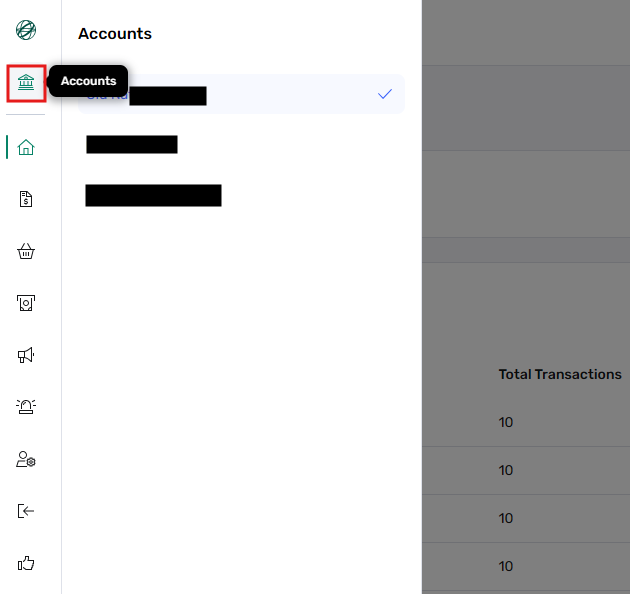
You can also switch between Global Accounts directly from within the portal at any time. Click the "Accounts" button — the first icon below the NCR Atleos logo in the vertical navigation bar on the left side of the screen. A list of all Global Accounts linked to your profile will appear, allowing you to select a different one.
Important Notes:
- This feature is not available by default — it must be enabled by linking additional accounts to the user's profile.
- Only one Global Account can be active at a time.
- Accounts must be added by a Customer Administrator.
How Admins Add Accounts
Customer Administrators can link additional Global Accounts to a user's profile by following these steps:
- Open the user's profile.
- Navigate to the Accounts section (not Permissions).
- Add the desired Global Account(s).
Note: This feature only works if the user has multiple Global Accounts linked to their profile. If only one account is linked, the account selection screen will not appear at login and the Accounts button will not offer switching options.
MFA Enhancements
The following MFA enhancements have been rolled out and are now active for all NCR Atleos Central users.
1) Authenticator App Verification Option
Users can receive a one-time verification code through an authenticator app based on their selected MFA preference, reducing sign-in steps and speeding up access.
- Sign in using your email address and password.
- If Authenticator App is your selected MFA method, a one-time code will automatically appear in your app.
- Enter the code to complete sign-in.
2) MFA Preference Management
Users can set and change their preferred MFA method at any time, choosing between Email or Authenticator App.
Access Instructions
If you are experiencing issues where applications are not working as expected or are redirecting you back to the dashboard, please ensure you are accessing the portal correctly:
- Please ensure you are typing portal.ncratleos.com directly into your browser's address bar.
- Avoid using saved bookmarks or direct links to specific application URLs (such as ao.portal.ncratleos.com), as these may cause session or access issues.
Troubleshooting
UPDATE: Instructions for Resolving the Permissions Access Issue
Date: October 9, 2026
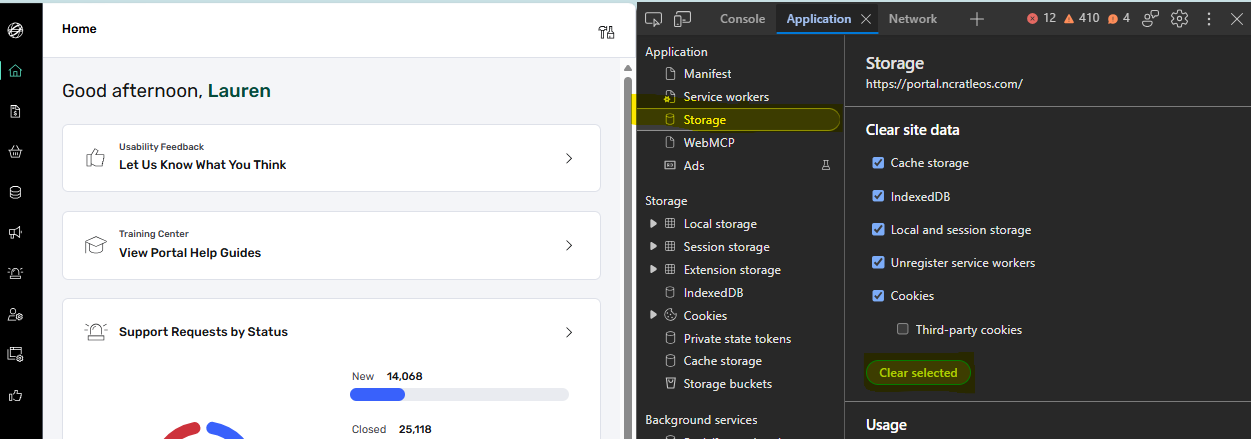
If you are experiencing issues viewing your permissions in the portal, please follow these steps to clear your browser's local application storage.
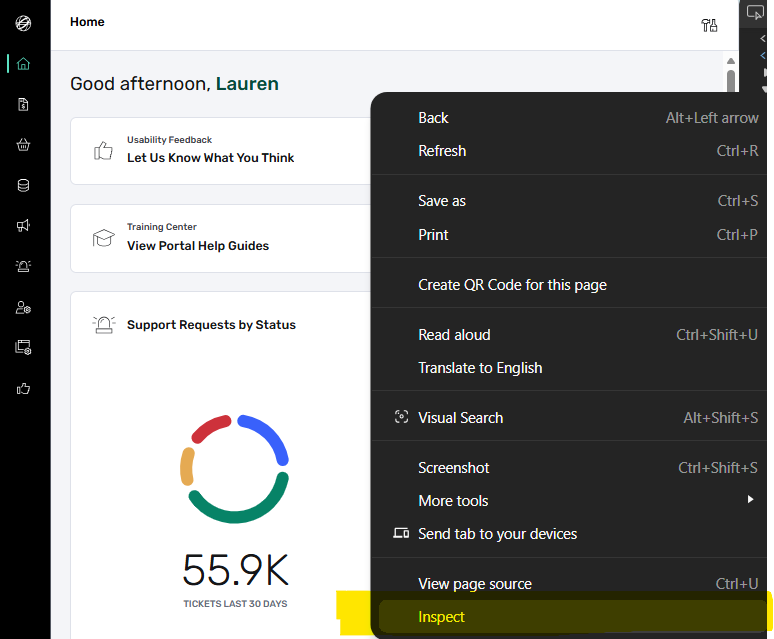
- Log in to the portal. Right-click anywhere in the portal and click "Inspect".
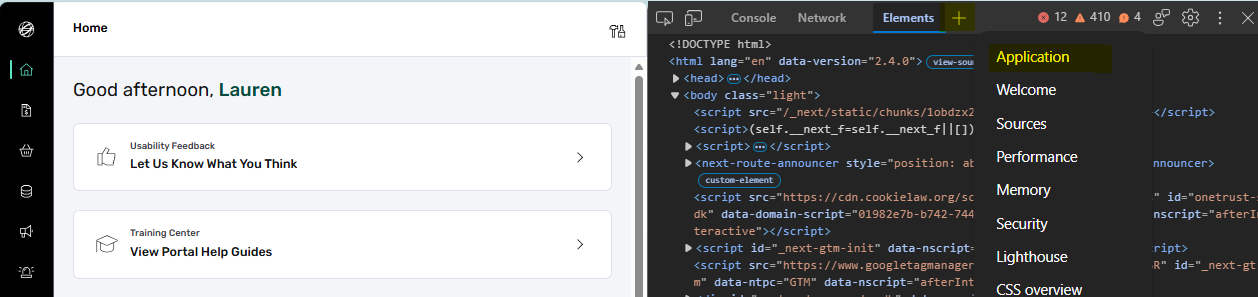
- Click the "Application" option in the developer tools. (Note: You may need to click the plus sign or double arrows in the middle of the tabs on the devtools side to see it).
- Click the "Storage" heading. Then, click "Clear selected" in the main pane.
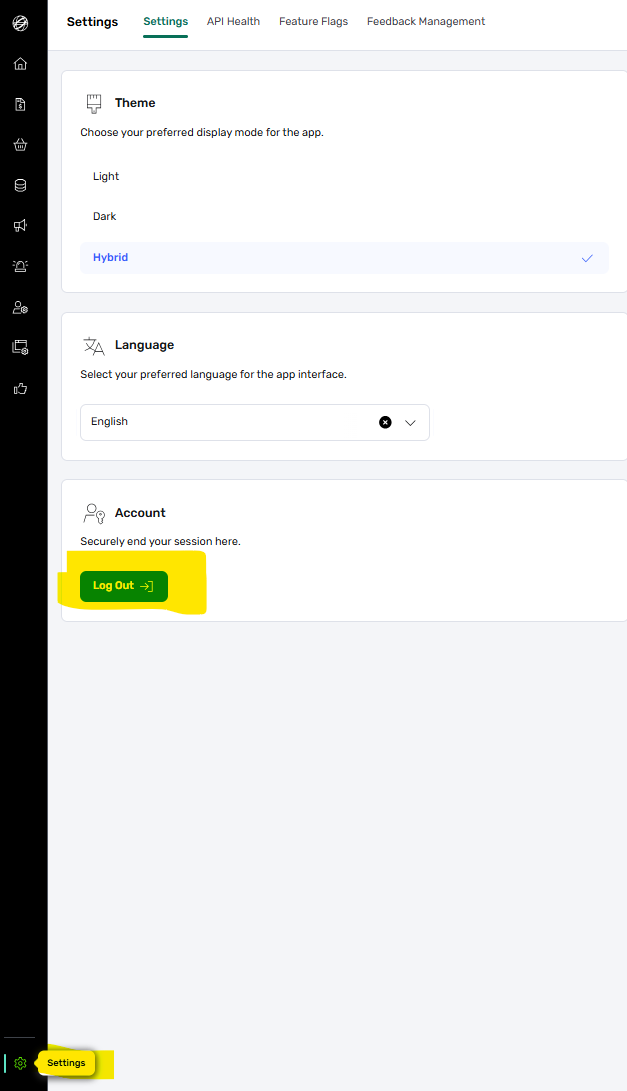
- Log out of the portal via the Settings page.
- Log back in, and all permissions should now be visible.
Resetting Your Password
Important MFA Requirement: When resetting your password, you must complete the MFA verification first before creating a new password. Please download the Microsoft Authenticator app to scan the QR code or select to authenticate by email to complete MFA. You will then be prompted to set a new password.
If you've already completed First Time Log On but cannot access your account, you can reset your password directly from the login screen by following the steps below.
- Click "Forgot your password?" – On the login screen, click the "Forgot your password?" link located beneath the password field.
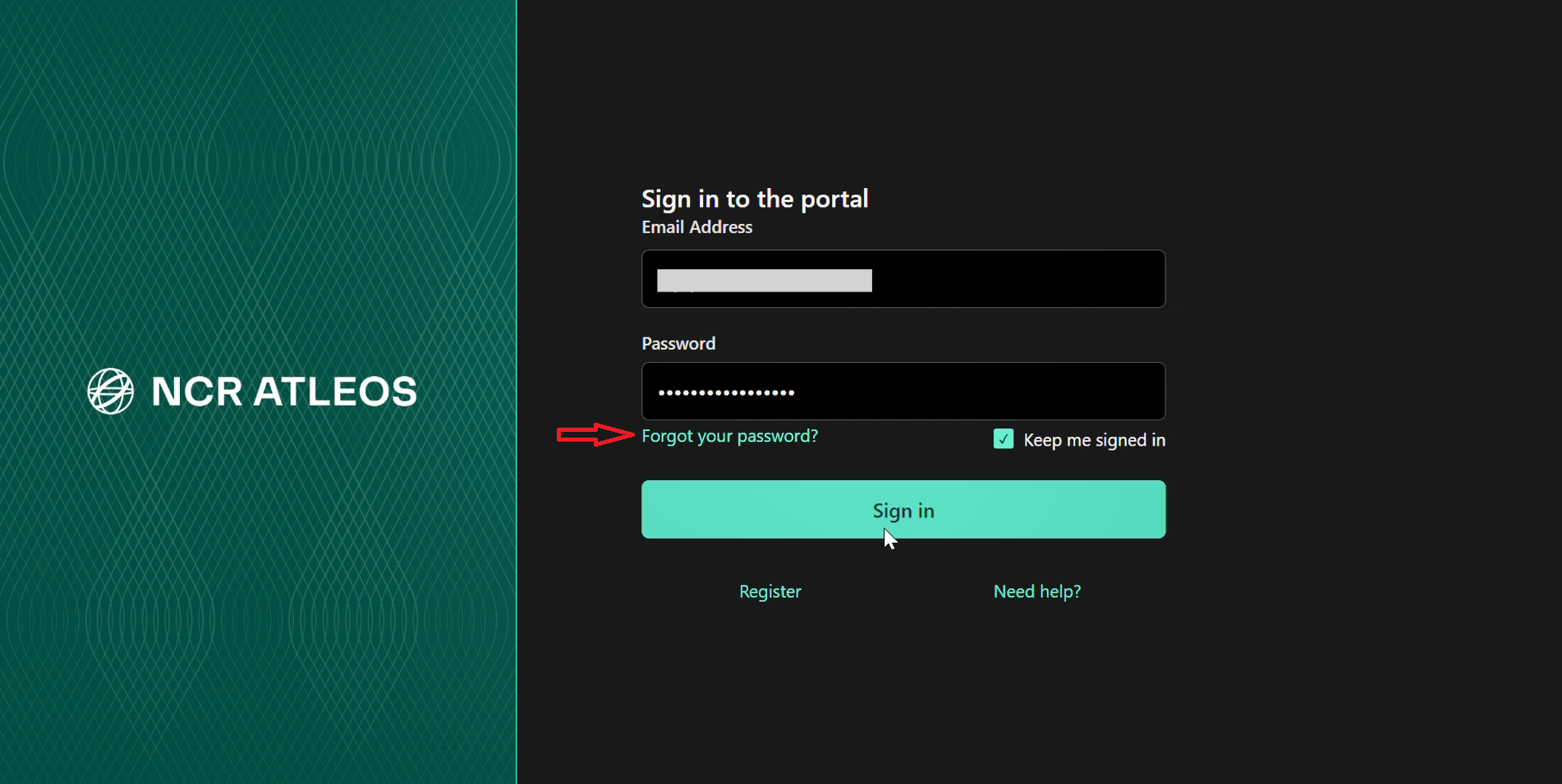
- Enter Your Email and Send the Verification Code – You will be presented with a screen prompting you to enter your email address. Type in the email associated with your account, then click the "Send verification code" button. A verification code will be sent to your registered email inbox.
- Enter the Verification Code and Verify – On the next screen, enter the code you received in the "Verification Code" field, then click "Verify code".
- Request a New Code (If Needed) – If the code does not work or has expired, click the "Send new code" button — located on the same screen as the "Verify code" button — and enter the newly received code in the "Verification Code" field.
Tip: Verification codes are time-sensitive, so enter the code promptly after receiving it. If you don't see the email within a few minutes, check your Spam/Junk folder before requesting a new code.
Once your identity is verified, you will be prompted to set a new password. Remember, your new password must differ from previously used ones.
If you are still unable to reset your password, contact your assigned Customer Administrator or use the Existing Account Support Form.
Q: I didn't receive my verification code. What should I do?
Check your Spam or Junk folders, as automated emails may be filtered there. If the code doesn't arrive within a few minutes, click "Send Verification Code" again. If you still don't receive it, verify that your registered email address is correct. Contact your Customer Administrator or fill out the Existing Account Support Form for assistance.
Q: I entered the verification code, but it says "Invalid Code."
The verification code is time-sensitive and valid only for a short duration. Request a new one by clicking "Send Verification Code" again and enter the new code promptly.
Q: How do I reset my Authenticator App (scan a new QR code)?
You may need to reset your Authenticator app if you got a new phone, deleted and reinstalled the app, want to switch from email verification, or your device changed and the app no longer works.
Important: At this time, self-service Authenticator app resets are not available. Users cannot reset MFA or re-scan the QR code on their own.
Contact the Global Help Desk and request an MFA reset. Once reset, the next time you sign in you will automatically be prompted to set up the Authenticator app again.
- Email (non-urgent):GlobalHelpdesk.Feedback@ncratleos.com
- Phone (urgent): 1-832-308-4998
Q: I forgot which email is linked to my account.
Since usernames are no longer used, your email address is now your login ID. If you're unsure which email is associated with your account, contact your Customer Administrator or fill out the Existing Account Support Form. A new account may need to be created if the email cannot be verified.
Q: Can I change my email address used for login?
No. NCR Atleos Central accounts cannot be reassigned to a different email. If your email must be changed, a new account must be created and the old one deleted or disabled. This can be performed by your Customer Administrator or by submitting a request via the Existing Account Support Form.
Q: I receive a "Server Error" during login.
Try using an incognito/private browser window or clear your browser cache, then reattempt login. If the issue persists, try again later as there may be a temporary network or server issue.
Support
If you're unsure how to proceed with an access issue in the portal, please complete the Existing Account Support Form.
- Supplier using iSupplier portal, Cloud SP portal, or needing access to Supplier portal for invoice upload/payment:iSupplier.ERP@ncratleos.com
- Invoice-related issues or questions:InvoiceEngine.Application@ncratleos.com
- NCR Atleos Invoice Disputes:Disputes.GBS@ncratleos.com
- Cardtronics related Invoice Disputes:Disputes.Cardtronics@ncratleos.com
- User registration in NCR Atleos Central or password reset: Designated Customer Administrator
- User Registration in the portal (no Customer Administrator available):New Account Registration Form
- Portal Voyix login assistance:customerportal.admin@ncrvoyix.com
- QuoteBuilder issues:support.quotebuilder@ncratleos.com
- My Support Link (N@YS) or DLC (Download Center) applications:Existing Account Support Form (include issue description and screenshot)
- Partner-related inquiries/orders/payments:Partner.Assist@ncratleos.com
Partner Contacts
If you're a partner and need assistance, please refer to the contacts below based on your issue:
- User Registration in the portal (no Customer Administrator available):partner.assist@ncratleos.com (Provide your full name and registered email address)
- DLC (Download Center) application:partner.assist@ncratleos.com
- My Support Link (N@YS) general problems:SMSRoW.Administrator@ncratleos.com or smsus.administrator@ncratleos.com (Include a short issue description and screenshot. The Level II support team will investigate and resolve the case.)