Invoices
Short summary explaining what a user can expect on this page
Introduction
The Invoices page in NCR Atleos Central lets you see every invoice linked to your account in one place. This guide shows you how to find and filter invoices, view their details, email or download them as PDF or CSV, and open a dispute if something on an invoice is not correct.
View an Invoice
Step 1: Log in to NCR Atleos Central
Use your credentials to sign in to NCR Atleos Central.
Step 2: Open the Invoices Page
On the left-hand vertical menu, click the icon that looks like a page with a dollar sign 💲 to access the Invoices Page.
Step 3: Explore the Invoices Interface
When the Invoices Page opens, you will land on the Invoices tab by default. Each row represents a separate invoice linked to your Account Number.
Refer to the screenshot below for key interface elements:

- Advanced Filter: Click to filter invoices by various criteria.
- Saved Searches: Save your filter settings for future use.
- Edit Table Columns: Customize visible columns in the invoice list.
- Invoices Tab: Displays all invoices linked to your account. Use Table Views for prefiltered invoices.
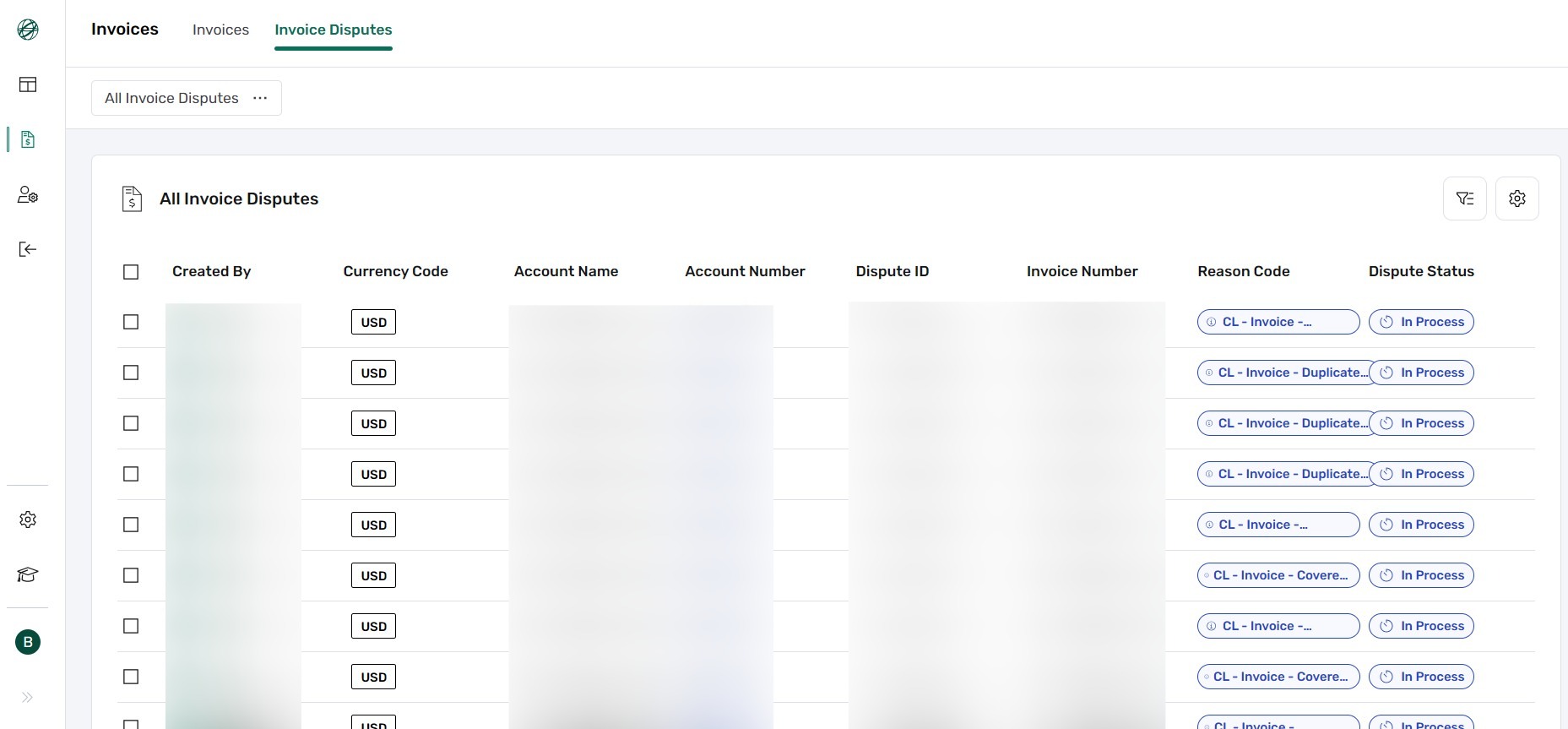
- Invoice Disputes Tab: View and manage any invoice disputes.
- Table View Dropdown: Switch between views such as All, Balance Due, Most Recent.
Step 4: Use Advanced Filters
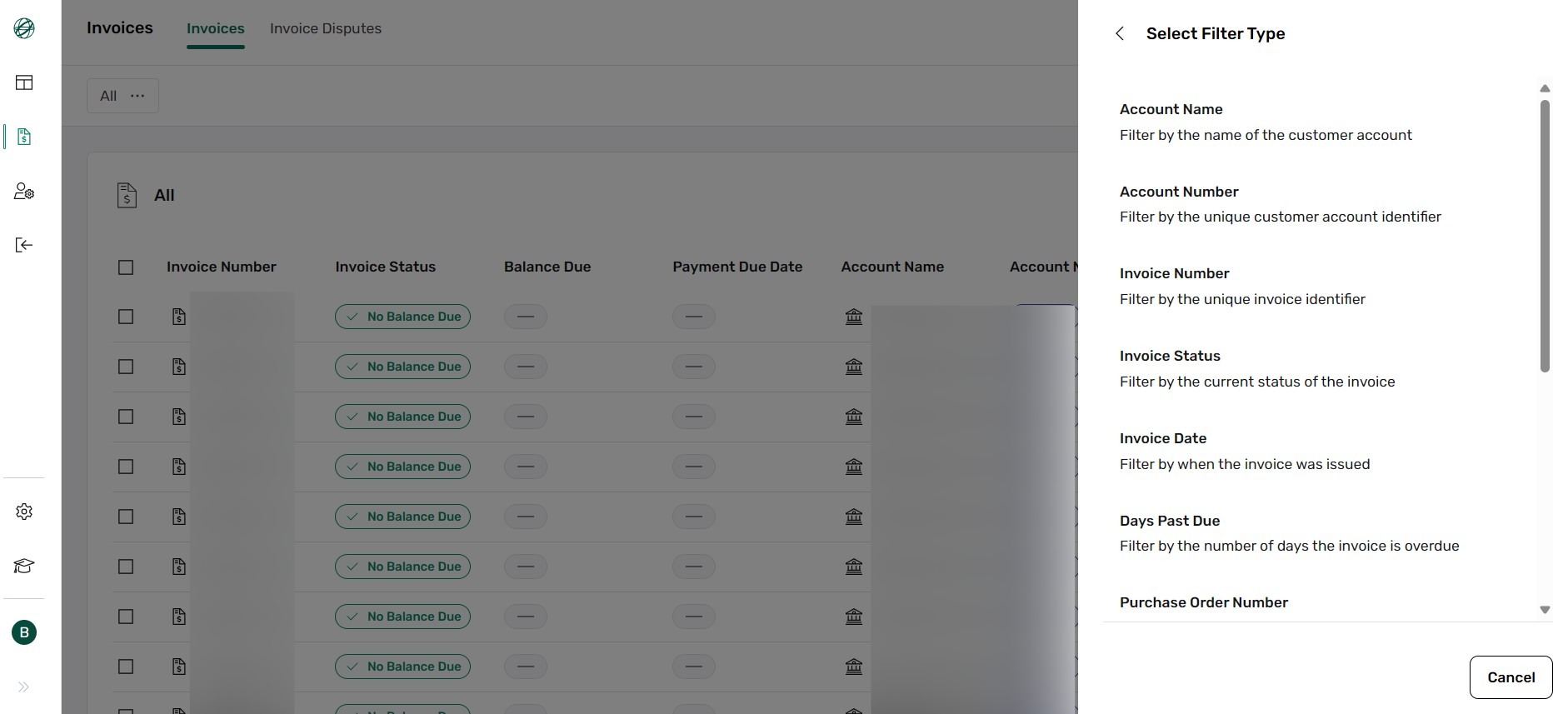
Click Advanced Filter to narrow down the invoice list. You can filter by Account Name, Account Number, Invoice Number, Invoice Status, Invoice Date, Days Past Due, Purchase Order Number, Payment Due Date, Creation Date, Quote Number, Site Name, and Country.
Step 5: Save Your Filters
Click Advanced Filter, then use the Filter Type dropdown to select filter criteria.
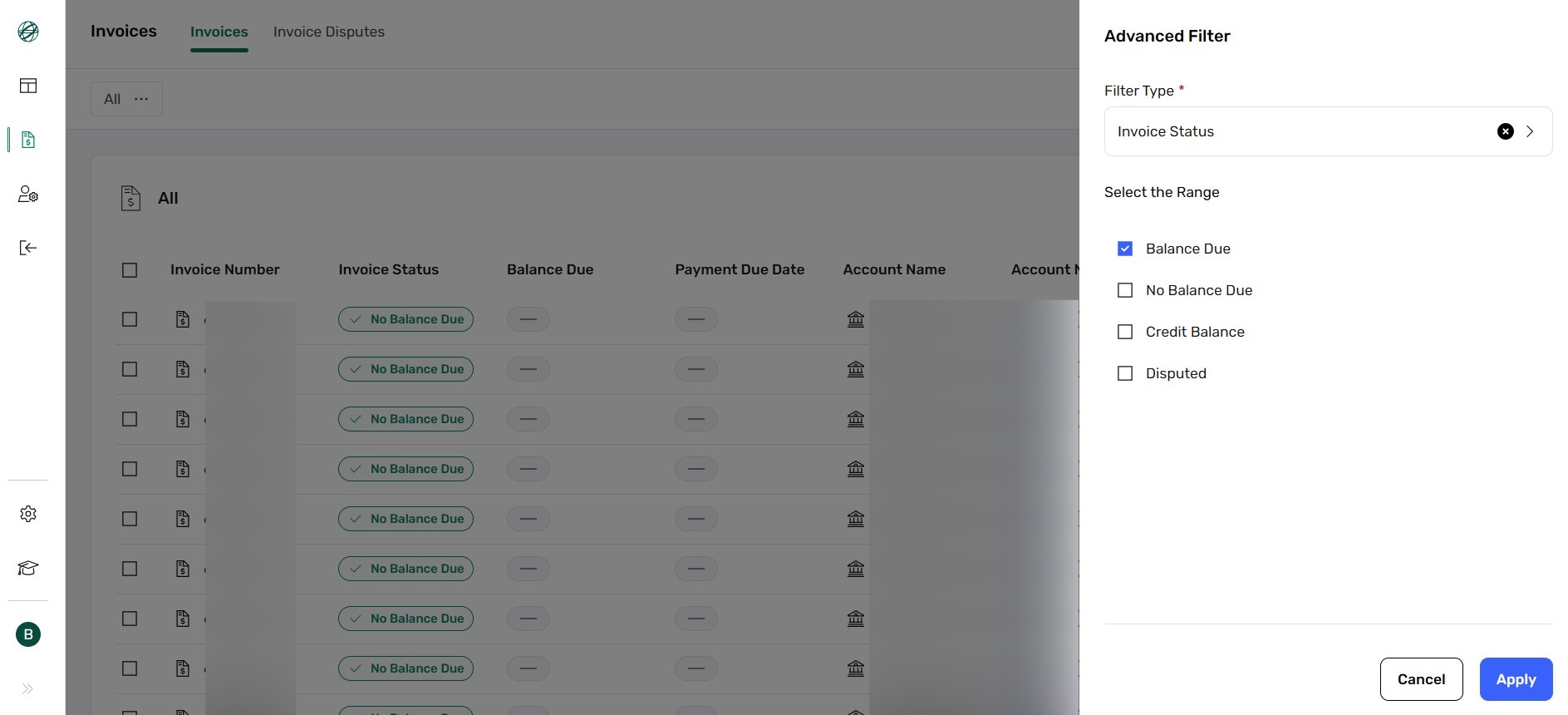
Select filters, e.g., Invoice Status → Balance Due, then click Apply.
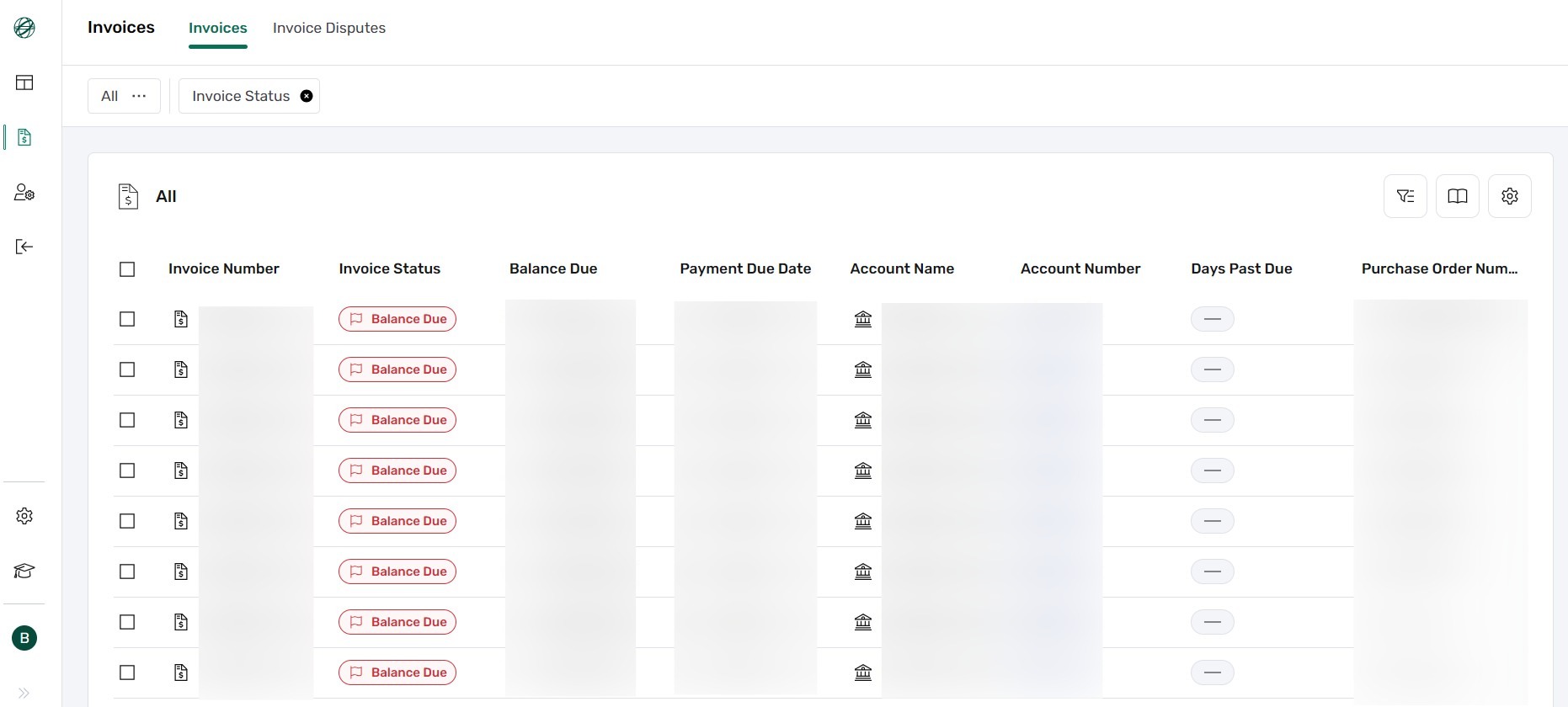
To save this view, click the open booklet icon (Saved Search) marked by number "2".
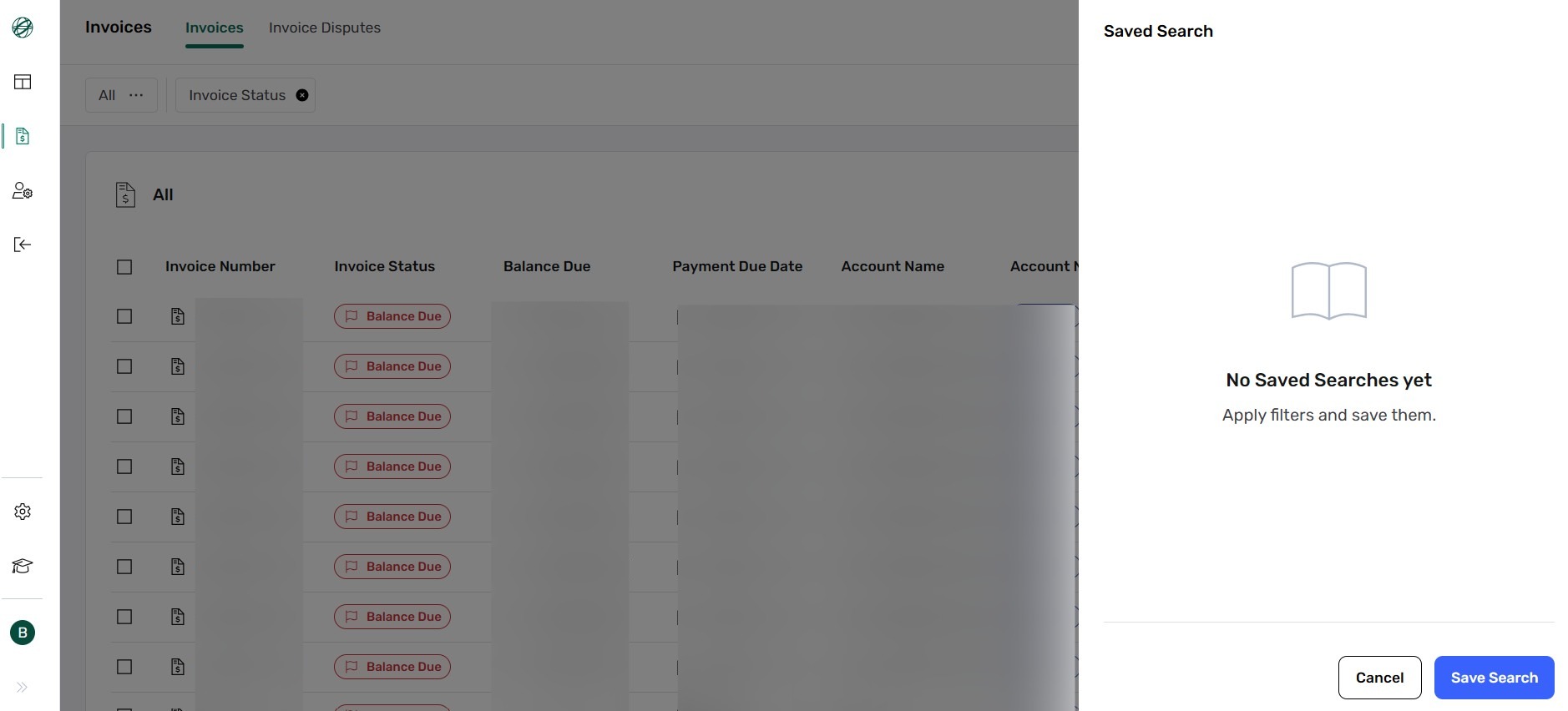
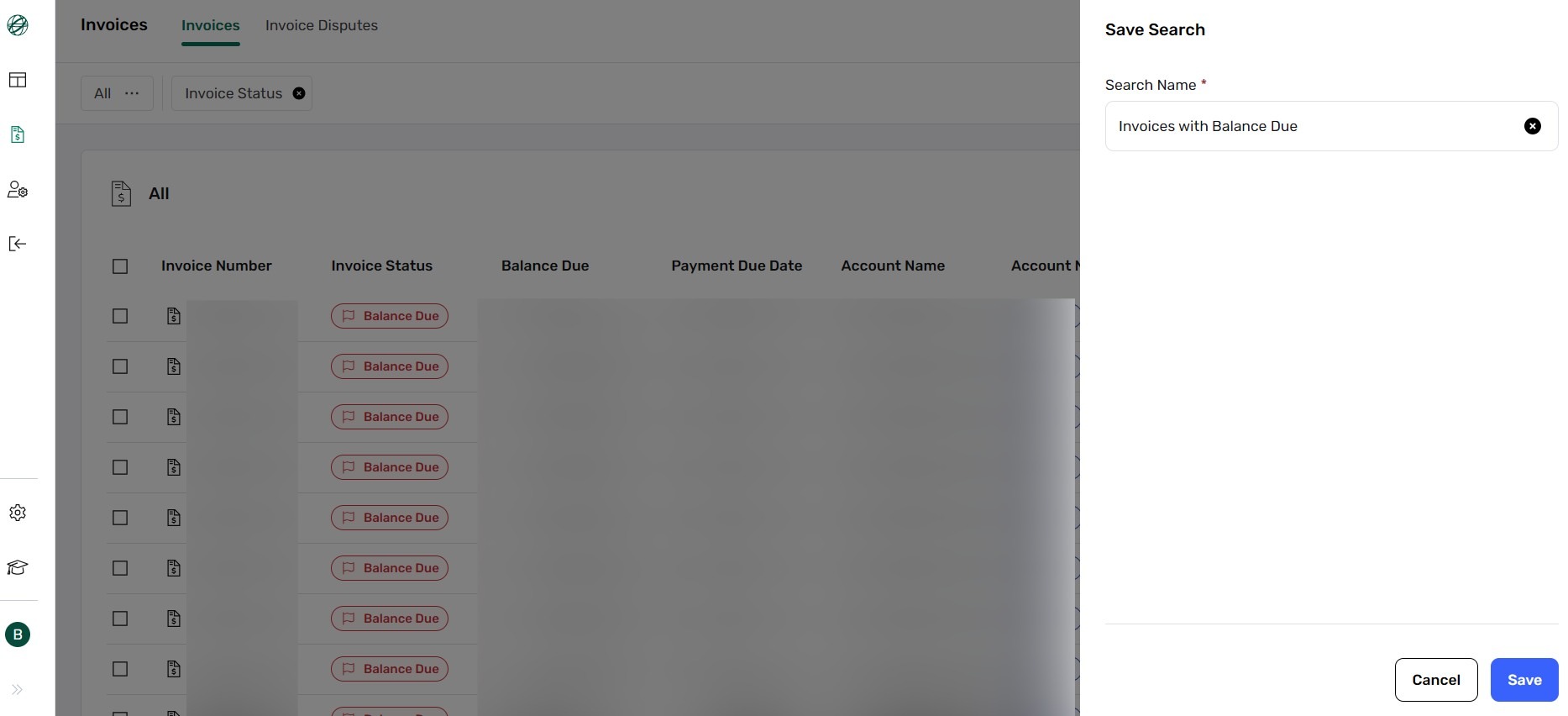
If the list is empty, click Save Search, enter a name, and click Save.
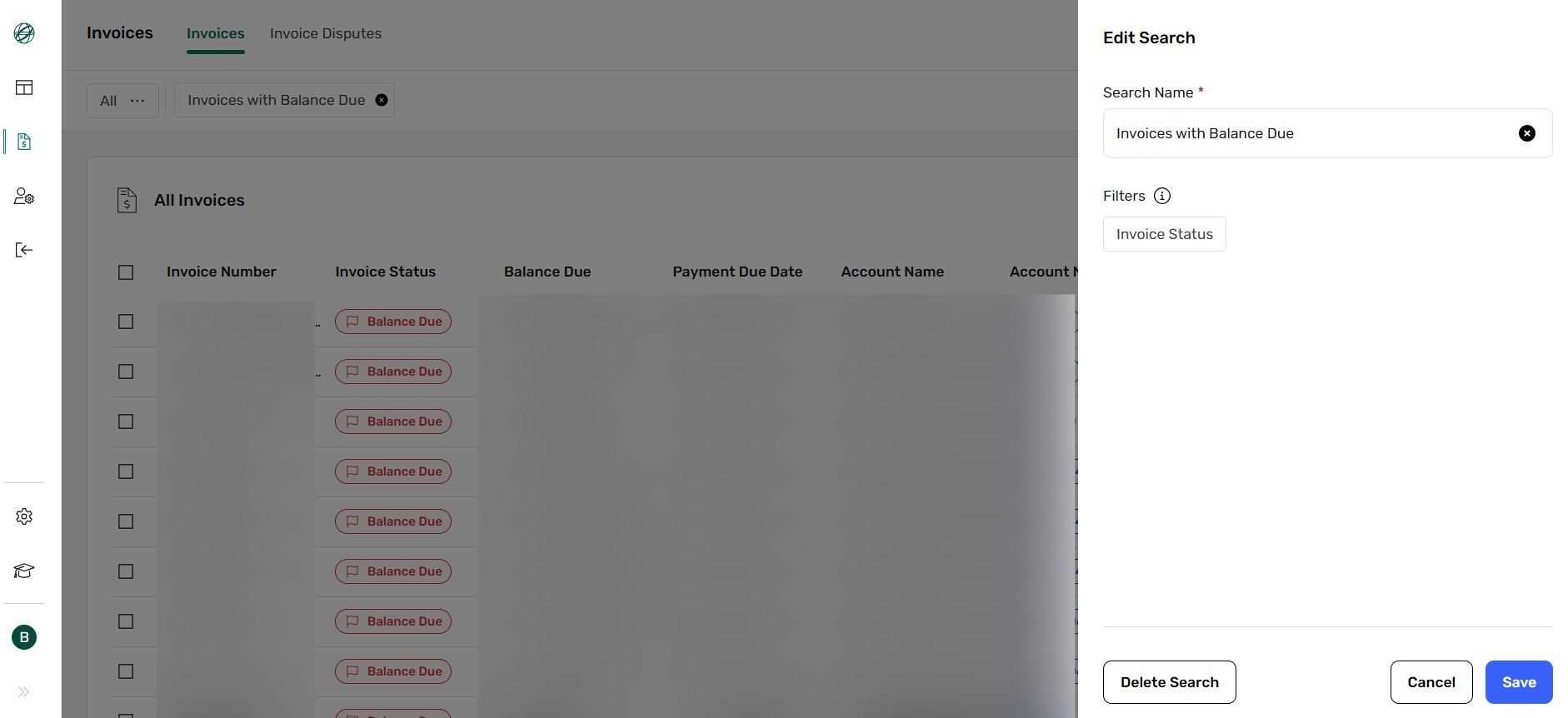
Saved search shows Check (✓) and Pencil icons. Edit or apply saved searches as needed.

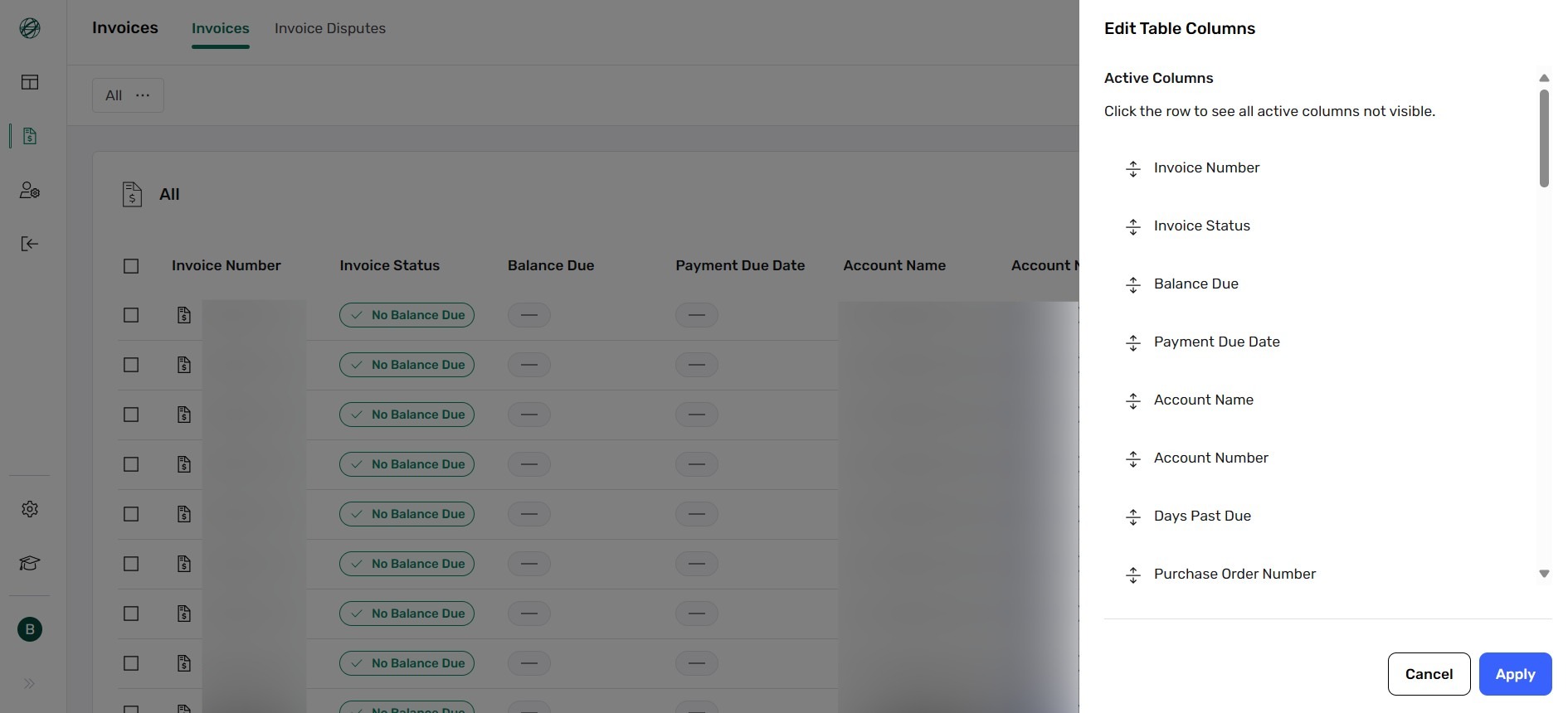
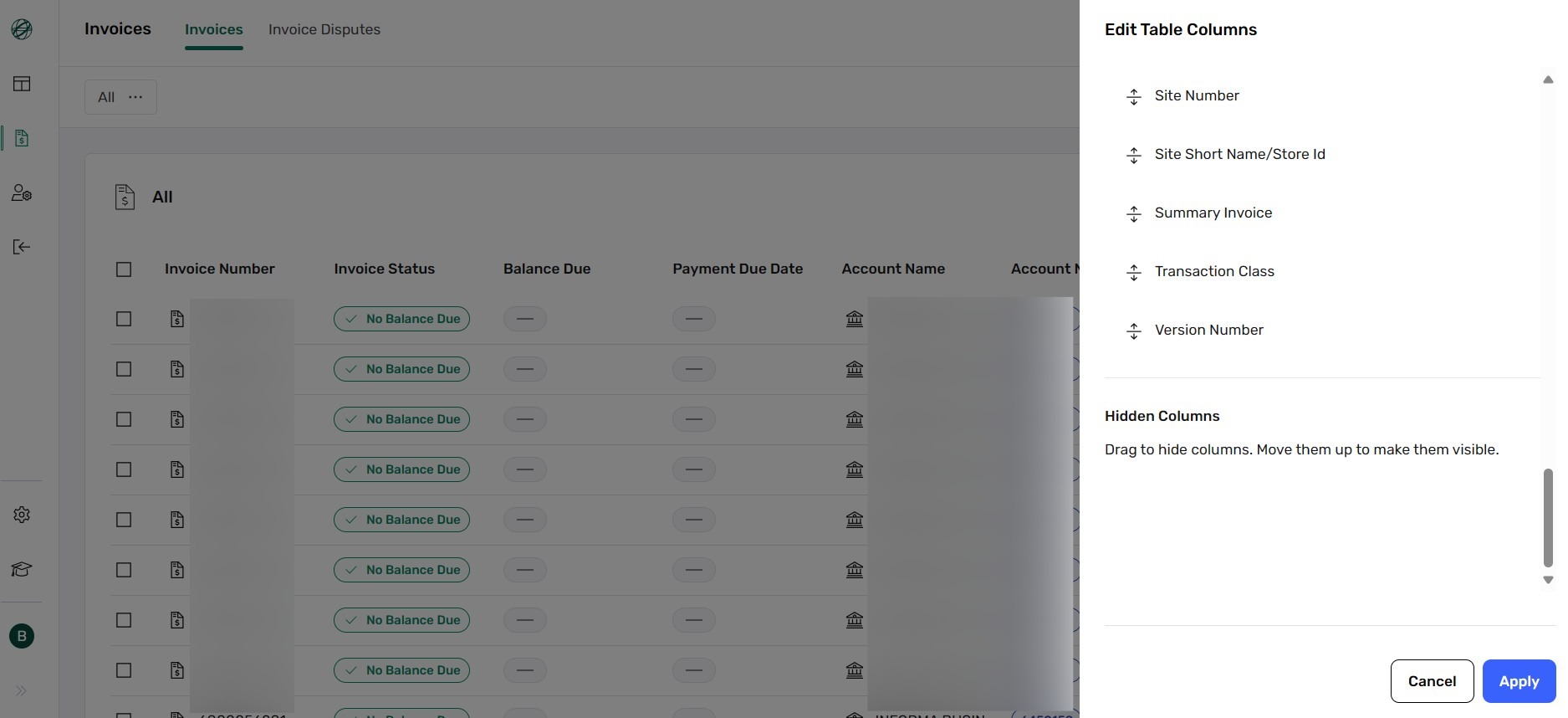
Step 6: Customize Table Columns
Click Edit Table Columns to choose visible columns. Active Columns are displayed, Hidden Columns can be removed via drag-and-drop.
Step 7: View Invoice Details
Hover over a row and click View Statement Details to see full invoice info: Bill To Number, Country, Created By/Date, Currency, Due Amount, Invoice Date/Type, Order and Quote Numbers, Site Info.
Step 8: Take Action on a Single Invoice
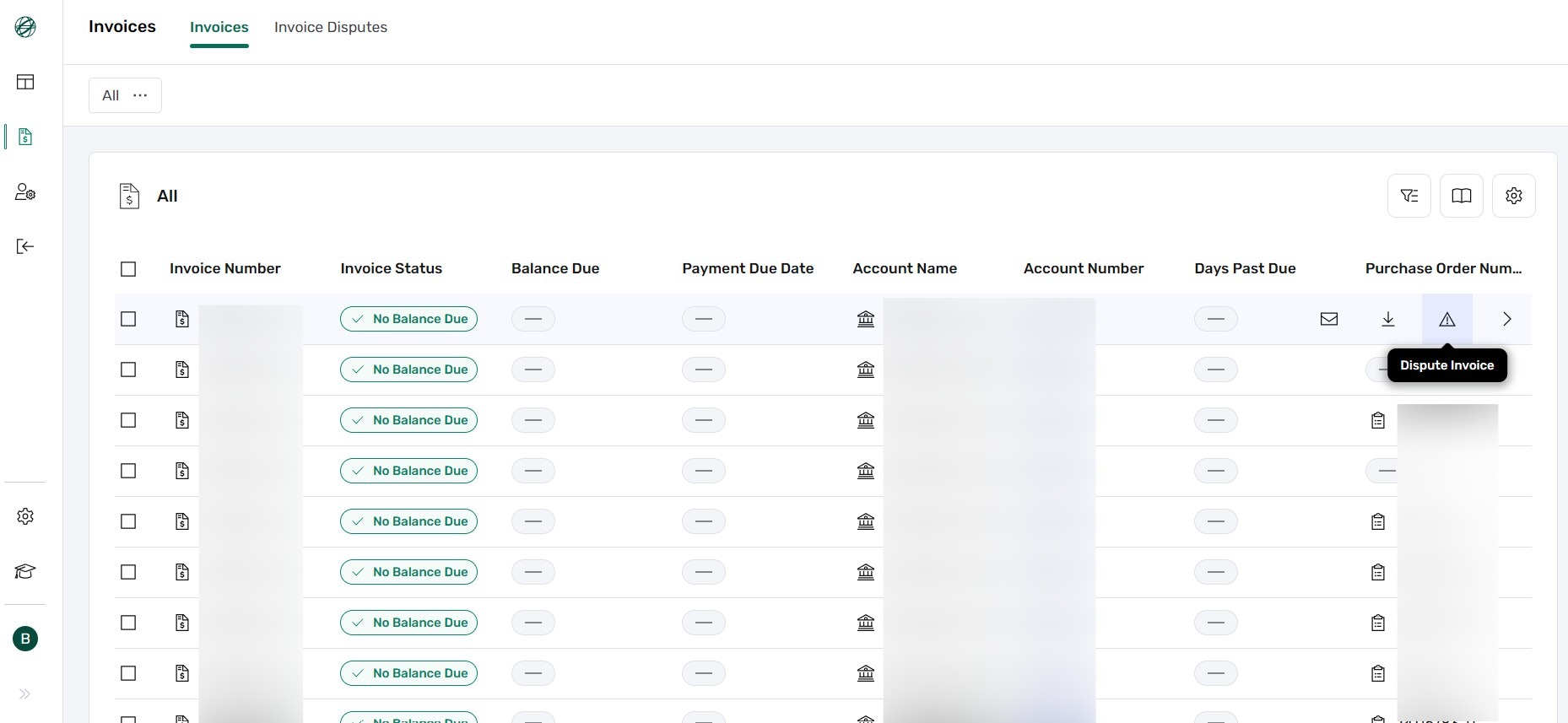
Hover over an invoice row to see four action buttons:
- 📧 Email – Send invoice (PDF/CSV).
- ⬇️ Download – Download invoice (PDF/CSV).
- ⚠️ Dispute Invoice – Open dispute form.
- 🔍 View Statement Details – See full invoice.
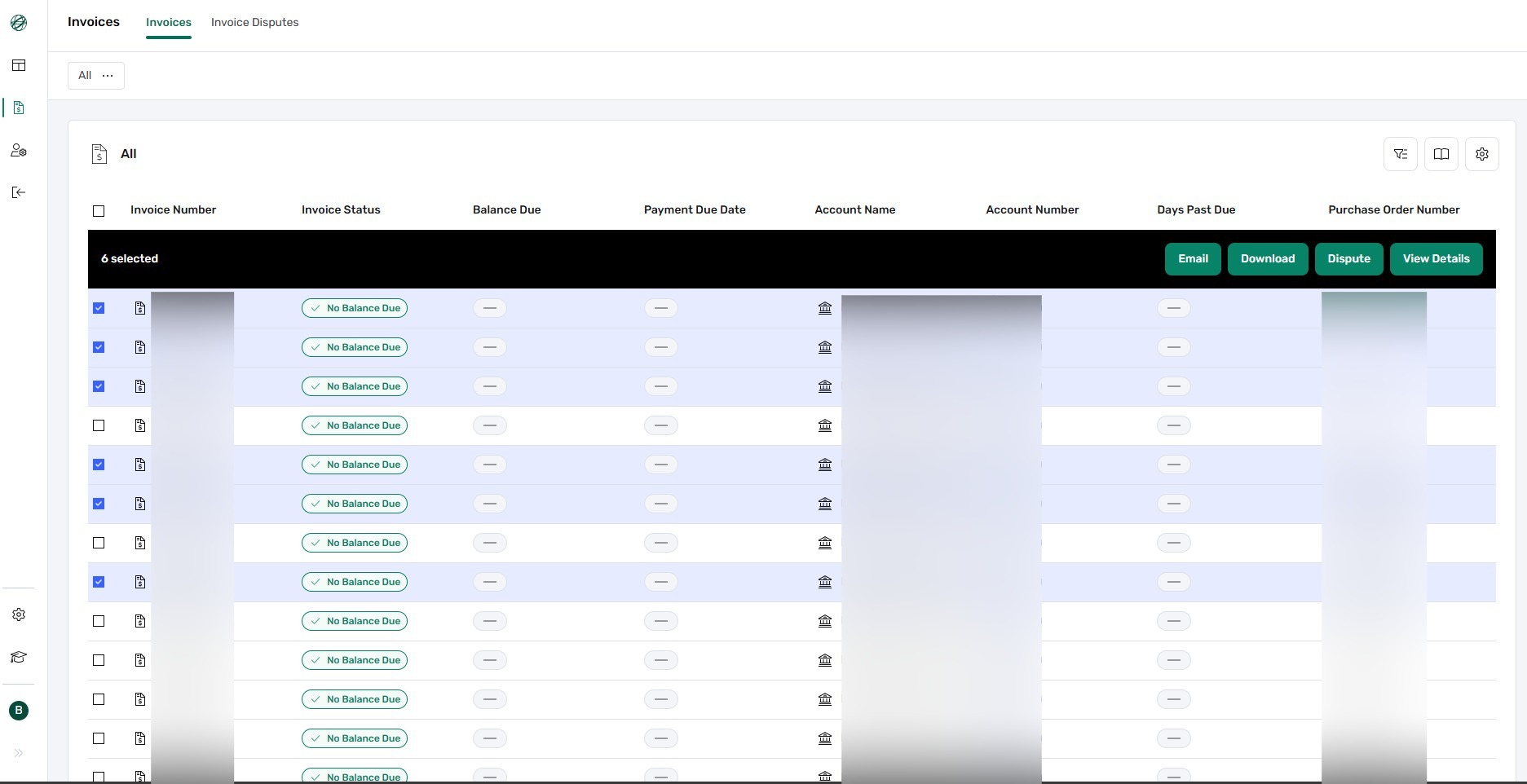
Step 9: Take Action on Multiple Invoices
Select multiple invoices using checkboxes, then email or download in bulk.
Submit an Invoice Dispute
Step 1: Log in to NCR Atleos Central
Use your credentials to sign in to NCR Atleos Central.
Step 2: Open the Invoices Page
On the left-hand vertical menu, click the icon that looks like a page with a dollar sign 💲 to access the Invoices Page.
Step 3: Locate the Invoice You Want to Dispute
Use the Advanced Filter to search for the invoice by criteria such as:
- Invoice Number
- Account Name or Number
- Invoice Status
- Invoice Date or Payment Due Date
- Purchase Order or Quote Number
- Site Name or Country
Step 4: Open the Dispute Interface
Hover over the invoice row you want to dispute. On the right side, click the ⚠️ Dispute Invoice button to open the dispute form.
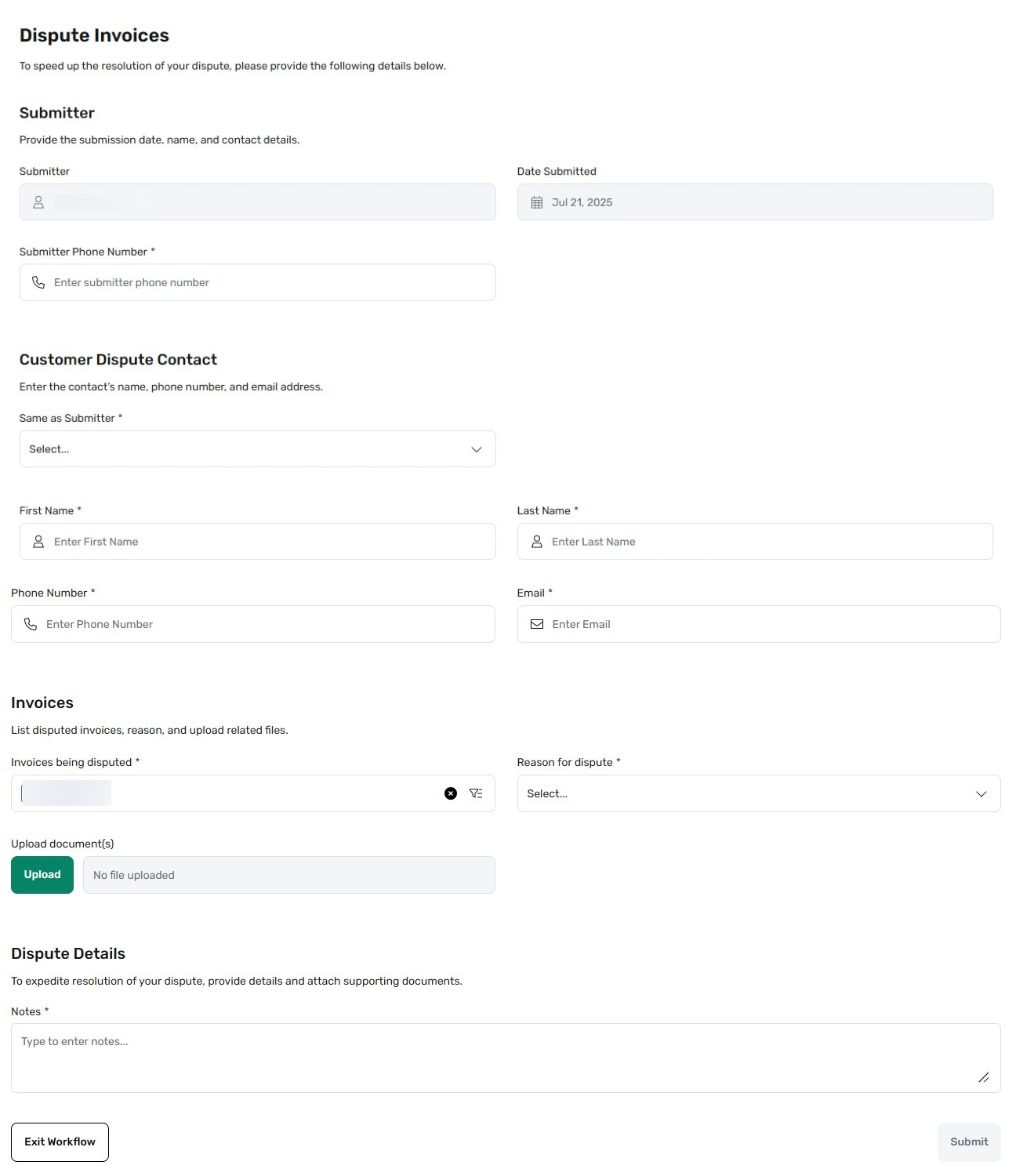
Step 5: Submit the Dispute
Fill out the required fields in the dispute form. Include a clear explanation and any relevant supporting details. Once completed, submit the form to initiate the dispute process.
Step 6: Track Your Dispute
Click the Invoice Disputes tab (next to the Invoices tab) to view the status of all submitted disputes.