Channel Partner Guide
NCR Atleos Central is NCR Atleos’s Partner portal that gives you immediate access to account information and the ability to transact digitally with NCR Atleos. This is where you will find all Partner training documents, certifications, and applications.
Managing Your Profile
Access your profile page by clicking on your profile icon in the bottom left of the page.
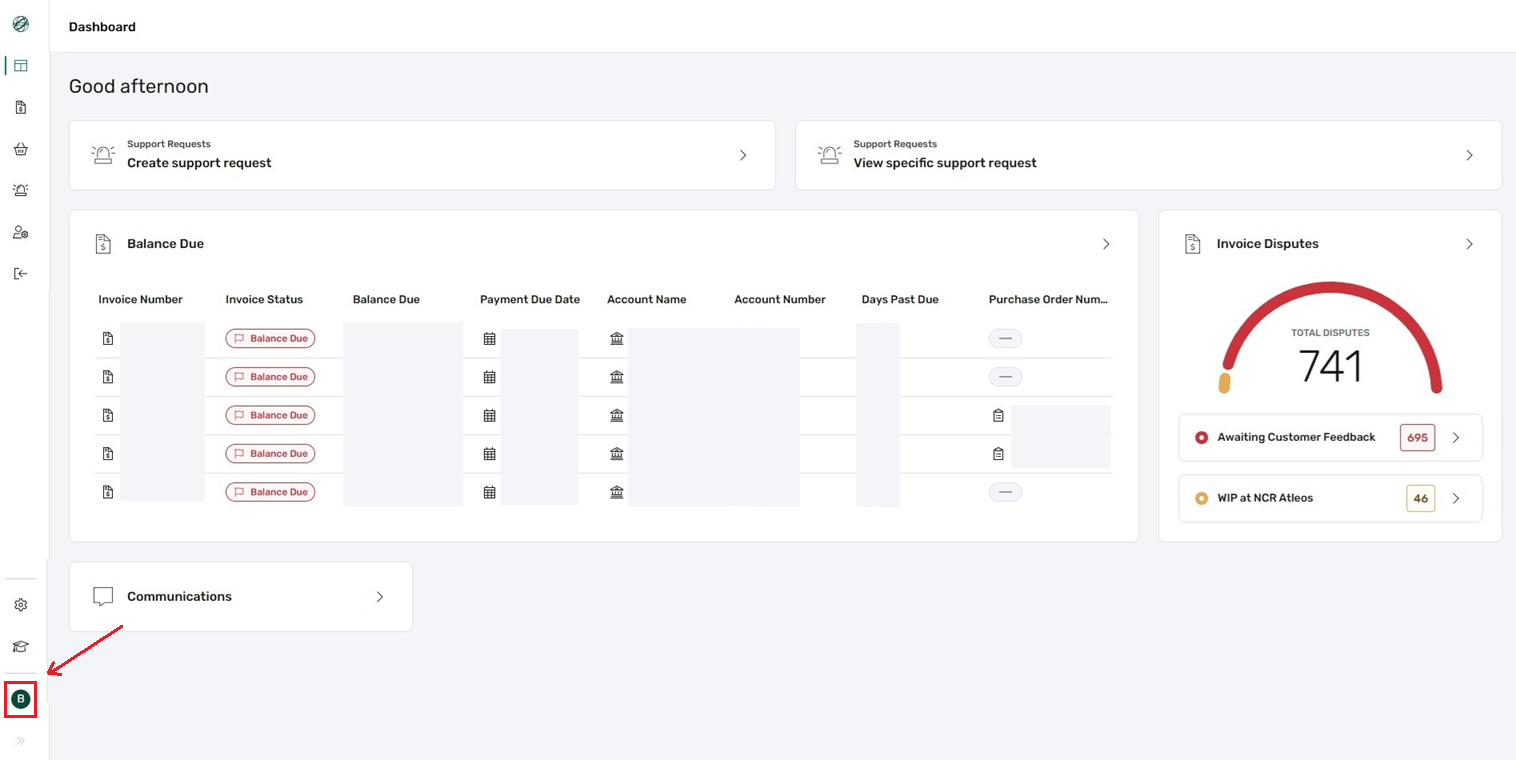
Profile Page
Within your profile page, you will see the User Profile section in the upper part of the page, and the Related Content section in the lower part. The User Profile section contains all the needed profile-related info, such as related email, full name, country, language, and job title.
To edit these details, click the green Edit button in the top right of the User Profile section.
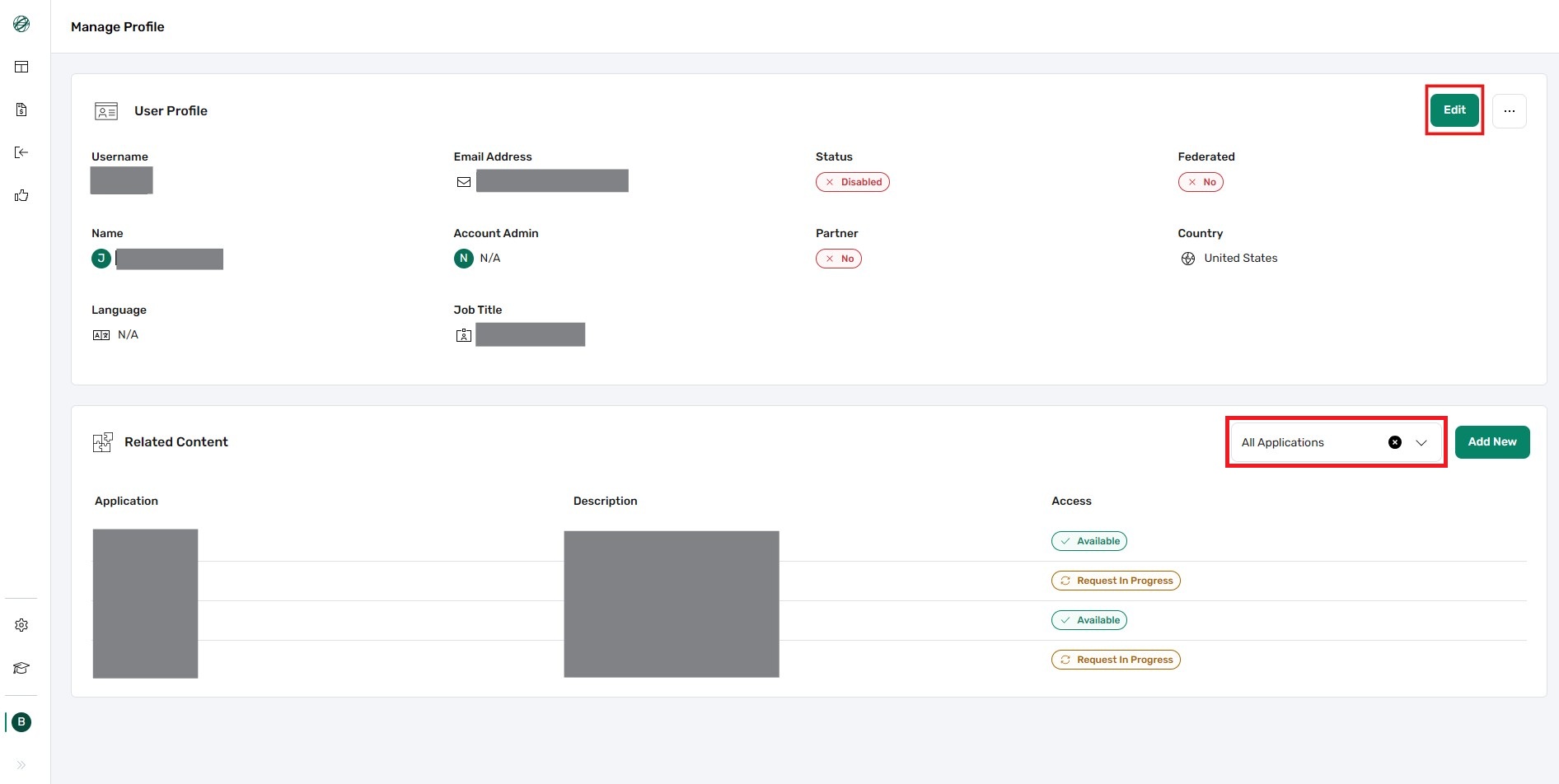
Accounts & Permissions
Accounts Option
In the Accounts option from the dropdown, you will see a list of NCR Atleos Master Account Numbers to which you are linked and have access.
Permissions Option
In the Permissions option, you can view your access configuration related to your account.
Applications
The Applications tab will show a list of applications that are available for use, as well as others that are available to add or request based on your Master Account Number linkages.
Applications with "Request Access" require NCR Atleos approval, while applications with "Add App" can be accessed as soon as the app is added to the user's profile.
The main Partner Applications are:
- Partner Network Resource Center
- NCR Atleos Product and Services Certification (NCRU)
- NCR Atleos Product and Services User Guides (Seismic)
Quasar Report
The Quasar Report is managed via permission settings. To enable it, navigate to your user profile page, scroll down to the Related Content section, select the Permissions option from the dropdown menu, and toggle the Quasar Access permission on.
After you enable Quasar Access, the side menu will include an icon that opens the Quasar Report page.
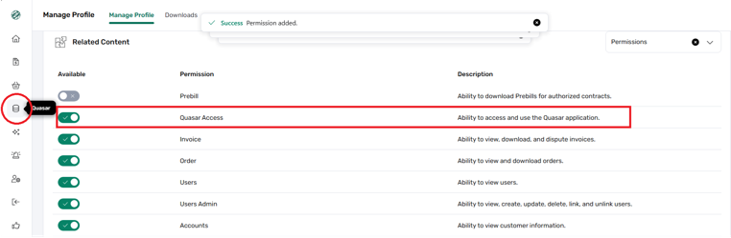
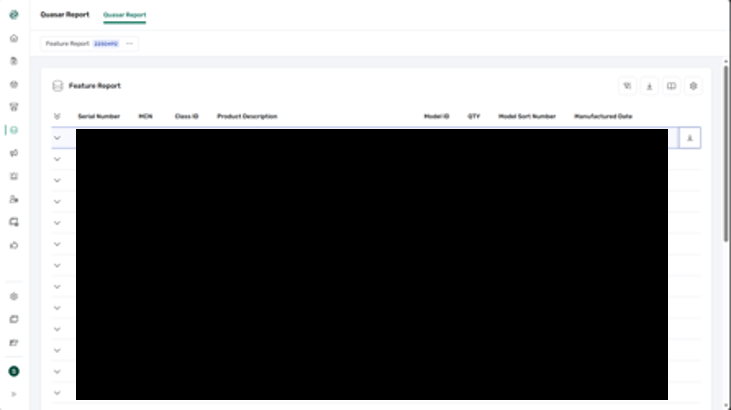
Navigate to the page. You will see a preloaded table based on the Account Number (MCN) assigned to your profile.
Downloads
You can download a single serial number record using the row action:

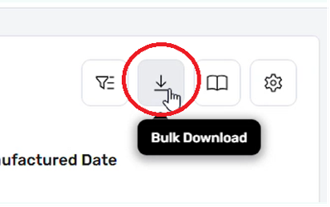
Or you can download in bulk (up to 25,000 records):
Filtering
Advanced Filters

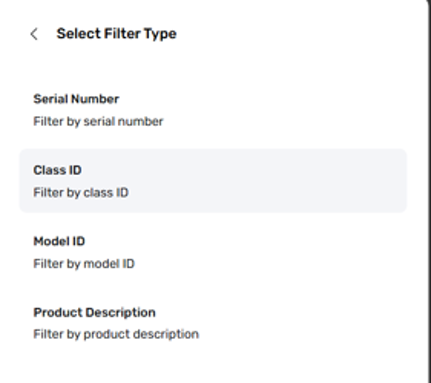
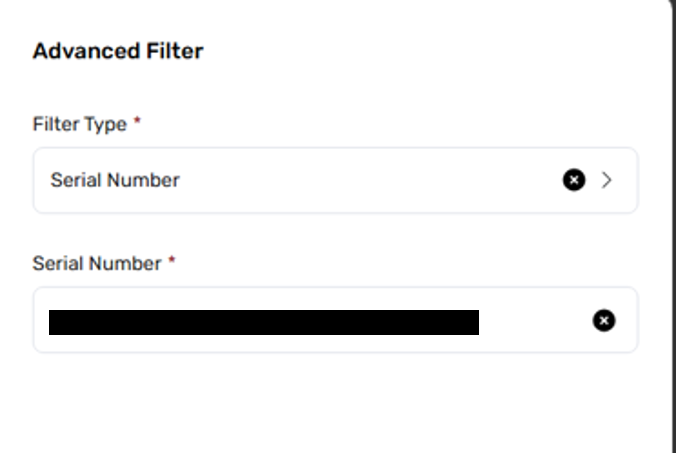
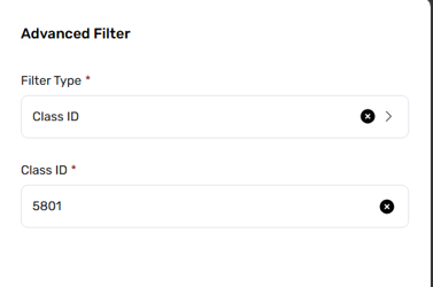
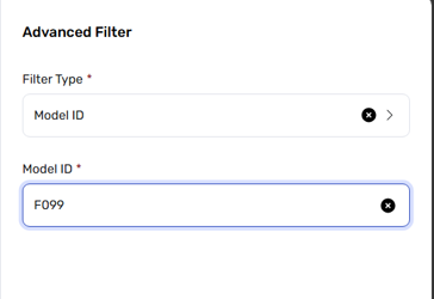
There are four advanced filters available:
- Serial Number
- Class ID
- Model ID
- Product Description
Serial Number Search
You can perform a single search:
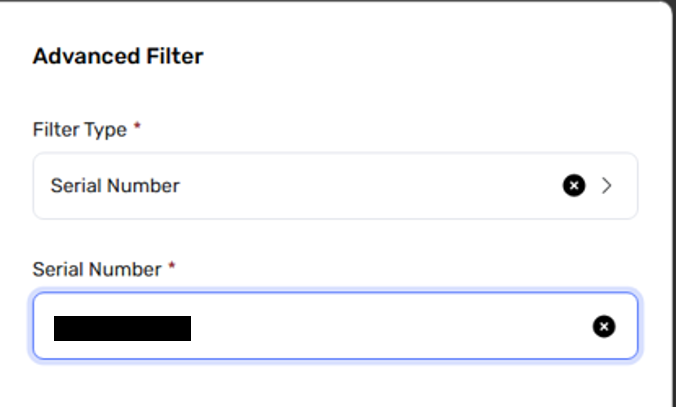
Or provide several, separated by commas (,):
Class ID
You can search one item at a time.
Model ID
You can search one item at a time.
Product Description
You can search one item at a time.
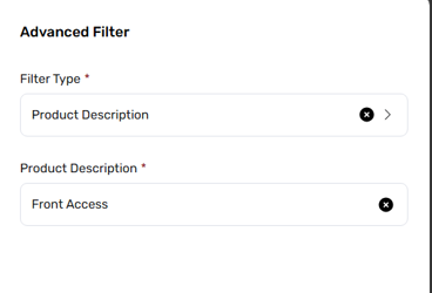
Applying these filters narrows searches from millions of records down to single digits or tens.

Saved Search
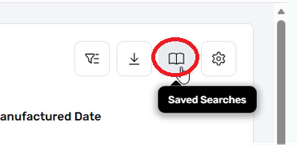
You can save searches created with advanced filters and reuse them from this tab.
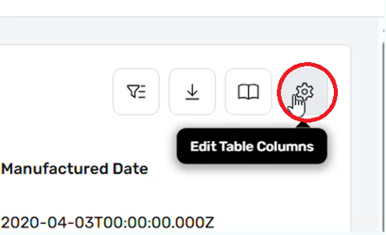
Edit Table Columns
You can adjust table columns to show or hide the columns you need.