FAQs
See below for frequently asked questions regarding account set up, credentials, and applications.
First-Time Login
NCR Atleos Central uses Multi-Factor Authentication (MFA) to protect your account. Sign in using your registered email address; usernames are no longer supported. A detailed MFA Login Process PDF is also available from this Training Center.
First-Time Login: Email Verification Required
If you have recently been registered but have not yet completed your first login, you must use email-based MFA for your initial verification. The Authenticator App option can be used for subsequent logins after initial setup.
Step 1: Enter Your Email Address
Open the NCR Atleos Central login page at portal.ncratleos.com and enter the email address associated with your account.
Step 2: Verify by Email
Choose Email OTP when prompted for verification. Retrieve the one-time verification code sent to your registered email inbox, enter it in the portal, and select Verify. Check your Spam or Junk folder if the email does not arrive.
Step 3: Create Your Password
When prompted, create and confirm your password. It must contain at least 14 characters, including an uppercase letter, a lowercase letter, a digit, and a symbol. Continue to complete your initial login.
Step 4: Subsequent Logins
After your first login, you may use email verification or configure an authenticator app as an MFA method where available. Follow the portal prompts to configure your preferred method. If the app presents a QR code, scan it with an authenticator app, then enter the generated verification code.
Note: If your registered login email must change, your organization’s authorized Customer Administrator must arrange the appropriate account change. Use the Existing Account Support Form if administrator assistance is unavailable.
Returning Users
Step 1: Enter Your Email Address
Go to portal.ncratleos.com and enter your registered email address. Usernames are no longer supported.
Step 2: Enter Your Password
Enter your password. The login page also provides a Forgot your password? link if needed.
Step 3: Complete MFA
For subsequent logins, you can verify using a code sent to your registered email address or, if configured and available for your account, your authenticator app. Use Switch to Authenticator App or Switch to Email OTP when those options appear.
Step 4: Enter the Verification Code
Enter the current verification code and complete sign-in. Codes are time-sensitive; request a new code if the previous one has expired.
Important: First-time login verification must use email MFA. Authenticator app verification is an option for later logins.
MFA Enhancements
The following MFA enhancements have been rolled out and are now active for all NCR Atleos Central users.
1) Authenticator App Verification Option
Users can receive a one-time verification code through an authenticator app based on their selected MFA preference, reducing sign-in steps and speeding up access.
- Sign in using your email address and password.
- If Authenticator App is your selected MFA method, a one-time code will automatically appear in your app.
- Enter the code to complete sign-in.
2) MFA Preference Management
Users can set and change their preferred MFA method at any time, choosing between Email or Authenticator App.
Access Instructions
If you are experiencing issues where applications are not working as expected or are redirecting you back to the dashboard, please ensure you are accessing the portal correctly:
- Please ensure you are typing portal.ncratleos.com directly into your browser's address bar.
- Avoid using saved bookmarks or direct links to specific application URLs (such as ao.portal.ncratleos.com), as these may cause session or access issues.
Troubleshooting
Q: I cannot see my permissions in the portal. What should I do?
First, sign out and sign back in. If permissions remain missing, follow the browser application storage-clearing instructions below. If the issue persists, contact your authorized Customer Administrator or submit the Existing Account Support Form.
Q: How do I clear my browser's application storage to restore missing permissions?
If your permissions are not displaying correctly in NCR Atleos Central, follow these steps to clear the portal's stored application data and refresh your session.
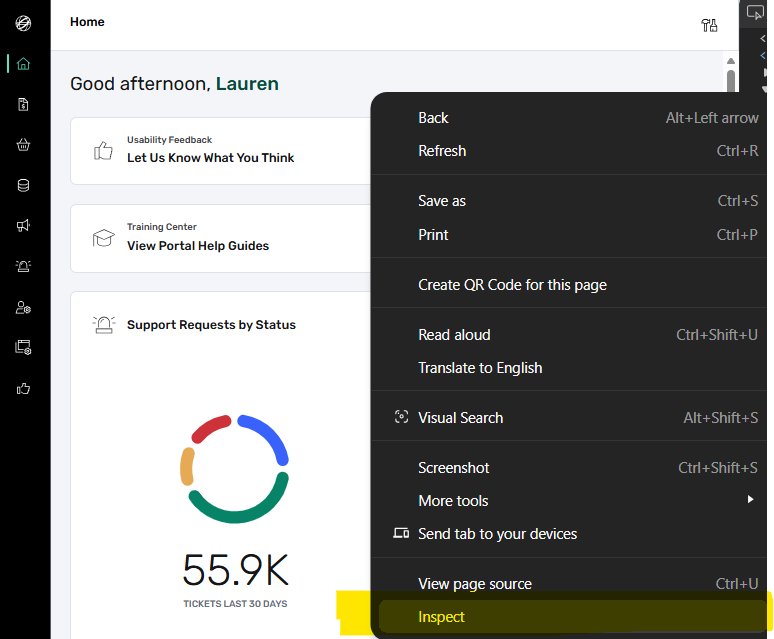
1. Log in to NCR Atleos Central. Right-click anywhere within the portal and select Inspect to open your browser's Developer Tools.
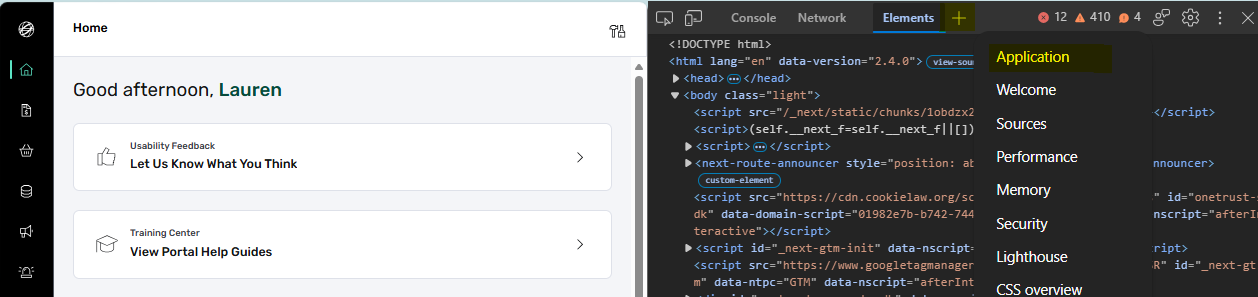
2. In Developer Tools, select the Application tab. If it is not visible, use the plus sign or double arrows in the tab bar to find it.
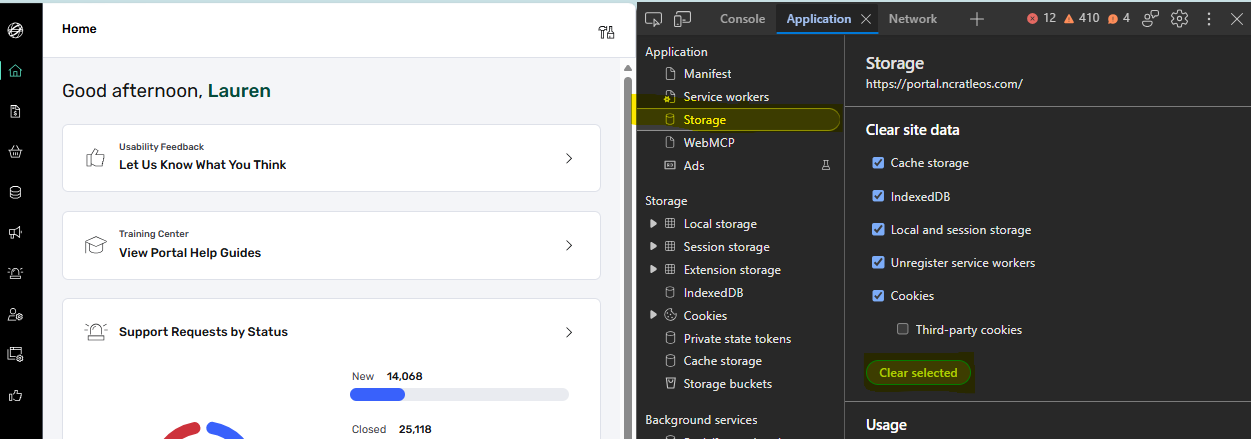
3. Under Application, select Storage. In the main pane, click Clear selected to clear the selected application storage for the portal.
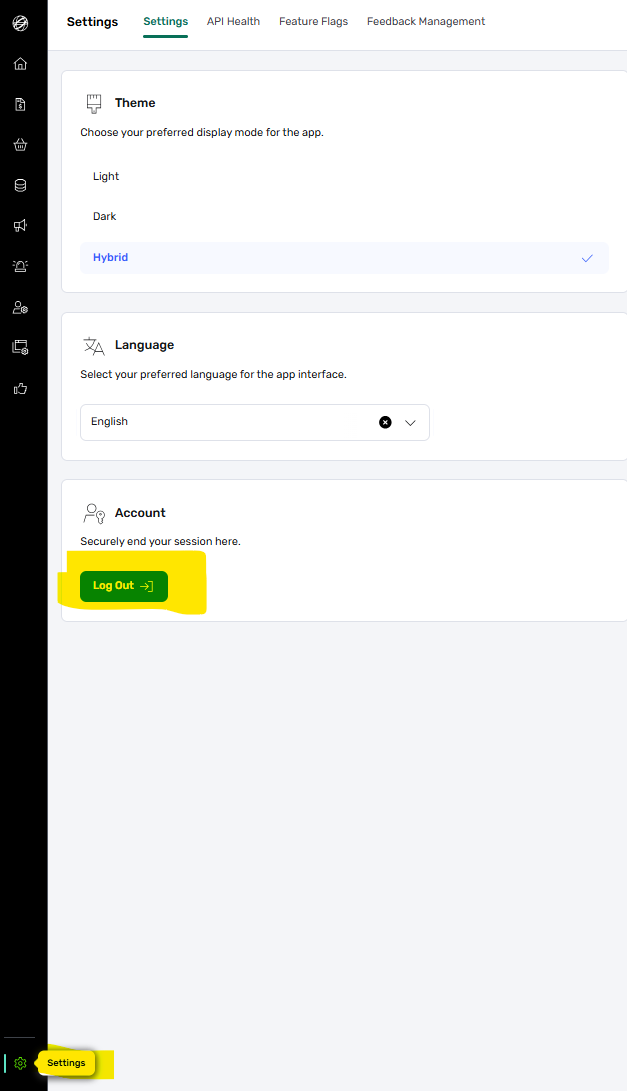
4. Log out of NCR Atleos Central through the Settings page. Then log back in and check whether your permissions are visible.
Important: These steps clear the selected portal application storage in your browser. They do not grant new permissions. If your access is still missing, contact your Customer Administrator or use the Existing Account Support Form.
Q: I did not receive my verification code. What should I do?
Check your Spam or Junk folder. If the code does not arrive within a few minutes, request another verification code. If the problem persists, confirm your registered email address with your Customer Administrator or use the Existing Account Support Form.
Q: I entered the verification code, but it says Invalid Code.
Verification codes expire. Request a new code and enter it promptly.
Q: How do I reset my Authenticator App or scan a new QR code?
Self-service authenticator resets may not be available. Contact the Global Help Desk to request an MFA reset. Once reset, follow the setup prompts at your next login.
Global Help Desk email: GlobalHelpdesk.Feedback@ncratleos.com
Global Help Desk phone: 1-832-308-4998
Q: I forgot which email is linked to my account.
Your registered email address is your login ID. Contact your Customer Administrator or use the Existing Account Support Form if you cannot identify it.
Q: Can I change the email address used for login?
The login email cannot simply be reassigned to another address. Contact your Customer Administrator or use the Existing Account Support Form for guidance on the required account change.
Q: I receive a Server Error during login.
Try a private or incognito browser window. You can also follow the browser storage-clearing FAQ above, then sign in again. If the problem persists, contact support.
Resetting Your Password
Important MFA Requirement: When resetting your password, you must complete the MFA verification first before creating a new password. Please download the Microsoft Authenticator app to scan the QR code or select to authenticate by email to complete MFA. You will then be prompted to set a new password.
If you've already completed First Time Log On but cannot access your account, you can reset your password directly from the login screen by following the steps below.
- Click "Forgot your password?" – On the login screen, click the "Forgot your password?" link located beneath the password field.
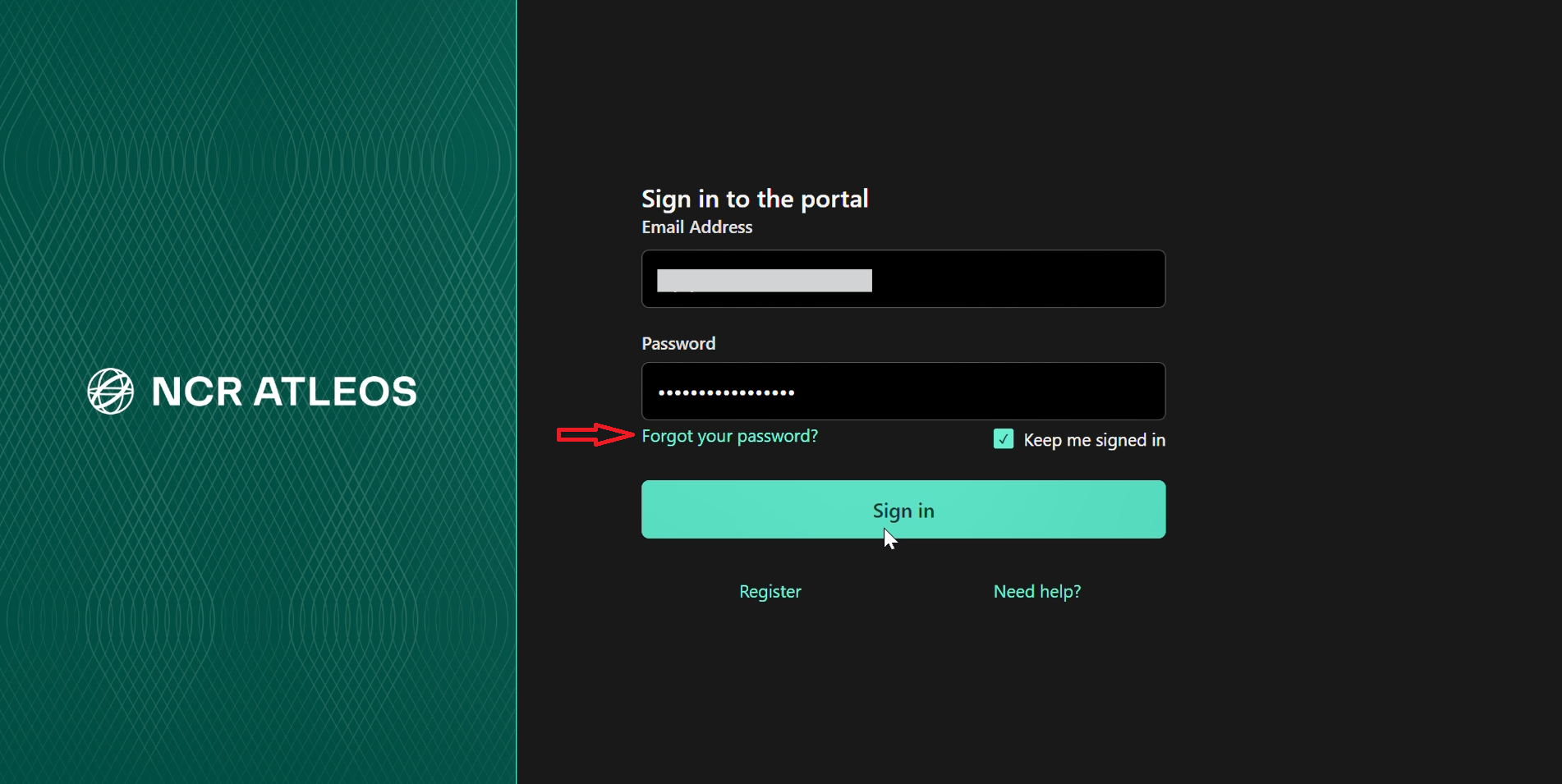
- Enter Your Email and Send the Verification Code – You will be presented with a screen prompting you to enter your email address. Type in the email associated with your account, then click the "Send verification code" button. A verification code will be sent to your registered email inbox.
- Enter the Verification Code and Verify – On the next screen, enter the code you received in the "Verification Code" field, then click "Verify code".
- Request a New Code (If Needed) – If the code does not work or has expired, click the "Send new code" button — located on the same screen as the "Verify code" button — and enter the newly received code in the "Verification Code" field.
Tip: Verification codes are time-sensitive, so enter the code promptly after receiving it. If you don't see the email within a few minutes, check your Spam/Junk folder before requesting a new code.
Once your identity is verified, you will be prompted to set a new password. Remember, your new password must differ from previously used ones.
If you are still unable to reset your password, contact your assigned Customer Administrator or use the Existing Account Support Form.