Allpoint Guide
Learn how to access the Allpoint module, review BIN transaction reports and export your data.
Allpoint Introduction
The Allpoint module in NCR Atleos Central gives you one place to review transaction activity for your BINs across the Allpoint ATM network. This guide shows you how to open the module, read the Transaction Report, filter and save searches, and export your data for further analysis.
Allpoint Access and Permissions
Allpoint case management and the BIN Capability Matrix use separate permissions. Access to one feature does not automatically provide access to the other.
Allpoint Cases allows appropriately authorized users to view open and resolved Allpoint cases. The BIN Capability Matrix allows appropriately authorized users to review BIN capability and enablement information.
If a feature is unavailable, ask your organization's User Administrator to review your assigned permissions. If your organization has no User Administrator, contact your NCR Atleos representative.
Download BIN Capability Matrix Data
Authorized users can review BIN capability and enablement information in the Allpoint BIN Capability Matrix. The matrix supports filtering and exporting data, including a Download All capability for offline review.
The information available to you depends on your assigned access permissions.
Suggested Procedure
- Open the BIN Capability Matrix.
- Locate the Download All action.
- Select it and review the downloaded file.
Allpoint Permissions & Reporting
1. Accessing the Module
Once your permissions are active, look at your left-hand vertical navigation bar. You will notice a new Allpoint icon, which resembles a paper bill or receipt.
Simply click this icon to enter the dedicated Allpoint workspace. This area is centralized to handle all your BIN-specific transaction data and reporting needs.

2. The Transaction Report View
Upon entering the Allpoint page, you are greeted by the Transaction Report dashboard. This view is designed for high-level oversight, organizing complex data into a readable table format.
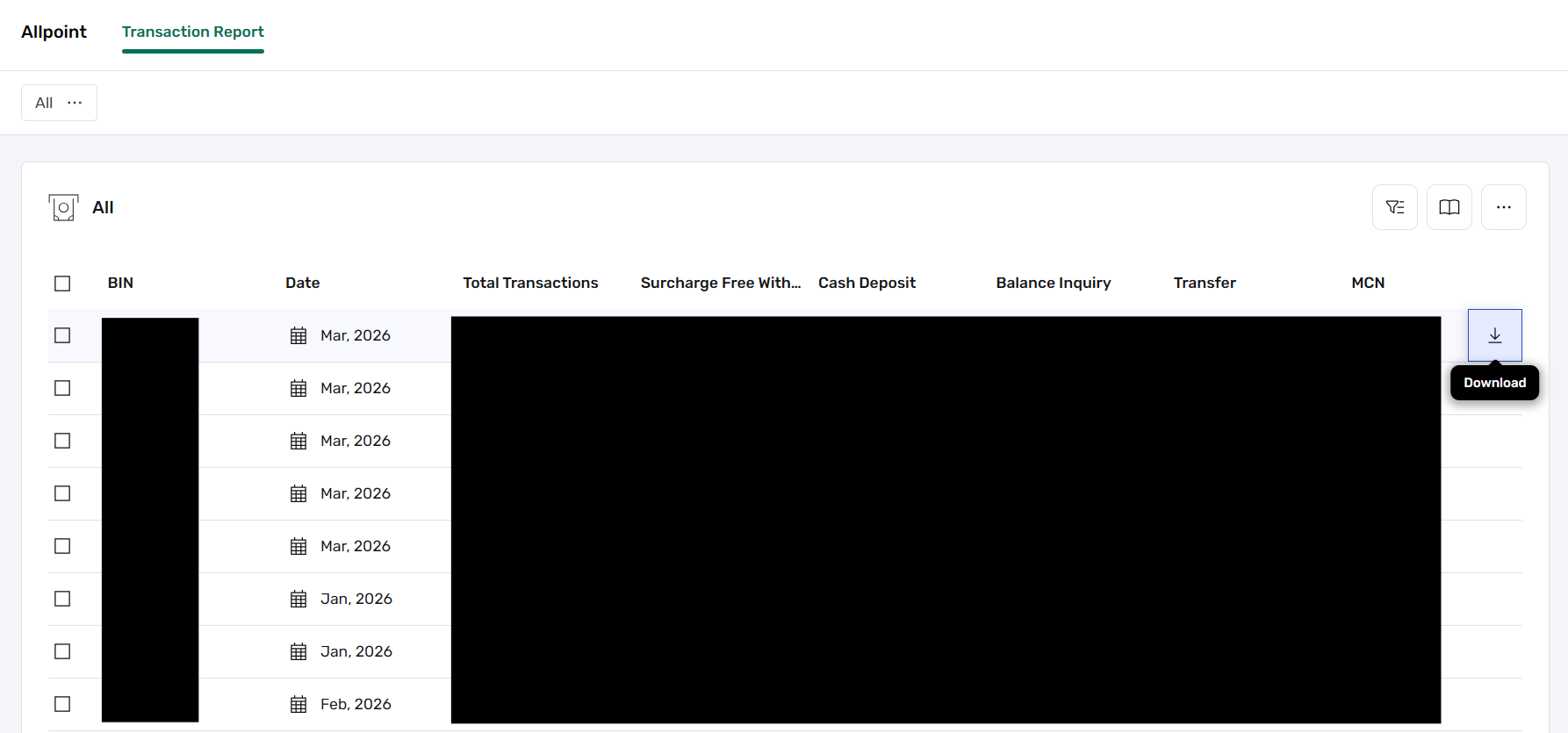
In this table, you can track essential metrics including BIN, Transaction Date, and MCN. It also breaks down activity by type—such as Surcharge Free Withdrawals, Cash Deposits, and Balance Inquiries—giving you a clear picture of ATM usage across your network.
3. Searching and Customizing Your Data
To the top-right of the dashboard, you’ll find the Advanced Filter and Saved Searches buttons. These tools allow you to drill down into specific data sets or save your most frequent search criteria for future use. If you need to change which columns are visible, use the More Actions menu to edit the table layout.
4. Exporting Reports
When you need to take your data offline for further analysis, Allpoint provides a seamless export path. By hovering over a specific row in the report, a download icon will appear.
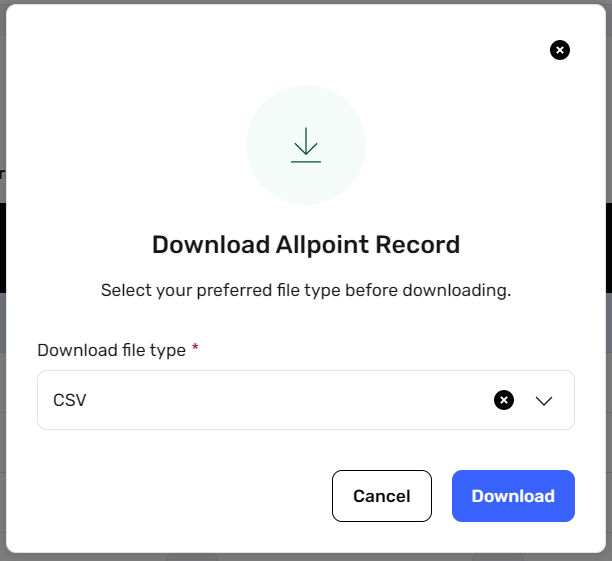
Currently, the system supports CSV as the primary export format. This ensures that the data is ready for import into Excel or other analytical tools immediately upon download.